
At a glance: Plan: Galleryberg Pro · Added in version 1.2.1 · Requires the lightbox · Uses native WordPress comments · Last checked: Galleryberg 1.2.1 (November 2026)
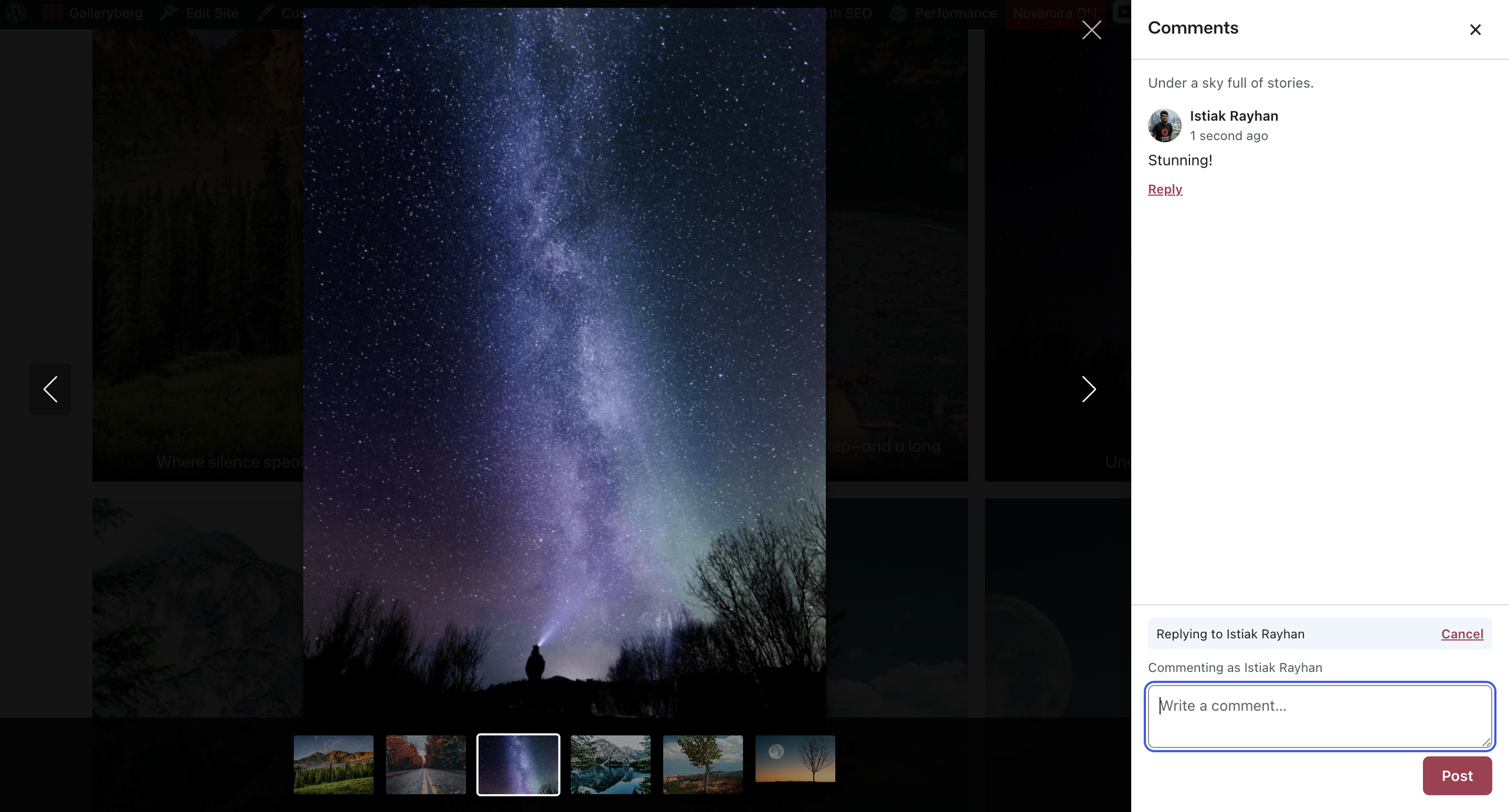
Galleryberg Pro lets visitors leave comments on each image in a gallery. Comments open in a panel inside the lightbox, so people can talk about a specific photo without leaving the page. To turn it on, select the Galleryberg Gallery block, make sure Enable Lightbox is on, then open the Comments panel and turn on Enable comments.
How to enable comments on gallery images #
- Select your Galleryberg Gallery block by clicking the Galleryberg icon in the block toolbar.
- Open the Lightbox panel and turn on Enable Lightbox. Comments open inside the lightbox, so they need it.
- Open the Comments panel and turn on Enable comments.
- Choose the panel options described below, then update the page.
- On the front end, click an image to open the lightbox, then click the Comments button in the top right corner to read or write comments.
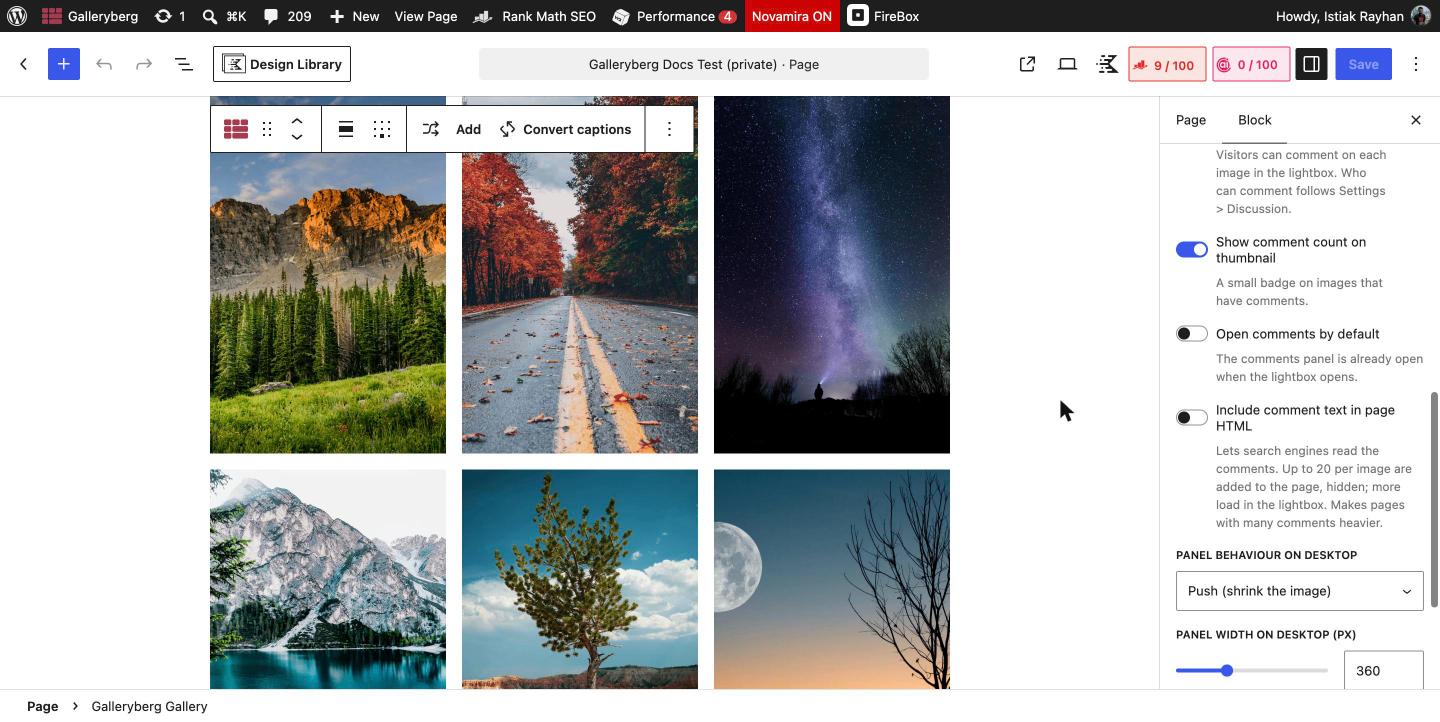
Comments settings explained #
| Setting | What it does | Default |
|---|---|---|
| Enable comments | Lets visitors comment on each image in the lightbox. | Off |
| Show comment count on thumbnail | Shows a small badge on gallery images that already have comments. | On |
| Open comments by default | The comments panel is already open when the lightbox opens. | Off |
| Include comment text in page HTML | Adds up to 20 approved comments per image to the page HTML, hidden, so search engines can read them. More comments load in the lightbox. Pages with many comments get heavier. | Off |
| Panel behaviour on desktop | Push (shrink the image) makes room for the panel. Overlay (float over the image) places the panel on top of the image. | Push |
| Panel width on desktop (px) | Width of the comments panel on desktop, from 300 to 480 pixels. | 360 |
| Disable comments on this image (image setting) | Hides the comments panel for one image. Select the image inside the gallery to find it. | Off |
Who can comment and how moderation works #
Image comments are regular WordPress comments, so they follow your existing rules. Galleryberg does not add its own comment settings for permissions.
- Who can comment follows Settings > Discussion: whether users must be logged in, whether name and email are required, how deep replies can be threaded, and whether avatars show.
- Moderation happens on the normal Comments screen in wp-admin. Galleryberg adds a Gallery images view there that lists only image comments, with a Gallery on column showing which page each comment came from.
- Spam protection such as Akismet, comment notifications and approval rules all work as usual.
- Each gallery keeps its own threads. A comment belongs to an image as used in one gallery on one page, so the same photo used in two galleries has two separate conversations.
- Gallery image comments do not appear on the image attachment page.
Requirements and limits #
- The lightbox must be on. With the lightbox off, the Comments panel shows: “Comments open in the lightbox. Enable the lightbox to use them.”
- The page must be published and public. On private, draft or password-protected pages the panel shows “Comments are not available for this image.”
- Comments are not available for galleries that use a Dynamic Gallery (ACF or SCF) source yet.
- The panel loads 20 top-level comments at a time.
Related docs #
- How to Use the Lightbox
- Dynamic Galleries from ACF and SCF Fields
- Galleryberg Performance, SEO and Accessibility
- Troubleshooting Common Galleryberg Issues
Frequently asked questions #
Can visitors comment on individual images in a WordPress gallery? #
Yes, with Galleryberg Pro 1.2.1 or later. Turn on Enable Lightbox and then Enable comments on the gallery. Each image gets its own comment thread inside the lightbox.
Are Galleryberg image comments stored as normal WordPress comments? #
Yes. They are saved as native WordPress comments, so moderation, spam filtering, notifications, threading and avatars all work through WordPress itself. You can filter them on the Comments screen with the Gallery images view.
Can search engines read image comments? #
Only if you turn on Include comment text in page HTML. Galleryberg then adds up to 20 approved comments per image to the page HTML in a hidden block that search engines can read.
Why does the lightbox say comments are not available? #
The page is probably not public. Image comments only work on published pages that are not private or password protected. They also need Enable comments on the gallery, and they do not work on Dynamic Gallery sources yet.
How do I turn off comments for one image? #
Select that image inside the gallery and turn on Disable comments on this image in its settings. The comments panel will not show for that image in the lightbox.


