
At a glance: Plan: core plugin · Captions as blocks added in 1.2.1 · Caption typography added in 1.1.6 · Last checked: Galleryberg 1.2.1 (November 2026)
Galleryberg captions can be more than one line of plain text. Since version 1.2.1 you can convert a caption into blocks and use Paragraph and Heading blocks inside it, for example a bold title with a short description below. Use Convert captions in the gallery toolbar to convert every caption at once, or Convert in an image toolbar for a single image.
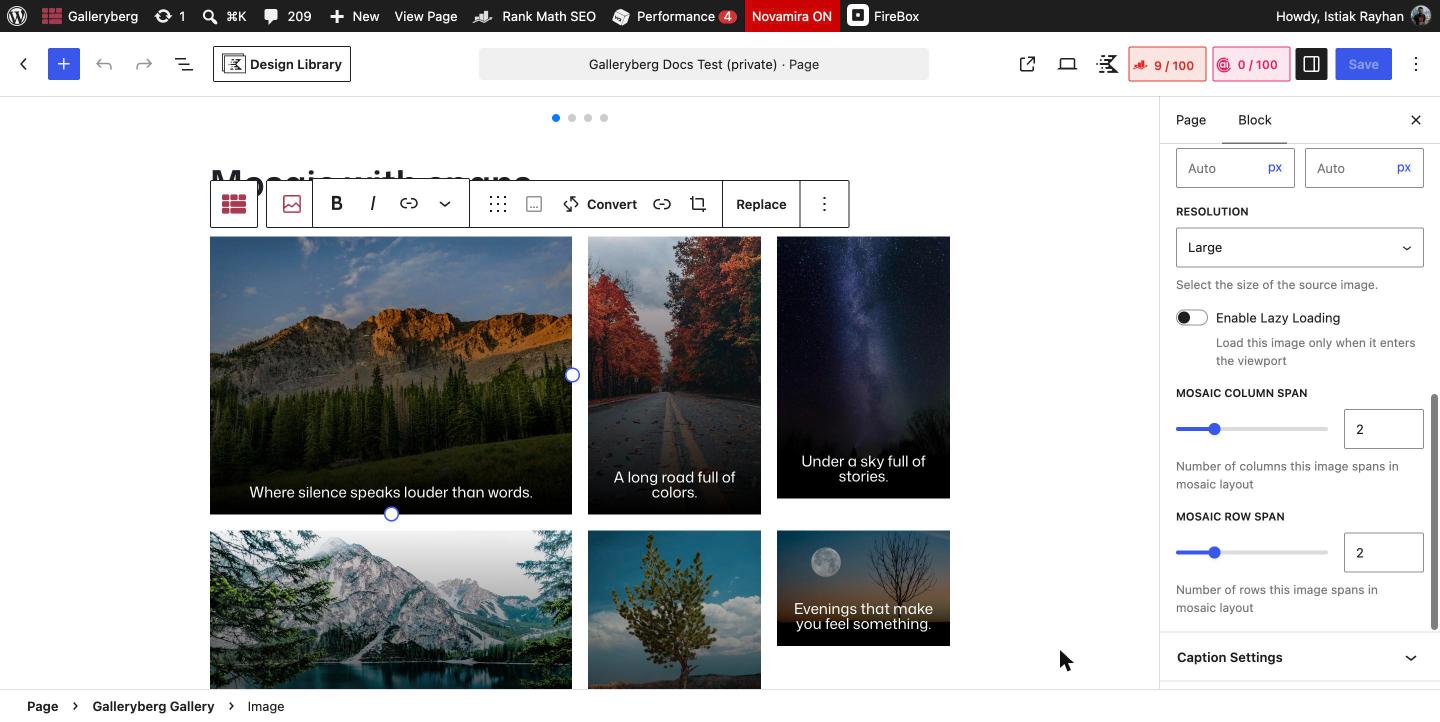
How to use headings and paragraphs in a caption #
- Add captions to your images first. Click below an image and type, or see how to add image captions.
- To convert all captions in the gallery: select the gallery and click Convert captions (“Convert all image captions to blocks”) in the block toolbar.
- To convert one caption: select the image and click Convert (“Convert caption to blocks”) in the image toolbar.
- Click inside the converted caption and add a Heading or Paragraph block, just like in the rest of the editor.
- Update the page. The caption keeps your chosen caption type (Below Image, Full Overlay or Bar Overlay) and visibility.
Tip: Converting is a structural change. If you are not happy with the result, press Ctrl+Z (Cmd+Z on Mac) right away to undo it.
Simple formatting without converting #
A normal caption already supports bold, italic and links. Select text in the caption and use the B, I and link buttons in the image toolbar. Convert to blocks only when you need headings or several paragraphs.
How to change caption typography #
- Select the gallery (to style every caption) or a single image (to style one caption).
- Open the Styles tab in the right sidebar.
- Next to Typography, click the + or options button and add the controls you need. They are hidden by default to keep the panel tidy.
- Set the values. Image settings override gallery settings.
| Typography control | What it changes |
|---|---|
| Caption Font Size | Size of the caption text. |
| Caption Appearance | Font weight and style, for example bold or italic. |
| Caption Line Height | Space between lines in longer captions. |
| Caption Letter Spacing | Space between letters. |
| Caption Text Decoration | Underline or strikethrough. |
| Caption Text Transform | Uppercase, lowercase or capitalized text. |
Caption color and caption background are in the Color section of the same Styles tab. For caption type, position and visibility, see Caption Styling Options.
Related docs #
Frequently asked questions #
Can I add a heading inside a gallery image caption? #
Yes. In Galleryberg 1.2.1 or later, click Convert in the image toolbar (or Convert captions in the gallery toolbar). The caption becomes a block area where you can add Heading and Paragraph blocks.
Can I make part of a caption bold or add a link? #
Yes. Select the text in the caption and use the bold, italic or link buttons in the image toolbar. You do not need to convert the caption for this.
Where are the caption font size settings? #
Select the gallery or an image, open the Styles tab, and add the caption controls from the Typography section. They are hidden by default.
Do I need Galleryberg Pro for captions as blocks? #
No. Captions as blocks and caption typography are part of the core Galleryberg plugin.


