
At a glance: Plan: Galleryberg Pro · Added in version 1.1.8 · Requires ACF PRO or Secure Custom Fields (SCF) with a Gallery field · Last checked: Galleryberg 1.2.1 (November 2026)
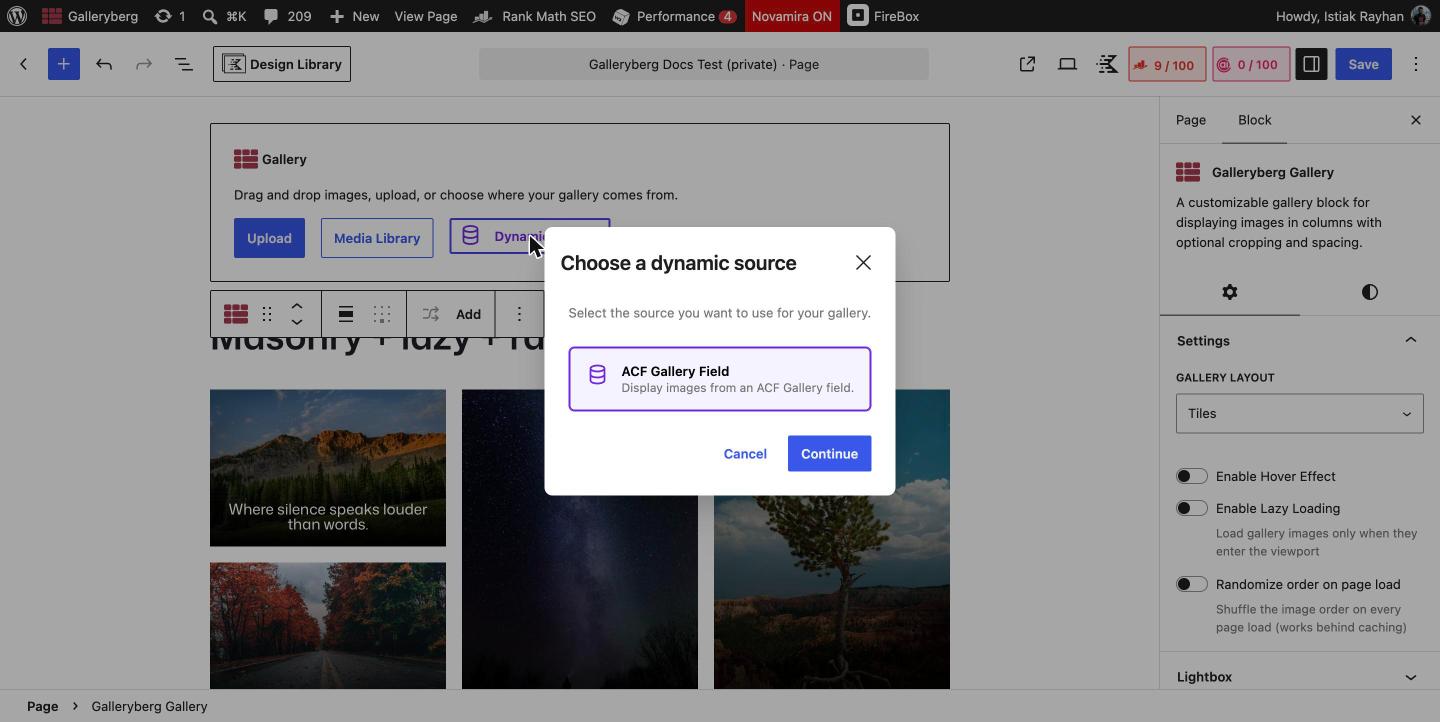
A Dynamic Gallery in Galleryberg Pro pulls its images from an ACF or SCF Gallery field instead of from images you pick by hand. Edit the images in the field and the gallery updates on its own. To set one up, add a Galleryberg Gallery block, click Dynamic Gallery in the block placeholder, choose ACF Gallery Field, then pick the post and the field.
Before you start #
- Install Advanced Custom Fields PRO or Secure Custom Fields (SCF). Both include the Gallery field type.
- Create a field group with a field of type Gallery and assign it to the post type you want (for example, posts, pages or a custom post type such as Properties or Portfolio).
- Add some images to that field on at least one post.
How to create a dynamic gallery from an ACF or SCF field #
- Add a new Galleryberg Gallery block. In the placeholder you will see Upload, Media Library and Dynamic Gallery.
- Click Dynamic Gallery. In the Choose a dynamic source dialog, select ACF Gallery Field and click Continue.
- Under Source post, keep This post to read the field from the post the gallery is placed in, or search for another post.
- Choose the field under Gallery Field. A Preview shows how many images were found.
- Click Create Gallery. The gallery now shows the images from the field.
- Style it like any Galleryberg gallery: choose a layout, columns, captions, lightbox, spacing and borders in the sidebar.
Managing a dynamic gallery #
- The sidebar shows the Source, Field and Post the gallery reads from. Click Change field to pick a different field or post.
- Images are managed in the ACF field, not in the block. To add, remove or reorder images, edit the field on the source post.
- Click Use media library instead to turn the block back into a normal gallery where you pick images yourself.
- Gallery-wide settings (layout, captions, hover effect, lightbox, spacing, borders, shadows) apply to dynamic galleries. Per-image settings, such as individual captions or mosaic spans, are not available because the images come from the field.
- Image comments are not available for Dynamic Gallery sources yet.
Messages you might see #
| Message | What it means | How to fix it |
|---|---|---|
| No ACF Gallery fields were found. Create a Gallery field in ACF first. | ACF or SCF is not active, or no field of type Gallery exists. | Activate ACF PRO or SCF and create a Gallery field. |
| This field has no images for the selected post. | The chosen post has no images in that field. | Add images to the field on that post, or choose another post. |
| No images found in the selected ACF field. | The field is empty for the post being shown. | Add images to the field, then reload the editor. |
| Could not load ACF fields. / Could not load field images. | The editor could not reach the field data. | Reload the editor. If it keeps happening, check that ACF or SCF is active and up to date. |
Related docs #
- Creating Your First Gallery
- Image Comments in the Lightbox
- Galleryberg Core vs Pro feature comparison
Frequently asked questions #
Can Galleryberg display images from an ACF Gallery field? #
Yes. Galleryberg Pro 1.1.8 and later can use an ACF Gallery field as the image source. Add a Galleryberg Gallery block, click Dynamic Gallery, choose ACF Gallery Field, then select the post and field.
Does the Galleryberg dynamic gallery work with Secure Custom Fields (SCF)? #
Yes. Secure Custom Fields includes the same Gallery field type as ACF PRO, and Galleryberg reads it the same way.
Do I need ACF PRO? #
You need a plugin that provides the Gallery field type. That is either Advanced Custom Fields PRO or Secure Custom Fields (SCF). The standard ACF plugin on WordPress.org does not include the Gallery field.
Can I style a dynamic gallery? #
Yes. Layout, columns, captions, lightbox, hover effects, spacing, borders and shadows all work. Only per-image settings are unavailable, because the images are managed in the field.
Can I switch a dynamic gallery back to a normal gallery? #
Yes. Select the block and click Use media library instead. You can then pick images from the Media Library as usual.


