
At a glance: Plan: Core plugin (thumbnails are Pro) · Powered by GLightbox · Last checked: Galleryberg 1.2.1 (November 2026)
A lightbox opens a gallery image full size in a popup when a visitor clicks it, so they can view and browse photos without leaving the page. In Galleryberg, select the gallery, open the Lightbox panel in the right sidebar, and turn on Enable Lightbox. The lightbox is off by default.

Turn on the lightbox #
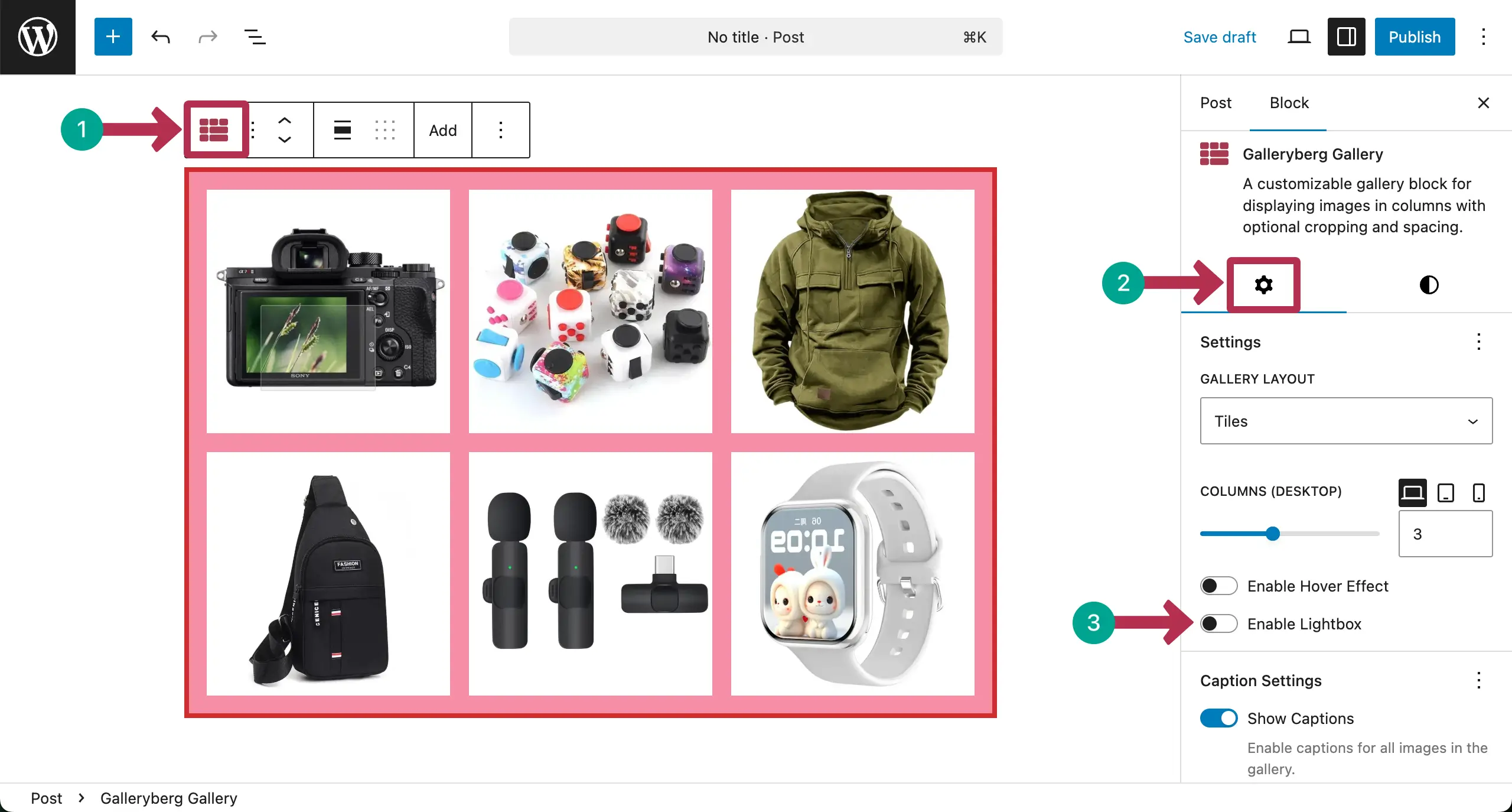
- Select the gallery by clicking the Galleryberg icon in the block toolbar.
- In the right sidebar, open the Lightbox panel. It is a separate panel below Settings and is closed by default.
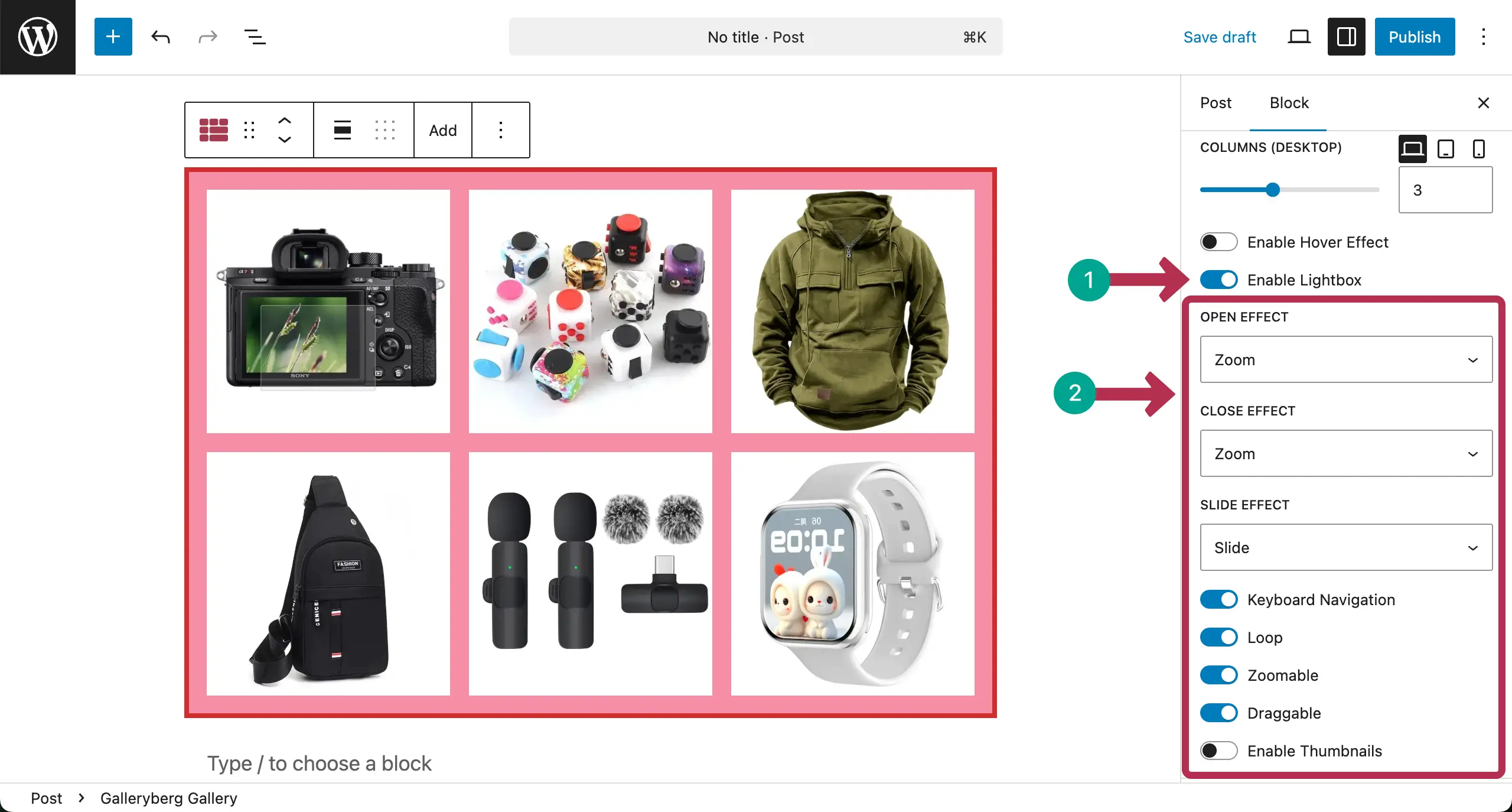
- Turn on Enable Lightbox. More options appear.
- Preview the page and click an image to test it.
Lightbox settings #
| Setting | What it does | Options | Default |
|---|---|---|---|
| Open Effect | Animation when the lightbox opens | Zoom, Fade, None | Zoom |
| Close Effect | Animation when the lightbox closes | Zoom, Fade, None | Zoom |
| Slide Effect | Animation when moving to the next image | Slide, Fade, Zoom, None | Slide |
| Keyboard Navigation | Arrow keys move between images, Esc closes | On or off | On |
| Loop | After the last image, go back to the first | On or off | On |
| Zoomable | Visitors can zoom in on the image | On or off | On |
| Draggable | Visitors can drag or swipe between images | On or off | On |
| Show captions in lightbox | Shows the image caption under the image | On or off | Off |
| Enable Thumbnails (Pro) | Shows a strip of small previews for quick jumping | On or off | Off |
Thumbnail options (Pro) #
With Galleryberg Pro, turning on Enable Thumbnails adds three more settings:
- Thumbnail Position: Bottom (default), Top, Left, or Right.
- Thumbnail Navigation: Direct (Instant) jumps straight to the clicked image. Step by Step moves through each image in between.
- Navigation Speed: for Step by Step, the time between steps, from 5 to 300 milliseconds. Lower is faster. Default is 10.
See Lightbox Thumbnails Strip.
See it in action #
Frequently asked questions #
Does the lightbox work on phones? #
Yes. Visitors can swipe between images and pinch to zoom. Update to Galleryberg 1.2.0 or later, which fixes the lightbox not opening on some touch devices.
How do I turn the lightbox off? #
Open the Lightbox panel and turn off Enable Lightbox. Images then follow their own link settings, or are not clickable.
What happens to image links when the lightbox is on? #
Clicking an image opens the lightbox instead of following the link. If you want images to open another page, turn the lightbox off for that gallery.
Does the lightbox work with overlay captions? #
Yes. Clicking a Full Overlay or Bar Overlay caption also opens the lightbox.


