
Trusted by 2,000+ WordPress sites · Rated 5/5 stars
Turn your images into stunning galleries,
right inside the block editor
Build responsive, professional galleries in minutes. Five layouts (tiles, masonry, justified, square, mosaic) and a built-in lightbox, no code required.
30-day money-back guarantee · Works with any theme · No code required
Five Layouts, One Click
Switch between layouts instantly, right from the block’s own controls. Add your images once and your settings and captions carry over automatically, so you can try every look without reconfiguring a thing.














Why Galleryberg?
One gallery block with every control you need, built the native Gutenberg way.
Gutenberg-Native Controls
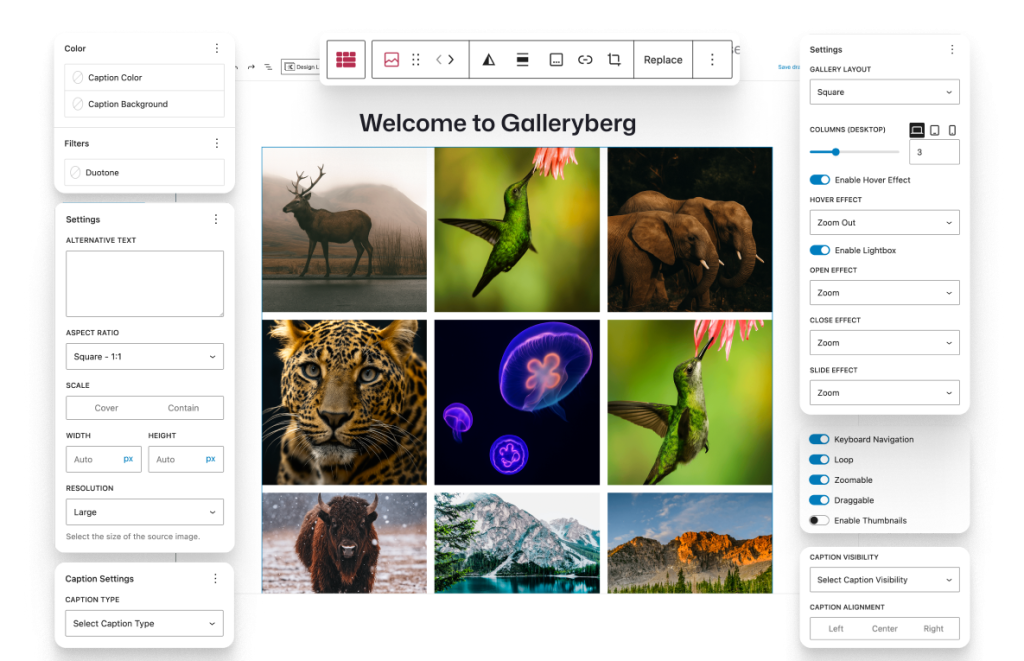
Adjust spacing, colors, and more right in the block settings you already know.
Built-in Lightbox
One toggle opens a full-screen viewer with zoom and keyboard navigation.
Caption Settings
Style captions with color, background, typography, and visibility.
Responsive Layouts
Set different column counts for desktop, tablet, and mobile.
Lazy Loading
Images load as visitors scroll, so pages stay fast and light.
Hover Effects
Bring galleries to life with a subtle zoom in or out on hover.
Loved by Early Users
We’re fresh on the scene; first adopters are happy. Your feedback helps us get even better.
“As a full-time blogger, I create lots of content and use hundreds of images on my blog every month. This plugin has been a game-changer for me. It’s so easy to use, as I can simply add the Galleryberg Gallery block to any post or page. It works like a charm. Highly recommended!”
— Anil Agarwal
“II love what I’m seeing so far. I have been looking for a lightweight gallery plugin that has masonry layouts for a long time. Too many of the other options are bloated by features that most people don’t need. This plugin has just what I need.”
— whistlerdan
“Installed the free version of this plugin on multiple WordPress websites and it works great. If you are using default Gutenberg to create your website then you can try using this plugin to create image galleries.”
— Prashant
Frequently Asked Questions
Quick, no-fluff answers to the most common Galleryberg questions—setup, layouts, lightbox, and performance.
How do I convert an existing core Gallery to Galleryberg?
Select the Gallery block → toolbar “Transform” → choose Galleryberg Gallery. Your images and captions stay intact. (Requires v1.0.4+)
How do I enable or disable the lightbox?
Click the Galleryberg block → in the sidebar, toggle Enable Lightbox on/off. Lightbox supports zoom, slides, keyboard (arrows/ESC), and touch.
Which layout should I use—and can I switch later?
Pick from Tiles, Masonry, Justified, or Square in block settings. You can change layouts anytime without re-adding images; see the demo for examples.
How do I show captions below or as an overlay (on hover/always)?
Use Caption type (below image, full overlay, bar overlay) and visibility (always, show on hover, hide on hover) in the block settings.
Does it work with page builders like Elementor?
Galleryberg is purpose-built for the Gutenberg editor and may not be compatible with other page builders.
Build Confidently With Our Resources
From first gallery to pro—support that meets you where you are

Documentation
Comprehensive guides and tutorials to get you started quickly and master advanced features.

Video Tutorials
Step-by-step video guides on YouTube covering everything from basics to advanced techniques.

Support
Get help when you need it. Our support team is ready to guide you with any questions or concerns.
Start Creating Better Galleries—Effortlessly
Guided steps, clean presets, and smooth lightbox browsing—get great results fast.