
At a glance: Randomize on page load: Galleryberg Pro (since 1.1.9) · Shuffle images button: core plugin (since 1.1.2) · Works behind page caching · Last checked: Galleryberg 1.2.1 (November 2026)
Galleryberg gives you two ways to mix up image order. The Shuffle images button in the gallery toolbar reorders the images once, in the editor, and the new order is saved. The Randomize order on page load setting (Pro) shows the images in a different random order every time a visitor loads the page, even when the page is cached.
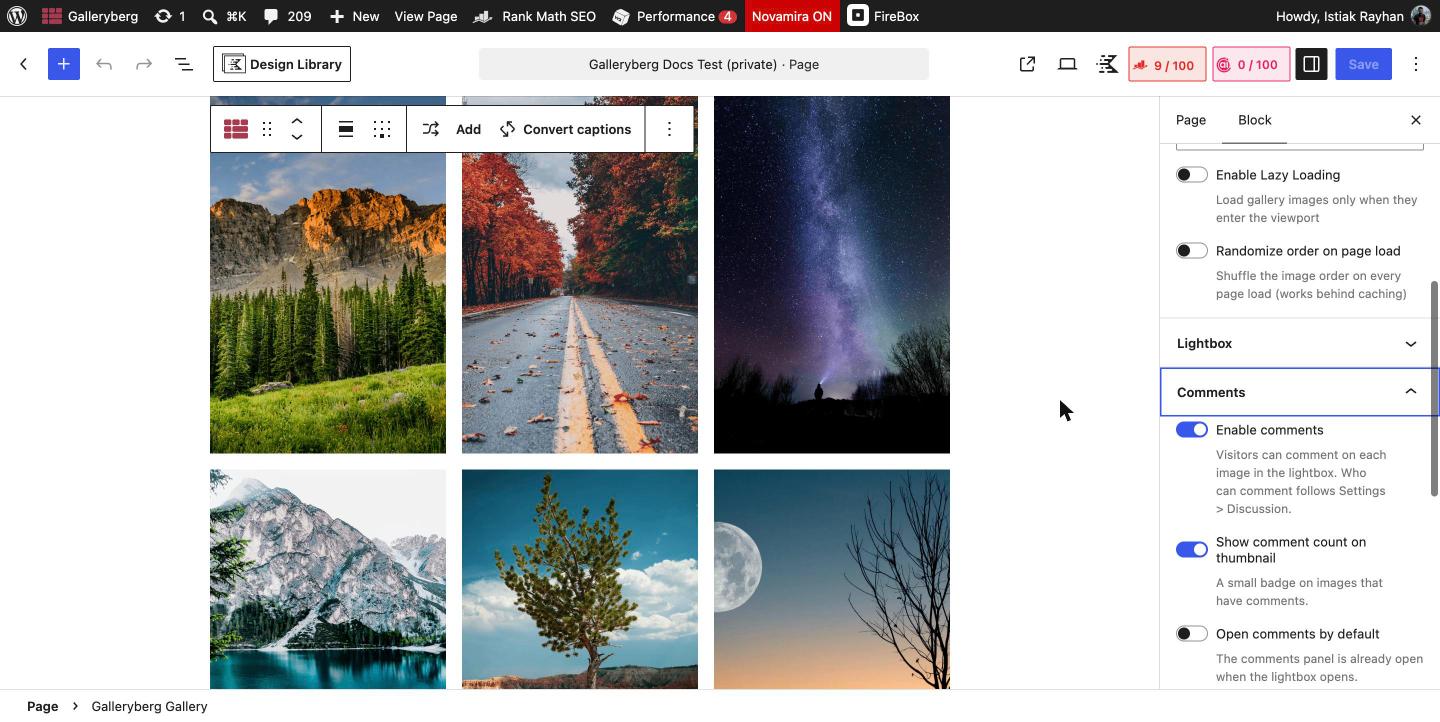
How to randomize gallery order on every page load (Pro) #
- Select the Galleryberg Gallery block by clicking the Galleryberg icon in the block toolbar.
- In the right sidebar, open the Settings panel.
- Turn on Randomize order on page load.
- Update the page. Reload the page on the front end a few times to see the order change.
How to shuffle images once in the editor #
- Select the Galleryberg Gallery block.
- Click the Shuffle images button (the crossed arrows icon) in the block toolbar. Click it again for a different order.
- Update the page. Every visitor now sees this new fixed order.
Which one should you use? #
| Shuffle images button | Randomize order on page load | |
|---|---|---|
| Plan | Core plugin | Pro |
| When the order changes | Once, when you click the button in the editor | On every page load, for every visitor |
| Order saved in the page | Yes, the new order is saved | No, your saved order stays the same in the editor |
| Works with page caching | Not affected by caching | Yes. The shuffle runs in the visitor’s browser, so cached pages still show a new order |
| Best for | Breaking up a gallery that was added in a set order | Portfolios, client logos and photo walls that should feel fresh on each visit |
Good to know #
- Because the random order is applied in the browser, search engines and visitors without JavaScript see your saved order.
- Turn the setting off at any time to go back to your saved order.
- Image captions, links and per-image settings move with their images.
Related docs #
Frequently asked questions #
Can I show gallery images in random order in WordPress? #
Yes. With Galleryberg Pro, select the gallery and turn on Randomize order on page load in the Settings panel. Images appear in a new random order on every page load.
Does Galleryberg random order work with caching plugins? #
Yes. The shuffle happens in the visitor’s browser after the page loads, so it keeps working with page caching plugins and hosting caches.
What is the difference between Shuffle images and Randomize order on page load? #
Shuffle images is a toolbar button that reorders images once in the editor and saves that order. Randomize order on page load is a Pro setting that shows a different order each time the page loads.
Is the Shuffle images button a Pro feature? #
No. The Shuffle images button is part of the core Galleryberg plugin. Only Randomize order on page load requires Pro.


