
Overlay color controls let you add and customize color layers on gallery images, especially on hover. They help improve text readability and image focus. With the Galleryberg plugin, you can add proper overlay colors with depth.
Below you can see a gallery we have created with the Galleryberg plugin.

Customize Overlay Color on Image Gallery #
Select the entire gallery by clicking the Galleryberg icon on the toolbar. Then, go to the Styles tab on the right sidebar.
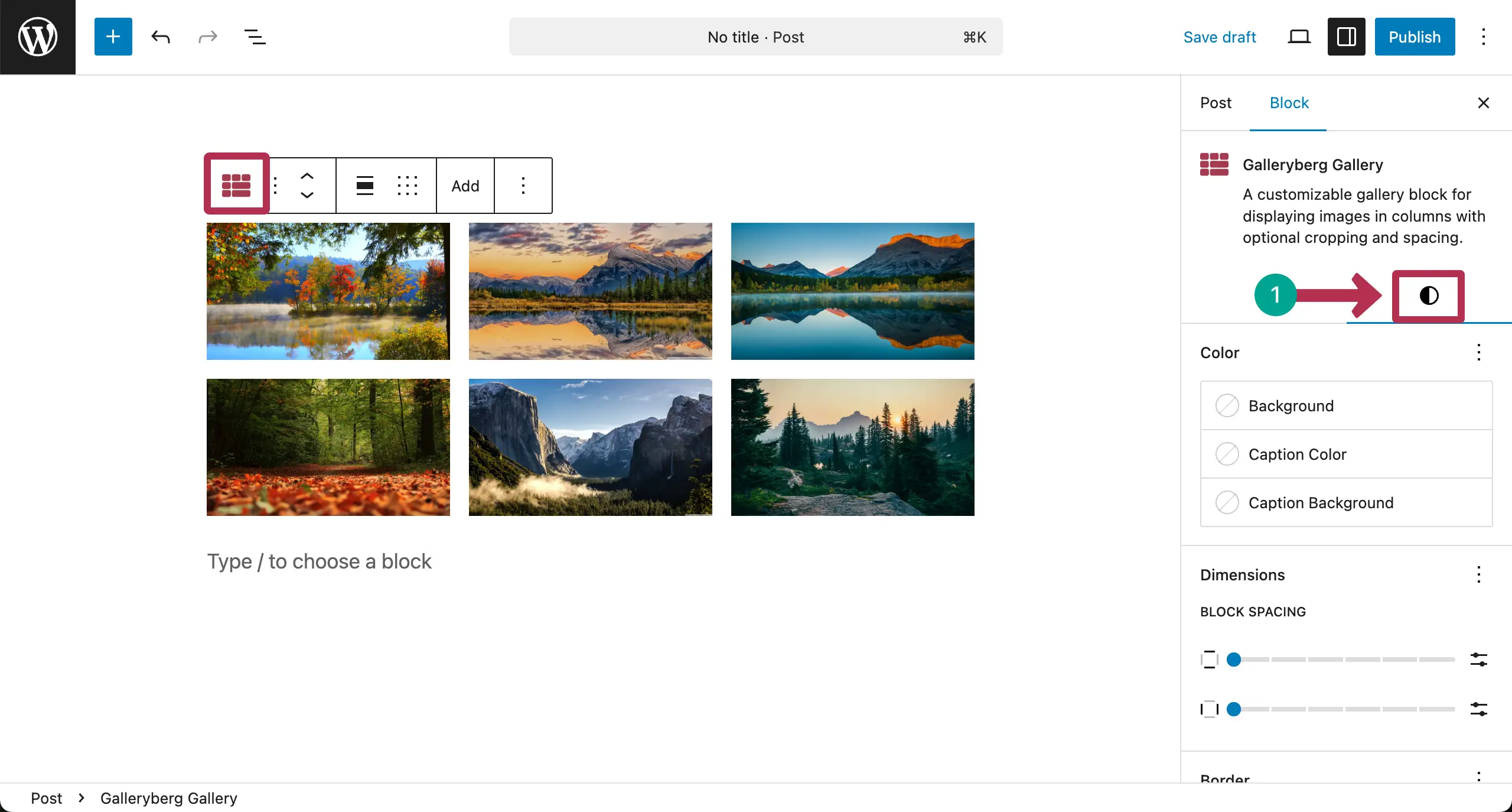
In the Color section, under the Styles tab, you’ll see the Caption Background option. The color you select in this option will be used as the overlay color.
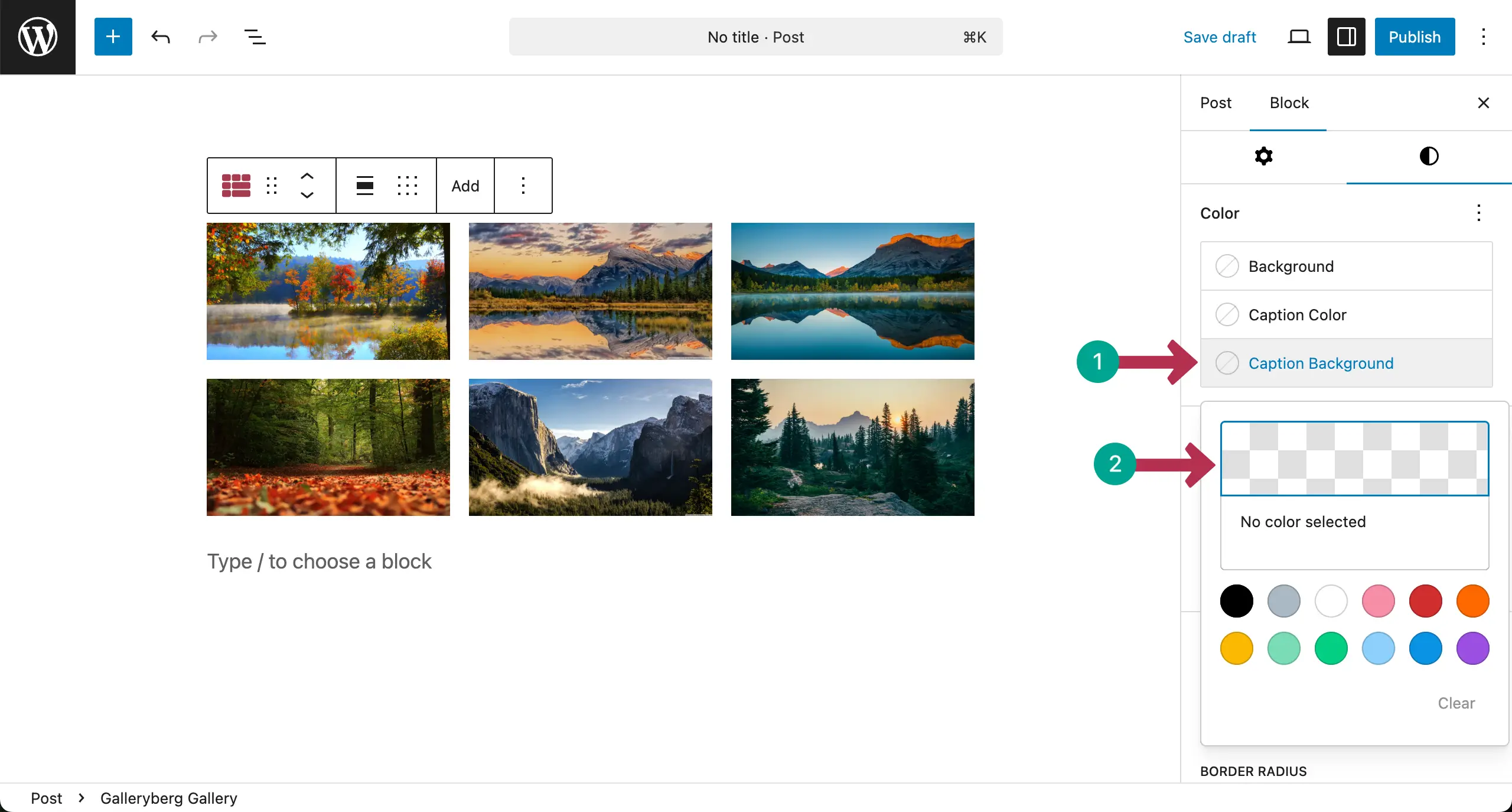
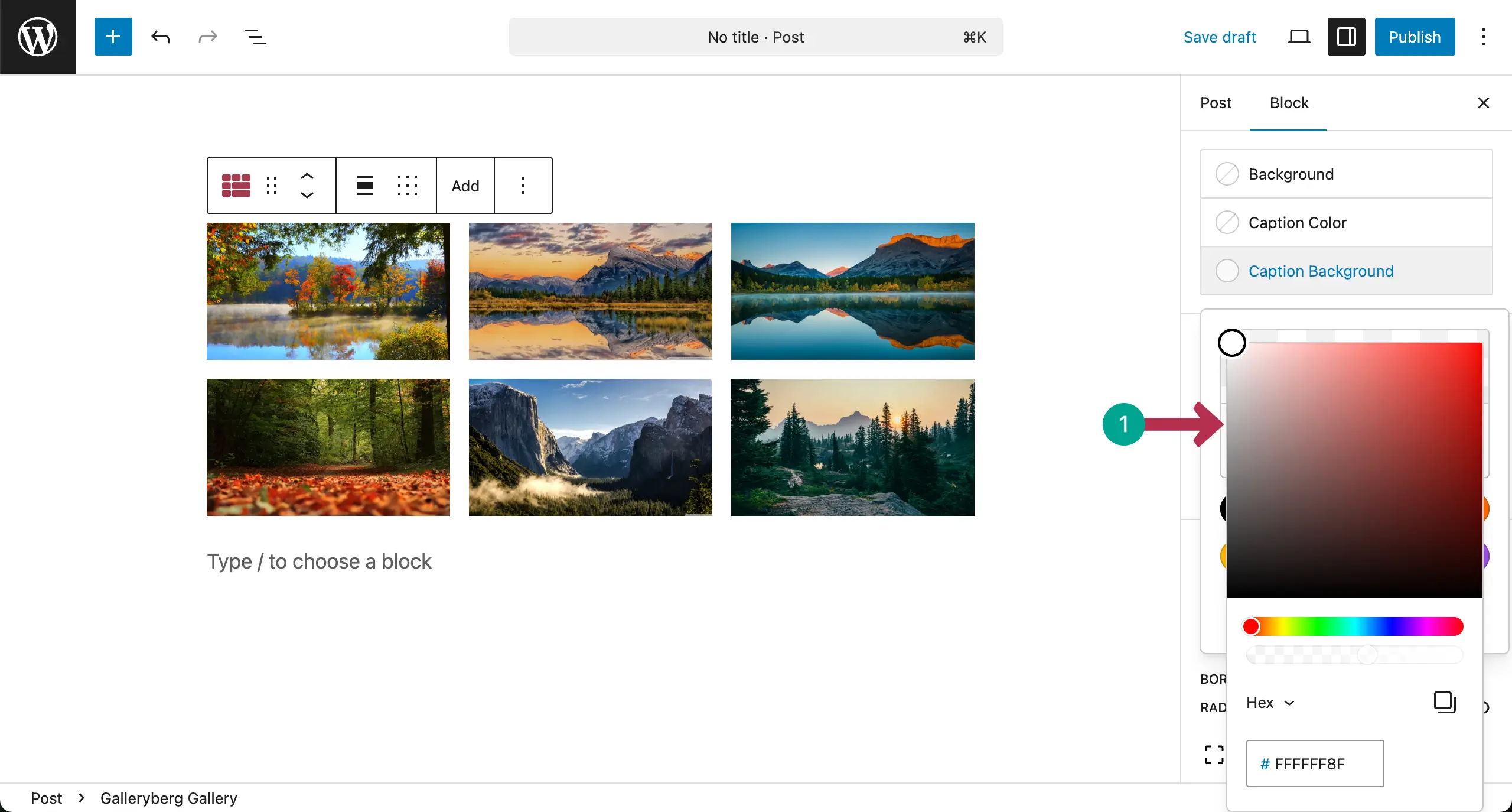
For this tutorial, we are selecting the white color for the overlay.
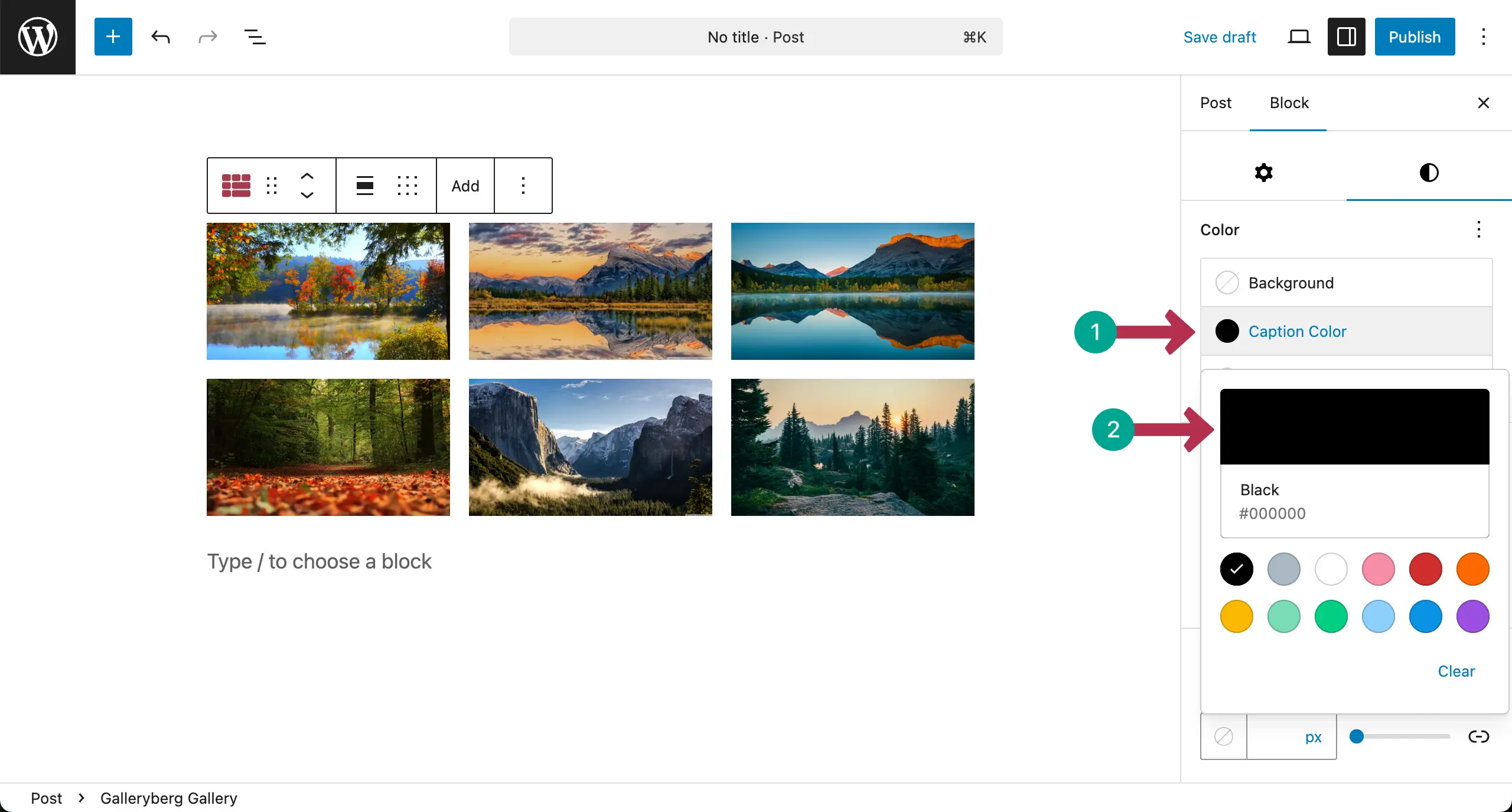
Now, set a caption color. It’s important because by using a contrasting color, you can highlight captions on the overlay.
It’s now the time to preview if your overlay is working or not. You can see that it’s working well in the clip attached below.
Here, we have explained how to customize the overlay color for the entire gallery at once. However, you can customize the overlay separately for each image.
To know this, visit this guide on how to set a separate overlay color individually for each image of the gallery.
Conclusion #
Remember that overlay colors are soft and well-balanced. Use colors that match your site’s theme. Keep opacity at a readable level. Avoid very dark or very bright overlays. Always check hover effects on different screens for a clean look.


