
Lightbox navigation controls let users move between gallery images using arrows, keyboard keys, or swipe gestures. These options make image browsing smooth and natural. Proper navigation improves usability, accessibility, and helps visitors explore galleries without confusion.
The following gallery has been created with the Galleryberg plugin.

Let’s take a look at how to configure Lightbox navigational settings in the tutorial below.
Configuring Lightbox Navigation Settings #
Select the entire gallery block by clicking the Galleryberg icon on the toolbar.
Go to the Settings tab and find the Lightbox option. Toggle on to enable this.
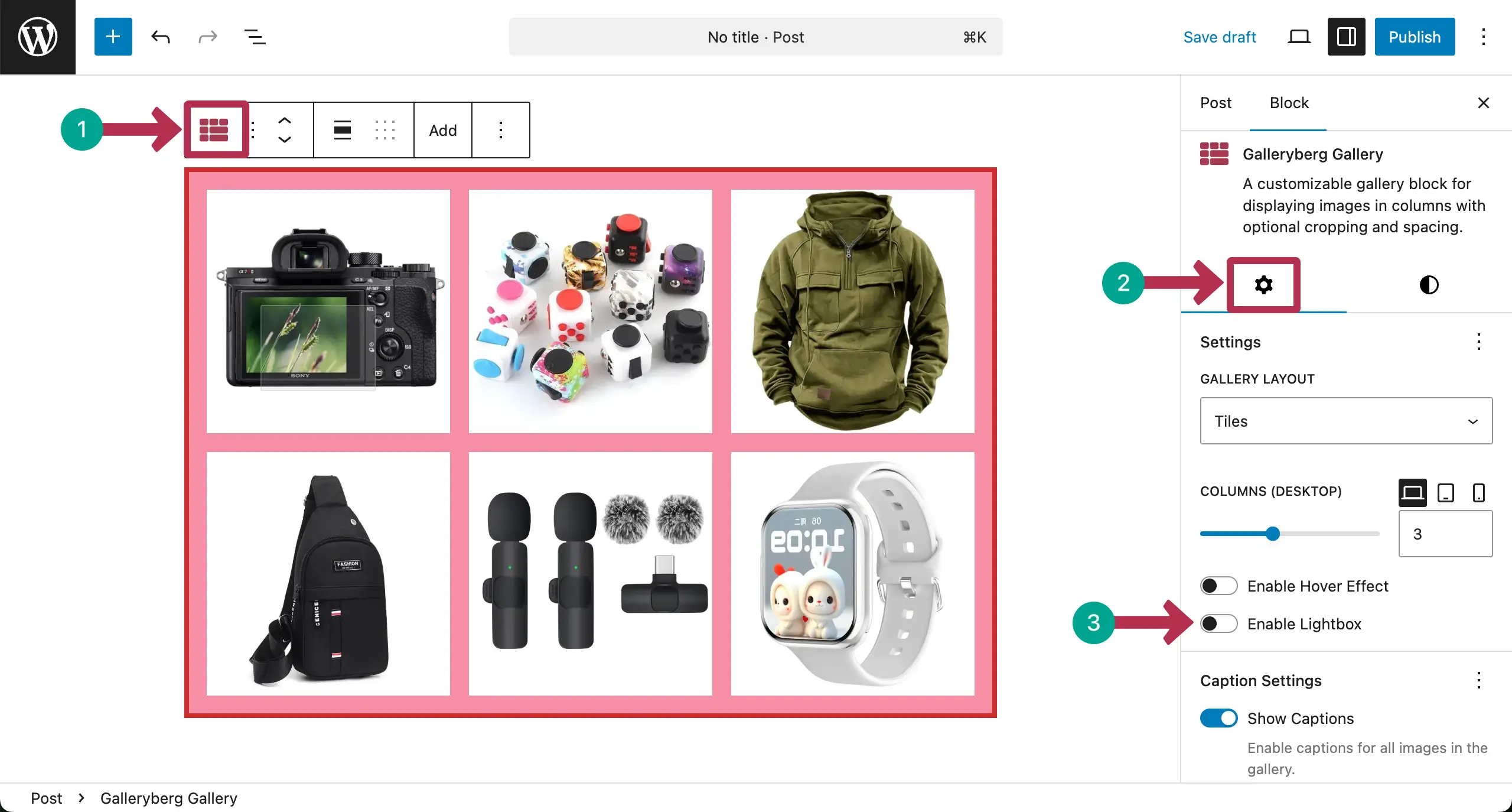
Once Lightbox is enabled, many more options will appear. From them, toggle on Keyboard Navigation and Draggable.
Enabling Keyboard Navigation will let you explore images using the arrow keys. Draggable will allow you to change images by dragging them with the cursor.

Now, go to the preview page and check if you can navigate between the images using the arrow keys. You can see that it’s working on our end.
Conclusion #
Remember that the lightbox navigation should be simple and easy to use. Keep arrows clear and visible. Enable keyboard and swipe support for all users. Avoid hiding controls. Hope you have found the documentation post helpful.


