
Image resolution controls the quality and size of images shown in WordPress galleries. It affects how sharp images look and how fast pages load. Choosing the right resolution improves visual quality, performance, and user experience across all devices.
Let’s take a look at how to change image resolution in WordPress image galleries.
How to Change Image Resolution #
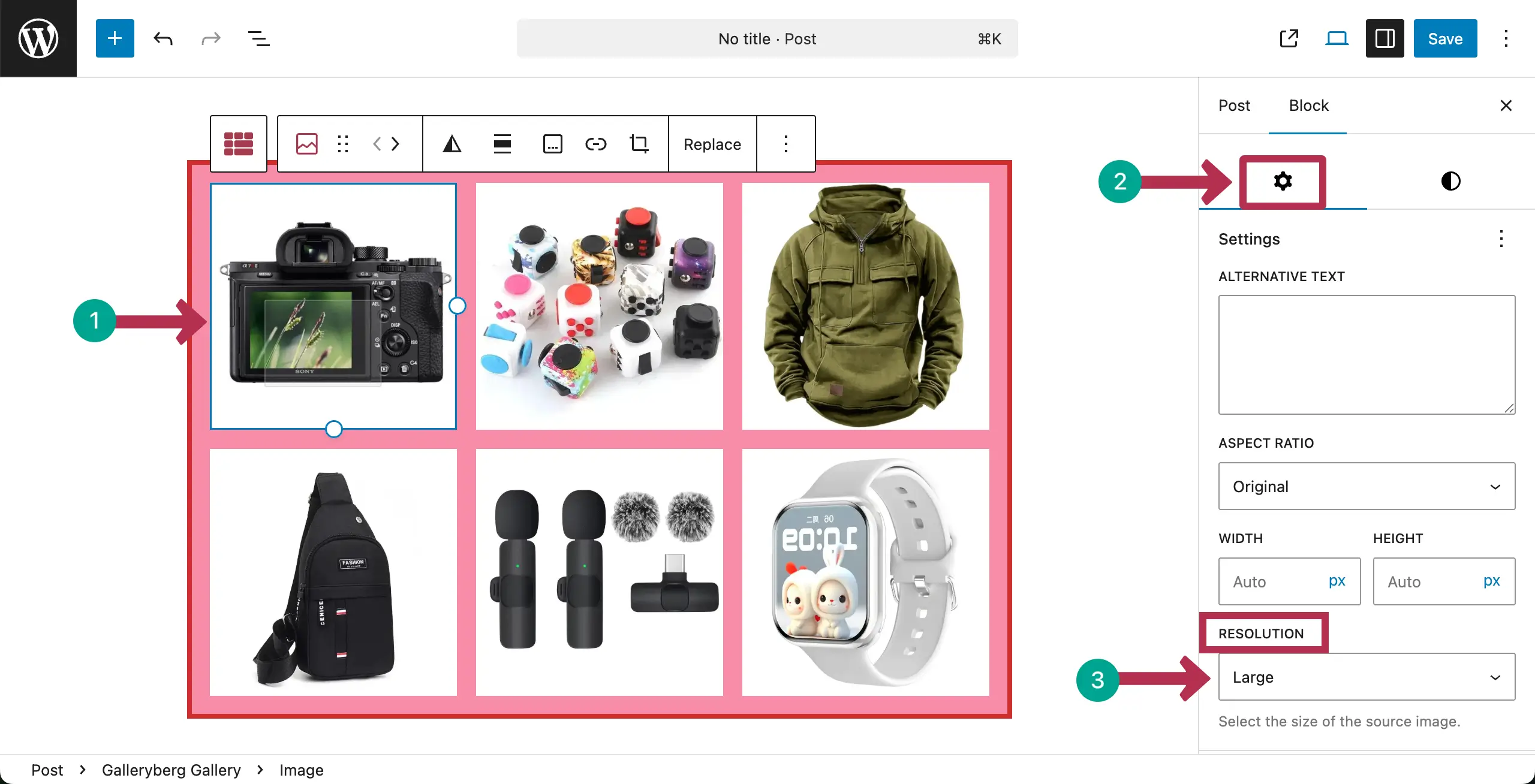
Let’s first create a gallery with the Galleryberg plugin. After that, you can set resolution for each image one by one. You can see that we have already create a gallery.

Select any image in the gallery. Go to the Settings tab on the right sidebar. Find the Resolution option and click the dropdown icon.
You’ll see that there are four options in the dropdown list – Thumbnail, Medium, Large, and Full Size. Choose the option you like.
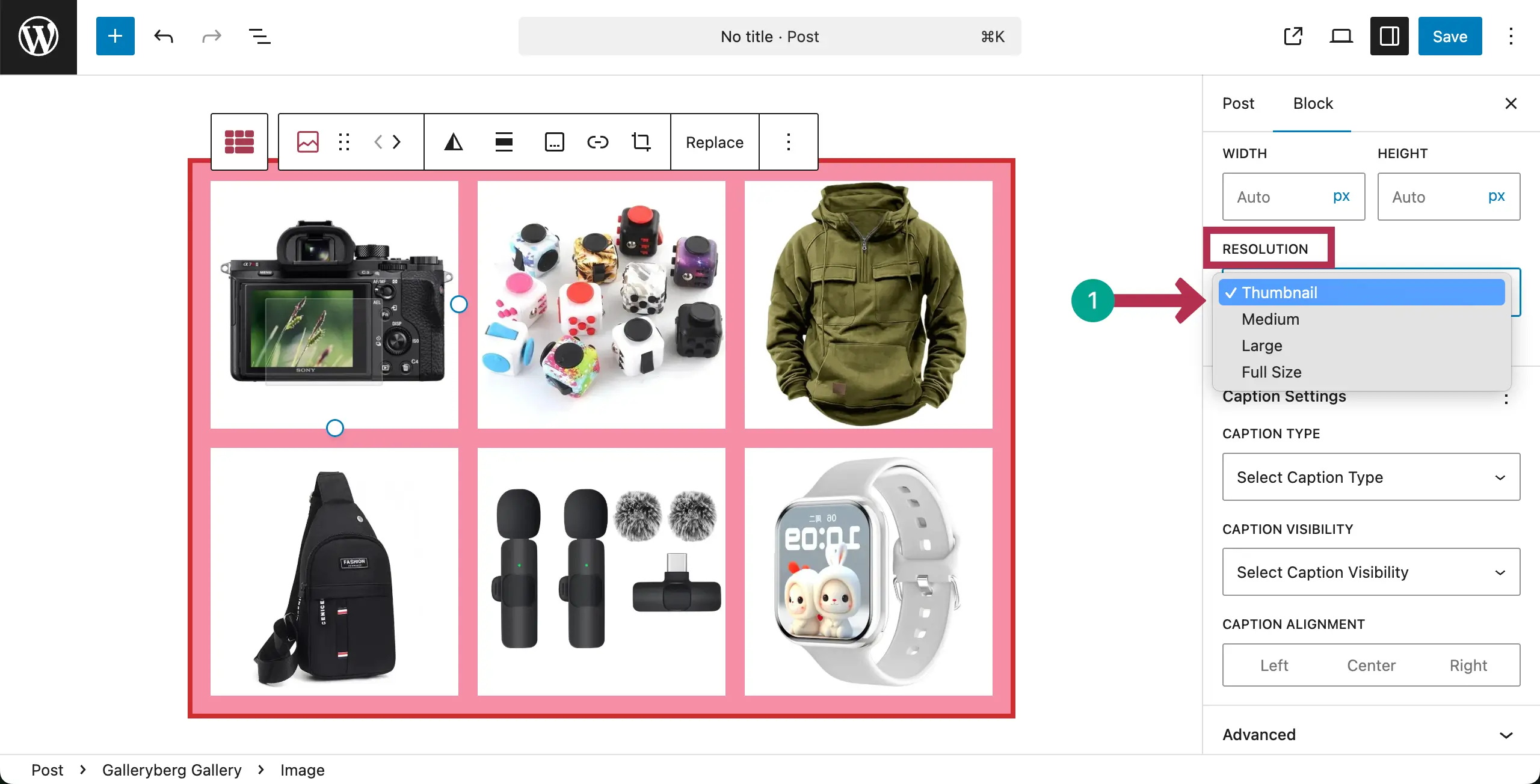
Thus, you can set the resolution for images in the WordPress galleries.
Conclusion #
Finally, use balanced image resolution for clear visuals and fast loading. Avoid very large images when not needed. Match resolution with gallery size. Test loading speed after changes.
Unless proper resolution settings are used and configured, galleries will fail to show your image’s sharpness and slow your page load.


