
Every image in a Galleryberg gallery has its own Alternative Text field. Filling it in makes your gallery accessible to visitors who use screen readers, and it helps search engines understand your images.
What is alt text? #
Alt text (alternative text) is a short written description of an image. Visitors never see it on the page, but it does three important jobs:
- Accessibility: Screen readers read it aloud, so blind and low-vision visitors know what each image shows.
- Image SEO: Google uses it to understand your images, which helps them appear in Google Images search.
- Backup text: If an image fails to load, the browser shows the alt text in its place.
If an image has no alt text, screen readers skip it completely. In a gallery, where the images are the main content, that means some visitors miss the whole point of the page.
How to add alt text to gallery images #
You can add alt text while creating a new gallery, or to any image in a gallery you’ve already built.
When creating a new gallery #
- Add the Galleryberg block to your page or post.
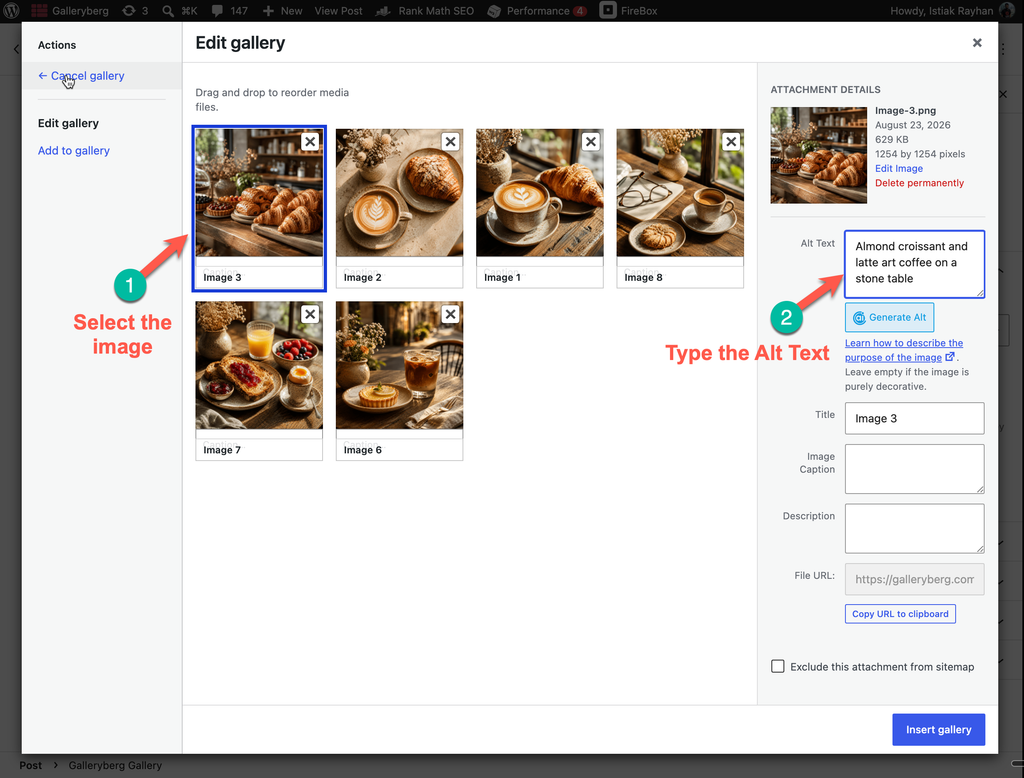
- Click Upload or Media Library, and then select the images you want in your gallery.
- Click each selected image. In the Attachment Details panel on the right, type a description in the Alt Text field.
- Click Create a new gallery, then Insert gallery.
Galleryberg copies the alt text into each image in the gallery.
For images already in a gallery #
- Open the page or post in the block editor.
- Click the image you want to edit inside the Galleryberg gallery. This selects that single image, not the whole gallery.
- In the block settings sidebar on the right, find the Alternative Text field.
- Type a short description of the image.
- Repeat for each image, then click Update or Save to publish your changes.
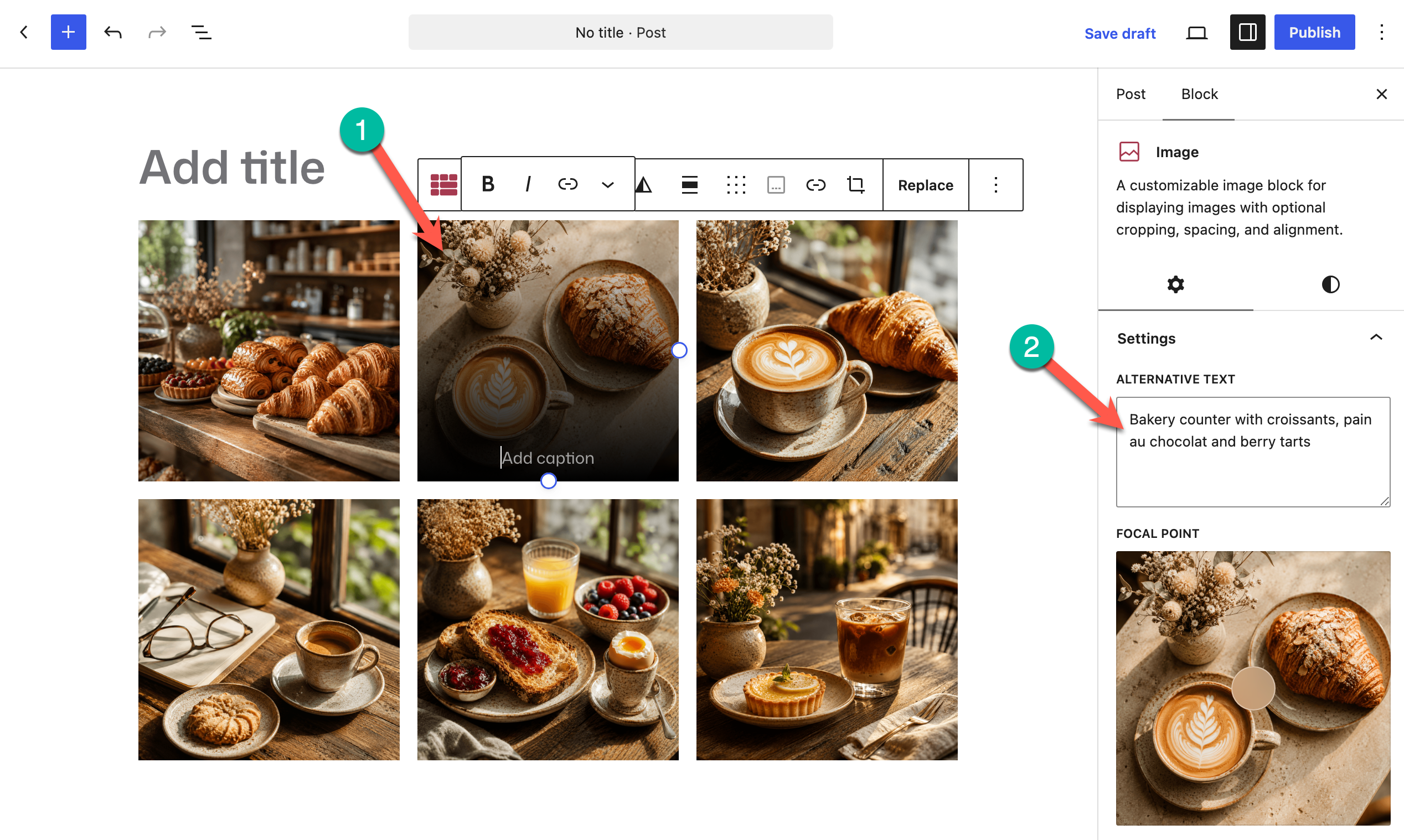
Tip: If you don’t see the settings sidebar, click the Settings icon (the square panel icon) in the top-right corner of the editor.
How alt text works with the Media Library #
Galleryberg copies an image’s alt text from the Media Library at the moment you add the image to a gallery. After that, the gallery keeps its own copy.
This means:
- If an image already has alt text in the Media Library when you add it, the alt text is filled in automatically.
- If you add or change alt text in the Media Library later, galleries you’ve already built won’t update.
To change alt text for an image that’s already in a gallery, edit the Alternative Text field inside the Galleryberg block, as shown above.
This is the same way the default WordPress Image and Gallery blocks work. It also gives you flexibility: you can describe the same image differently in different galleries, depending on the page it appears on.
Tips for writing good alt text #
- Describe what’s in the image. Imagine telling someone on the phone what the photo shows.
- Keep it short. One sentence is usually enough. Aim for under 125 characters.
- Skip “image of” or “photo of”. Screen readers already announce that it’s an image.
- Add useful details. Mention colors, actions, or context when they matter to the page.
- Don’t stuff keywords. Write for people first. A natural description is better for SEO too.
- Avoid file names. Text like “IMG_2034.jpg” tells visitors nothing.
| Image | Weak alt text | Good alt text |
|---|---|---|
| A leopard photo | image of leopard | Leopard staring straight at the camera |
| A bakery product | croissant croissants best croissant bakery | Fresh butter croissants on a wooden board |
| A landscape | IMG_2034.jpg | Snowy mountain peak reflected in a calm blue lake |
| A flower close-up | flower | Pink tulips in full bloom after rain |
Frequently asked questions #
I updated the alt text in the Media Library, but my gallery didn’t change. Why?
Galleryberg copies alt text only when an image is first added to a gallery. To update it, select the image inside the Galleryberg block and edit its Alternative Text field.
Is alt text the same as a caption?
No. A caption is visible to everyone on the page. Alt text is hidden and read by screen readers and search engines. You can use both on the same image.
Should every image have alt text?
Yes, for gallery images. They are the main content of the page, so each one should be described. Only purely decorative images, like background patterns, can be left without it.
Do I need to add alt text to the lightbox too?
No. The lightbox uses the same alt text you set for each image in the gallery.