
Hover effects add simple animations when users move the cursor over gallery images in WordPress. These effects make galleries feel interactive and lively. They help highlight images, guide attention, and improve user engagement without changing the main layout.
Below is a gallery we have created to explain the process.

Let’s now check how to add hover animations to image galleries.
How to Add Hover Animations to Images #
Select the entire gallery by clicking the Galleryberg icon on the toolbar.
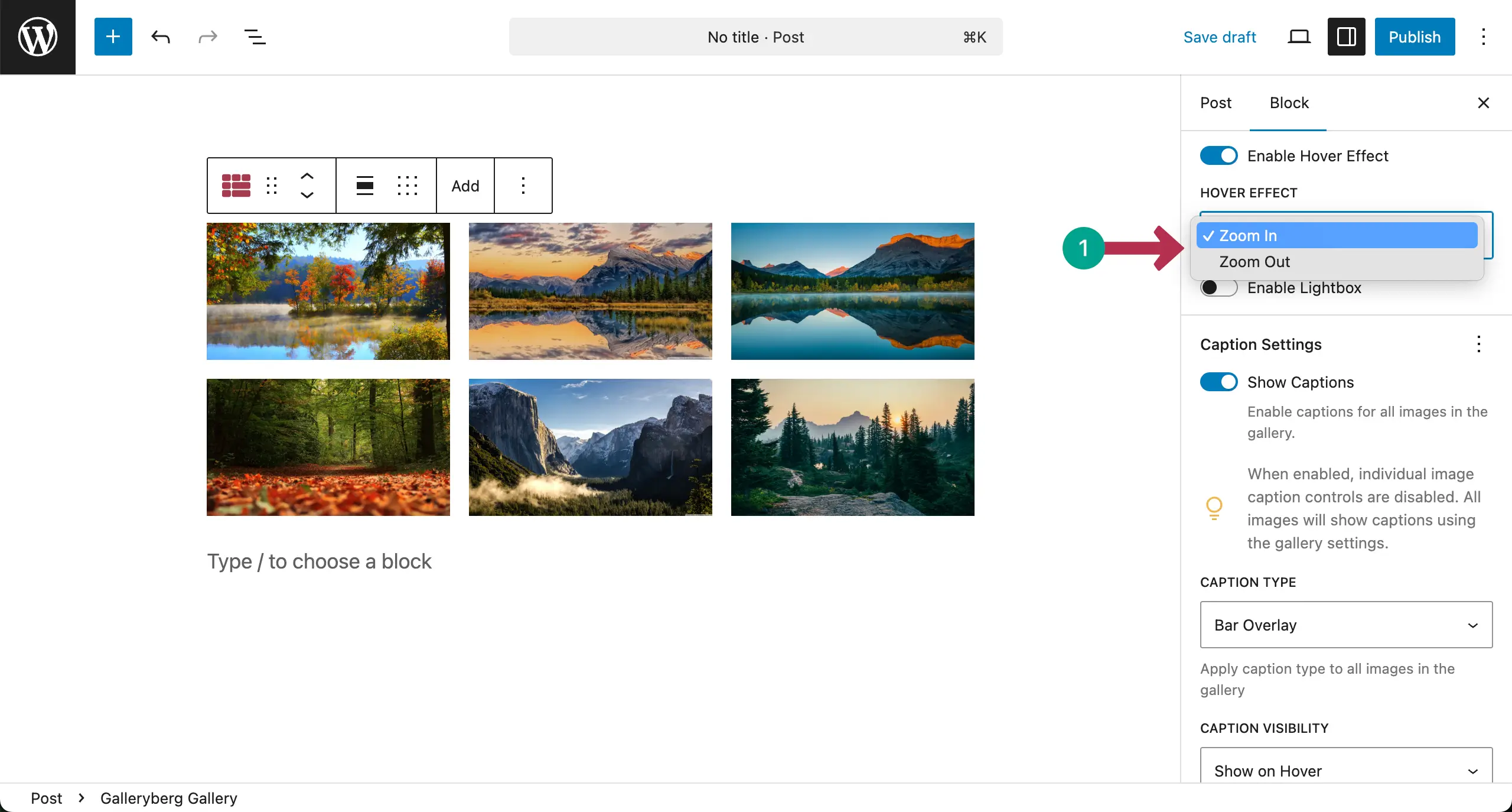
Next, go to the Settings tab on the right sidebar. Toggle on the Enable Hover Effect option.

Once the Hover Effect is enabled, you’ll get the zoom option. Click the Dropdown Icon under Hover Effect.

Choose Zoom In or Zoom Out from the list.
It’s now the time to preview. Check the video below. You’ll see images in the gallery show zooming animation when hovered.
Conclusion #
Hope from now onwards, you can add the hover animation effect to you gallery images. Make sure the hover effect is smooth and simple. Avoid heavy animations that slow down the page. Keep effects consistent across all images.
Also ensure hover actions do not hide important details. Thus, you’ll be able to get the best from your image gallery.


