
Caption styling options let you control text fonts, colors, and backgrounds for gallery captions in WordPress. They help make image descriptions clear and readable. Good caption styling improves user understanding, visual balance, and keeps gallery content aligned with your site design.
Below is a gallery we have created with the Galleryberg plugin.
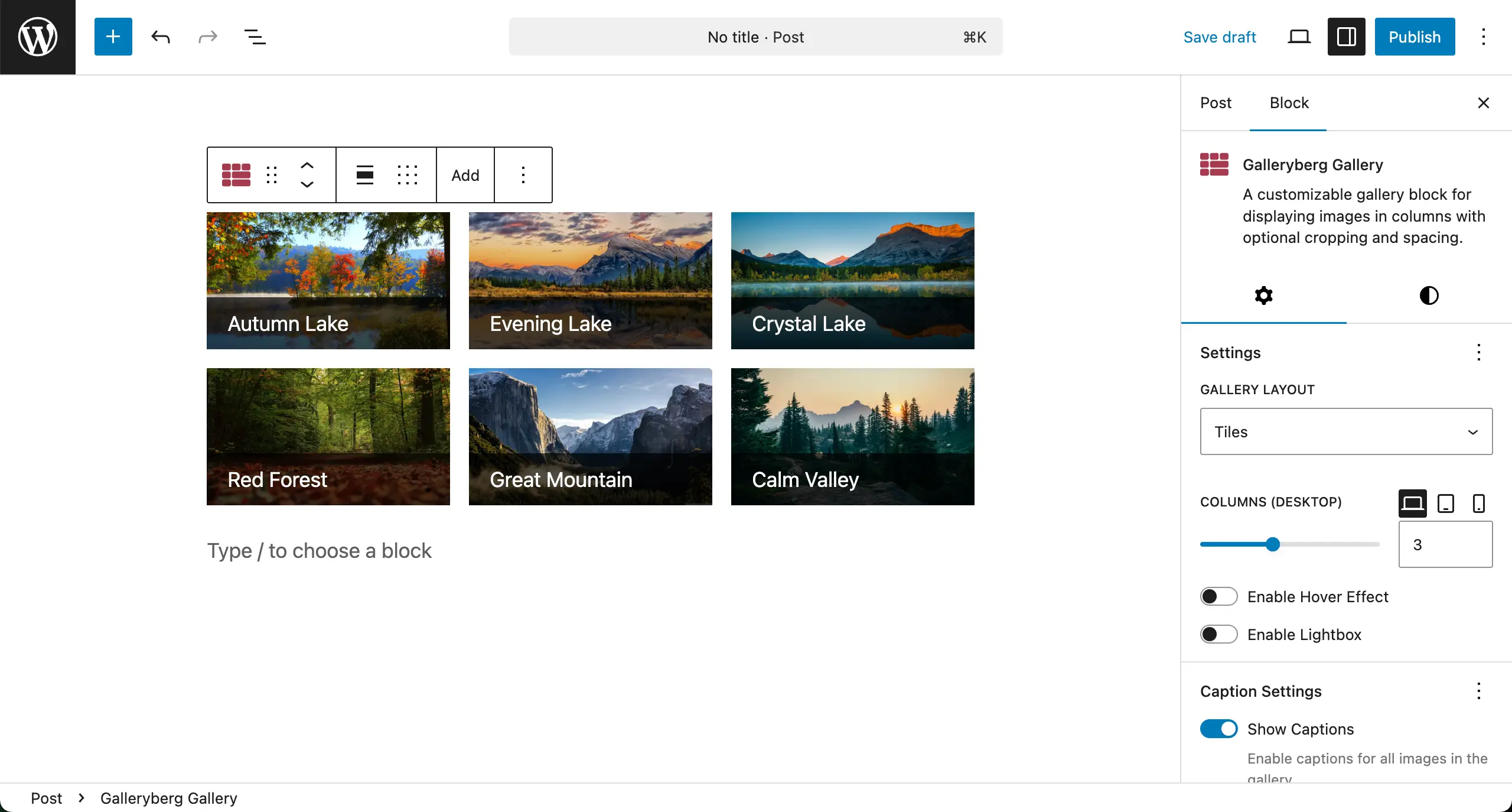
Now, we’ll show you the process of how to stylize captions in the following discussion guide.
Step 01: Configuring Caption Stylization Individually #
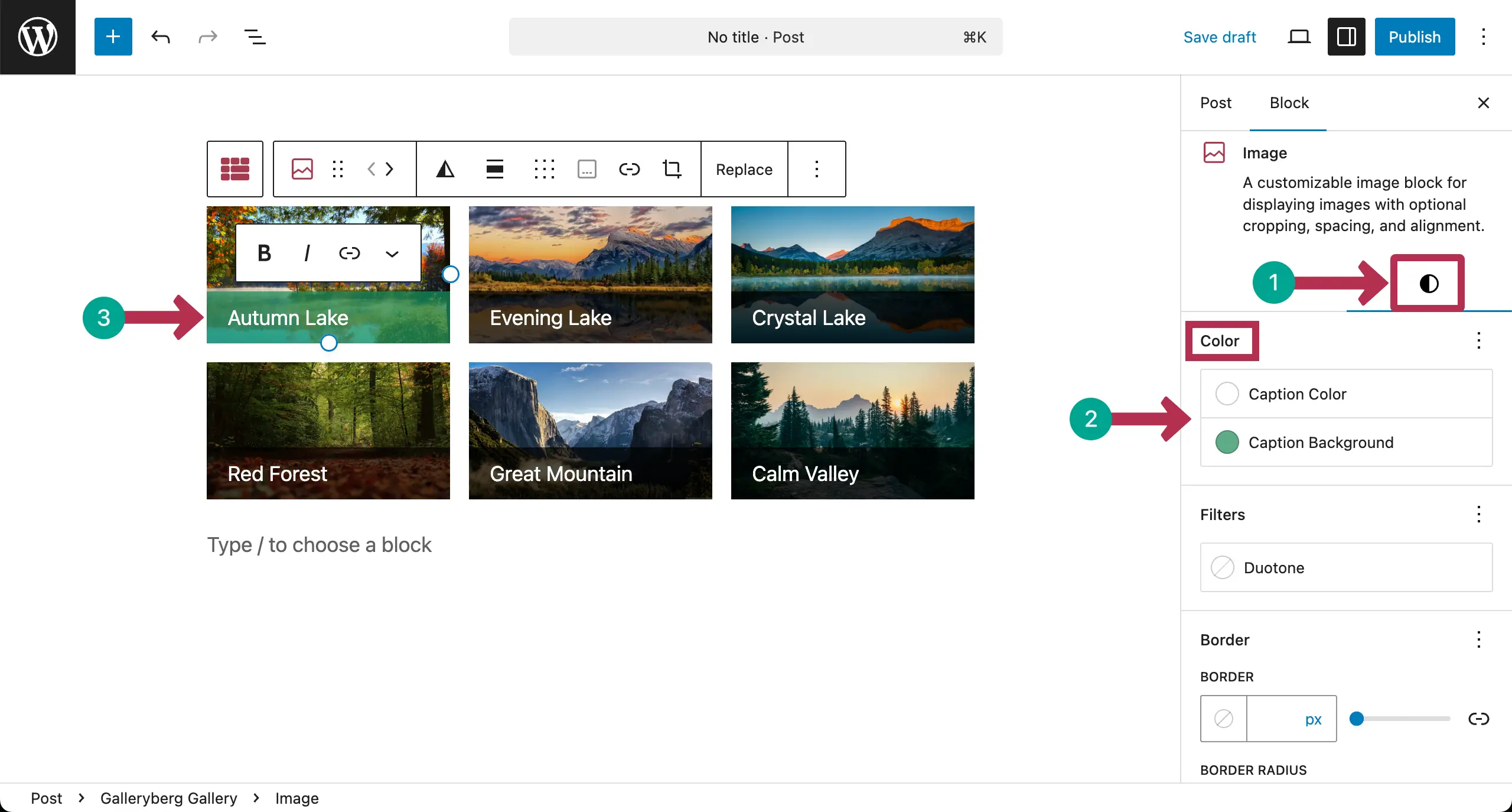
Select any image you want. Then, come to the Styles tab. Immediately below, you’ll get the Color section.
From here, you can set Caption Color and Caption Background only for that specific image.
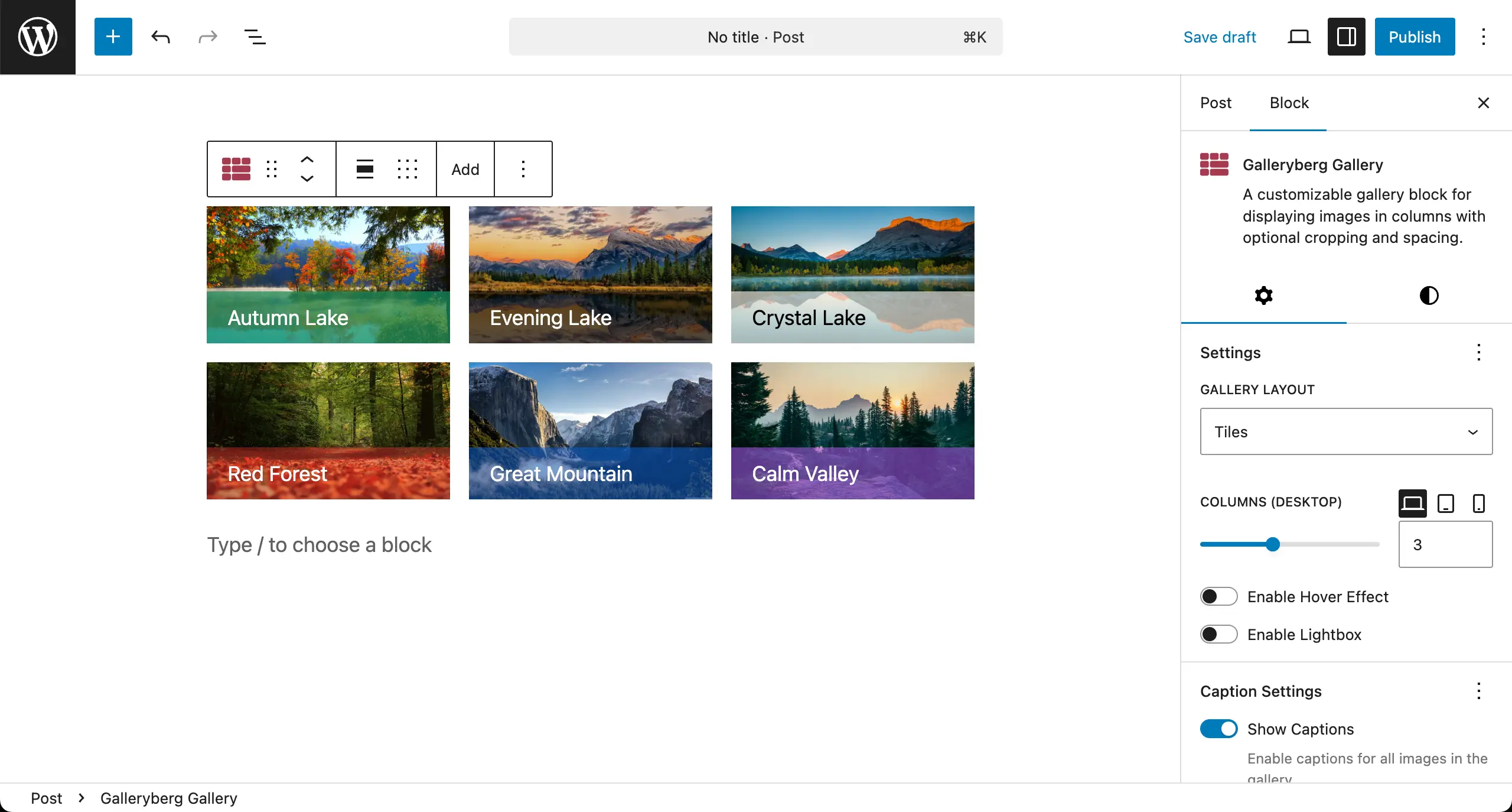
In the same way, you can set different colors for the caption and caption background. See how we have done it below.
Step 02: Configure Caption Settings of the Entire Gallery #
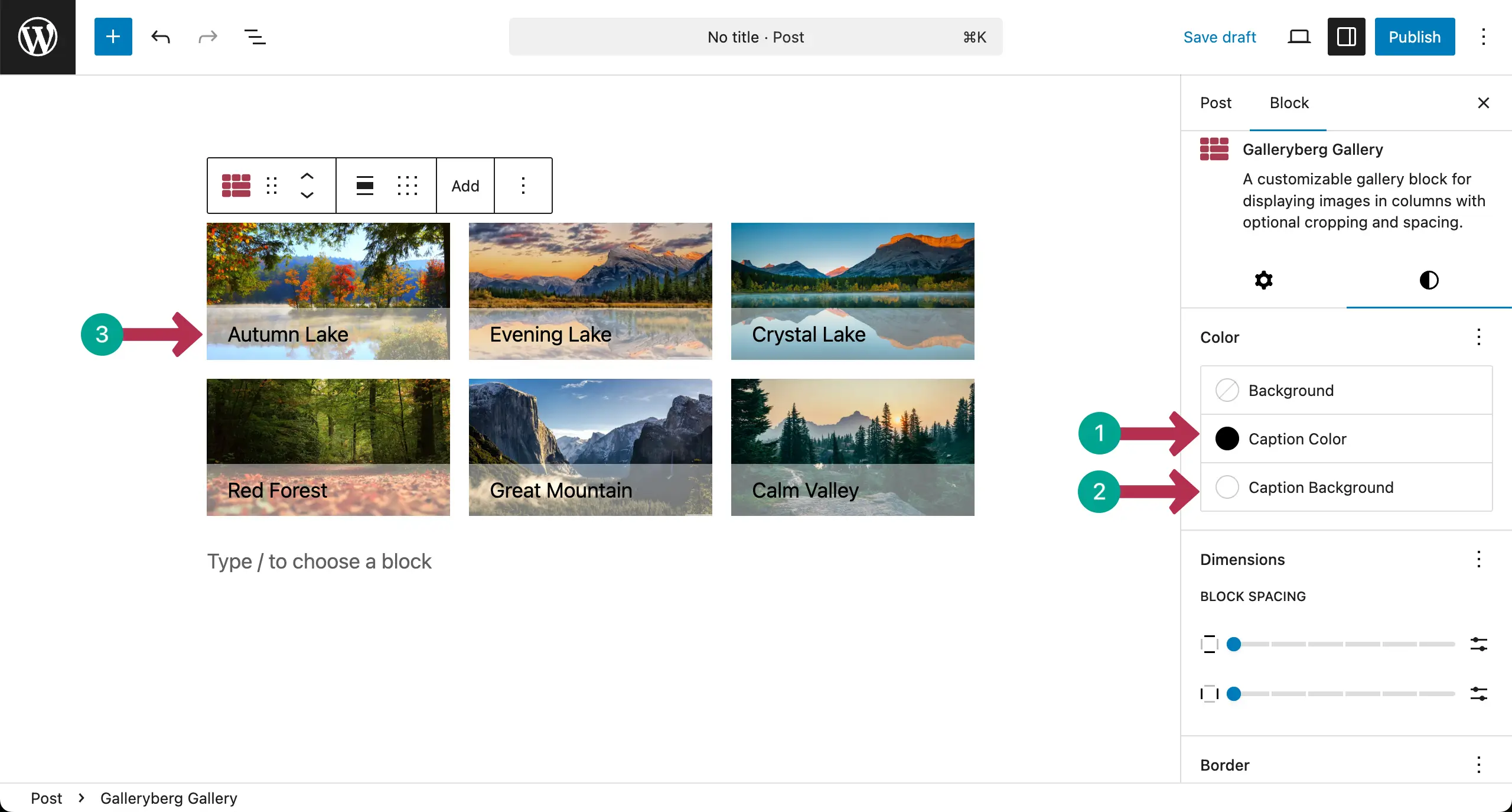
Select the entire gallery by clicking the Galleryberg icon on the toolbar. Come to the Styles tab on the right sidebar.
You’ll see the Color section immediately below.
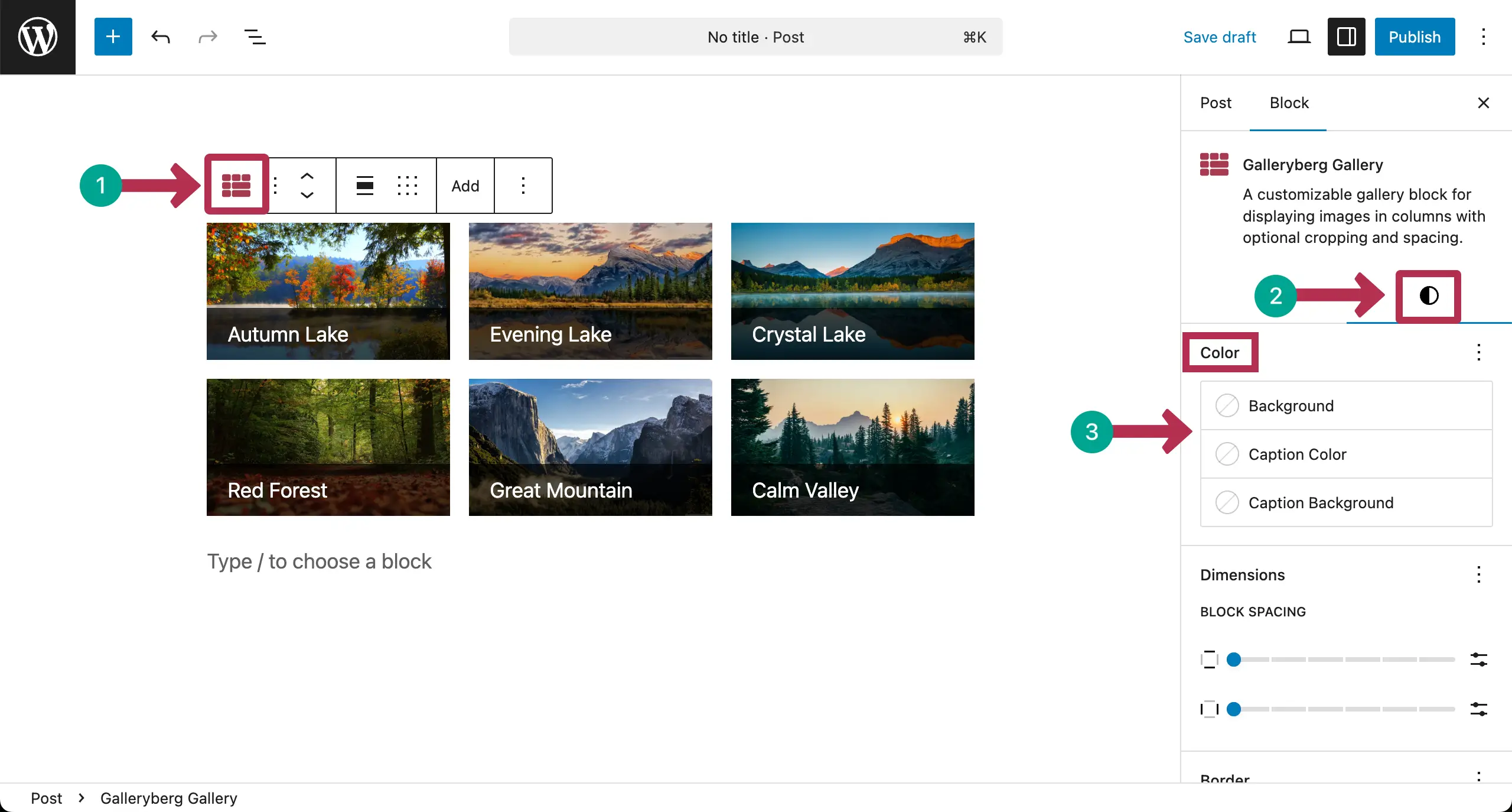
Choose a color for the caption and caption background. It will be applied to all images in the gallery at once.
Conclusion #
Thus, you can customize captions of the gallery. Remember that caption styling should stay clear and readable. Use simple fonts and good contrast between text and background. Avoid bright colors that hurt the eyes.
Finally, keep the caption size balanced with the images. Hope you found this documentation post helpful.


