


Not every gallery is meant for the whole world. A wedding photographer may want only the couple and their families to see the full set. A school may want event photos visible to parents only. A designer may want to share early concepts with one client before anything goes public.
The good news is that WordPress already has a built-in way to lock a page behind a password, and it works perfectly with gallery blocks. In this guide, you will learn how to password protect an image gallery in WordPress step by step, how to make a gallery fully private, and how to handle a few common situations, like protecting just one gallery on a busy page. We will use the block editor and the Galleryberg gallery block, and no code is needed.
Why Password Protect an Image Gallery?
A password is a simple way to share photos with the right people without creating user accounts for everyone. Here are the most common reasons to use one:
- Client proofing: photographers can share a full session or event with one client before choosing the final images.
- Family and friends: share personal photos, like a birthday or a holiday, without making them public.
- Schools, clubs, and teams: show event photos to members and parents only.
- Work in progress: designers, agencies, and architects can show drafts and concepts to a client in a clean gallery.
- Paid or exclusive content: give a password to people who bought a workshop, a tour, or a print package.
How WordPress Password Protection Works
Before you start, it helps to understand what WordPress actually protects. Every post and page has a visibility setting. When you choose Password protected, WordPress hides the whole content area of that page and shows a small password form instead. Once a visitor types the correct password, the content appears, including any gallery inside it.
A few things are good to know:
- The password protects the entire content of the page or post, not a single block. Everything in the editor is hidden until the visitor unlocks it.
- The page title stays visible, so do not put private details in the title.
- WordPress remembers the password in the visitor’s browser with a cookie, so they do not need to type it again on every visit for a while (usually about 10 days).
- Each page has one password. If you need different passwords for different people, use a separate page for each group.
- The image files themselves stay in your Media Library. Anyone who already has the direct link to an image file can still open it. Password protection hides the gallery, not the files on your server.
We tested this with a Galleryberg gallery on a protected page. While the page was locked, the frontend showed only the password form, with no gallery markup and no images at all. After unlocking, the full gallery, lightbox included, loaded as normal.
Method 1: Password Protect a Gallery Page (Core WordPress)
This is the method most people need. You put your gallery on its own page and lock that page with a password.
Step 1: Create a New Page for the Gallery
In your WordPress dashboard, go to Pages > Add New Page. Give the page a clear title, like “Sarah and Tom: Full Wedding Gallery” or “Spring Concert Photos”. A dedicated page also gives you a clean link to share. If you want a short and memorable link, see our guide on how to create a unique URL for a WordPress gallery.
You can also use a blog post instead of a page. The password setting works the same way for both.
Step 2: Add Your Gallery
Click the + (block inserter) button, search for Galleryberg, and add the gallery block. Upload new images or pick them from your Media Library. If this is your first time, our guide on how to create an image gallery in WordPress walks through every setting.
You can use the default WordPress Gallery block here too, but Galleryberg gives you more control over how the gallery looks once your visitors get in:
- Four layouts in the core Galleryberg plugin: Tiles, Square, Masonry, and Justified.
- Separate column counts for desktop, tablet, and mobile.
- A built-in lightbox with zoom, keyboard navigation, and captions.
- Hover effects, rounded corners, shadows, and caption styling.
- With Galleryberg Pro: Mosaic and Carousel layouts, randomized image order, lightbox thumbnails, image comments, and galleries filled from ACF fields.
For client galleries, the lightbox is a must. It lets people open each photo in full size and flip through the set. Learn more in our guide on adding lightbox effects to WordPress galleries.
Step 3: Set the Page Visibility to Password Protected
Open the settings sidebar on the right (click the square icon at the top right if it is hidden) and make sure the Page (or Post) tab is selected. Then follow these steps:
- Click the current Status value (for example, Draft) near the top of the panel.
- Turn on the Password protected option below the status choices. In older WordPress versions, open Visibility and choose Password protected instead.
- Type the password you want to use in the field that appears.
- Close the popover. Your setting is saved with the page.
Pick a password that is easy to share but hard to guess. A mix of words and numbers, like maple-garden-2026, works well.
Step 4: Publish and Test It
Click Publish. Now open the page in a private or incognito browser window, where you are not logged in. You should see the page title and a password form. Type the password and the gallery appears.
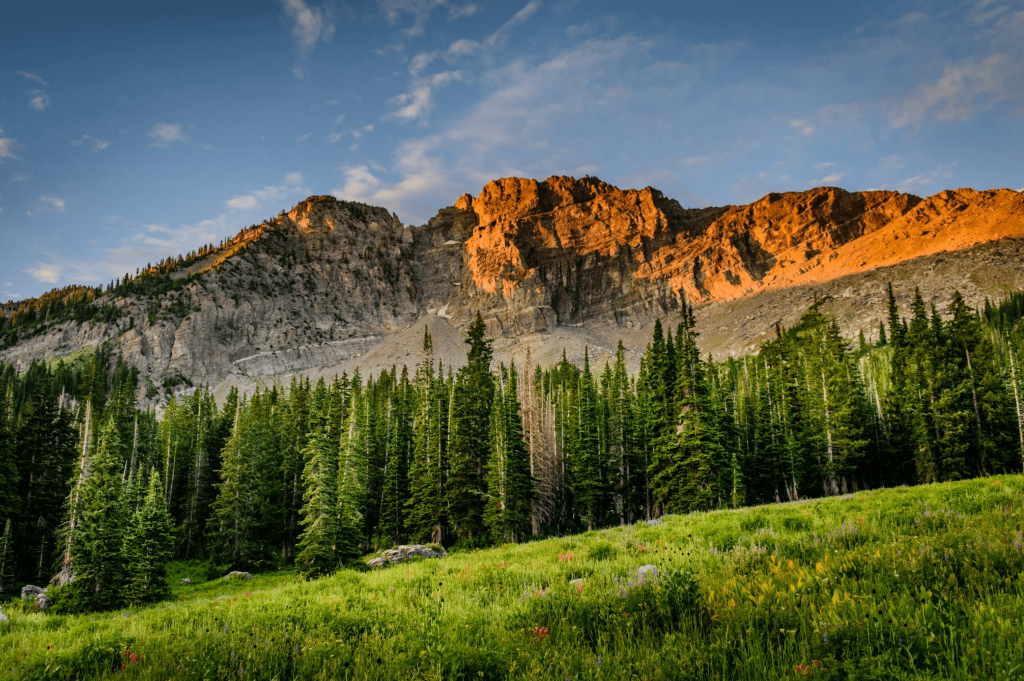
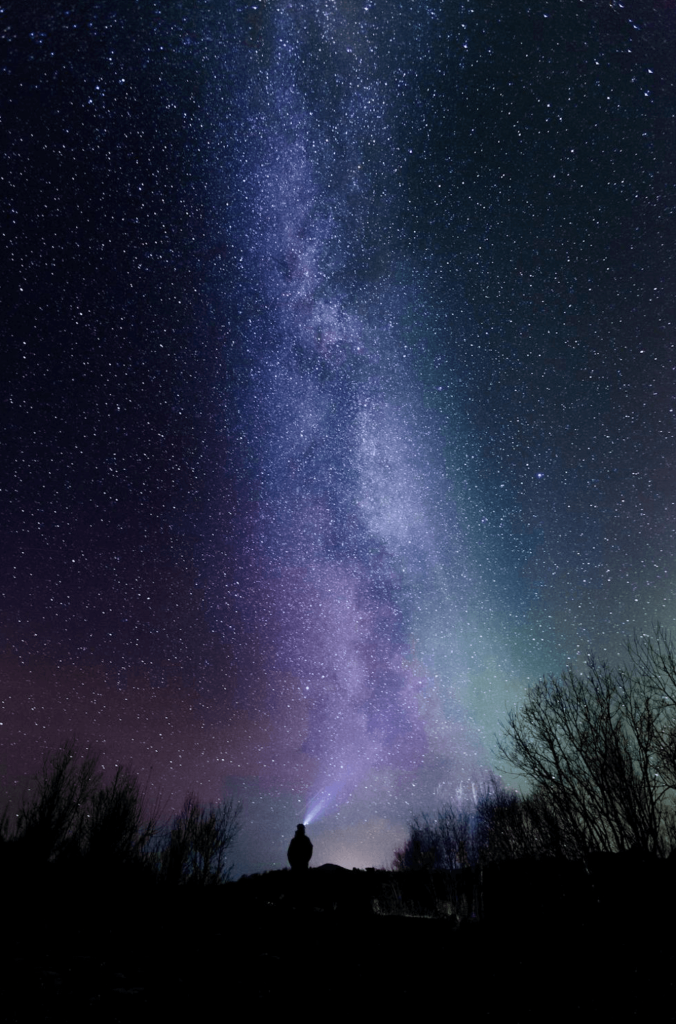
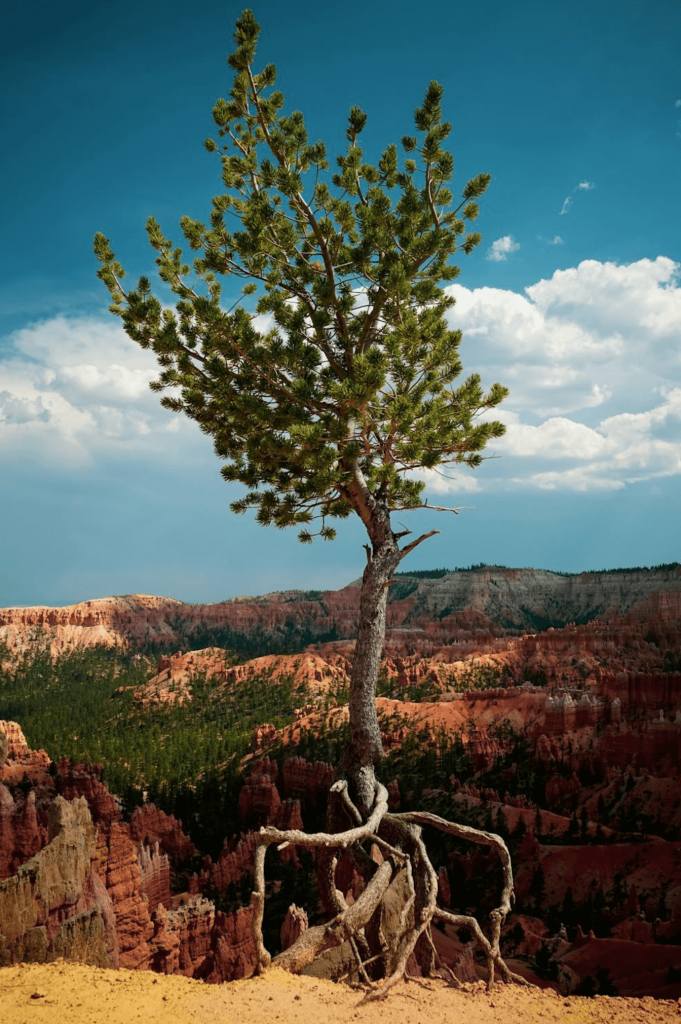
Here is a live Galleryberg gallery like the one your visitors will see after they unlock the page. It uses the Masonry layout with three columns on desktop, two on tablets, one on phones, and the lightbox turned on. Click any photo to try it.



Testing while logged out matters. As an administrator, WordPress may show you the content right away, so you would not see what your visitors see.
Method 2: Make a Gallery Private for Logged-In Users
Sometimes a password is not the right fit. If the gallery is only for your own team, choose Private in the same Status setting instead of using a password.
A private page is visible only to logged-in users who have permission to read private content, which by default means Administrators and Editors (and the author of the post). Everyone else gets a “not found” page. This is great for internal photo libraries, brand asset galleries, or drafts you want your team to review.
If you need a private gallery for many people with their own accounts, such as paying members or students, a membership plugin is a better choice. These plugins can lock pages by user role or subscription, and your Galleryberg gallery works inside those pages like any other block.
How to Protect Only One Gallery on a Page
What if you have a public page, like a portfolio or an event recap, and you want to lock only one of the galleries on it? WordPress password protection always covers the whole page content, and Galleryberg does not have a separate password option for a single gallery block yet.
The clean workaround is to split it into two pages:
- Keep your public page as it is, with the galleries everyone can see.
- Create a second page for the private gallery and set it to Password protected (Method 1).
- On the public page, add a short note and a Buttons block, for example “View the full client gallery”, that links to the protected page.
Visitors get a smooth path from the public preview to the full set, and only people with the password can see it. This setup also works well for photographers who show a small teaser gallery publicly and keep the full delivery private.
Tips for Password Protected Client Galleries
- Use one page and one password per client. This keeps every client’s photos separate, and you can change one password without affecting anyone else.
- Change the password to remove access. When a project is over, update or remove the password. Visitors with the old password will see the form again.
- Keep sensitive details out of titles and file names. The page title and image file names can still be seen by search engines or anyone with a direct link.
- Do not upload highly sensitive images. Because the image files stay publicly reachable by their direct links, password protection is best for privacy and convenience, not for confidential material.
- Send the link and password separately if you want an extra layer of care, for example the link by email and the password by text message.
- Optimize large photo sets. Client galleries often have hundreds of images. Our tips on making galleries load faster help the page open quickly once it is unlocked.
Planning a full client delivery page? Our wedding photo gallery tutorial and guide to showcasing client work show layouts that work well behind a password too.
If you use Galleryberg Pro image comments for client feedback, there is a nice bonus: comments stay hidden while the page is locked and appear only after the visitor enters the password.
Frequently Asked Questions
Can Google see a password protected gallery?
No. While a page is locked, WordPress shows only the password form, so search engines cannot see the gallery or its images on that page. The page title can still appear in search results, so keep it neutral. Remember that an image file can still be opened by anyone who has its direct link.
Can I use different passwords for different galleries?
Yes. Each WordPress page or post has its own password, so put each gallery on its own page and give each page a different password. This is the easiest way to give every client their own private gallery.
Can I password protect just one gallery block on a page?
Not directly. WordPress password protection covers the whole page content, and Galleryberg does not have a per-gallery password option yet. Put the private gallery on its own protected page and link to it from your public page with a button.
How long does a visitor stay unlocked?
WordPress saves the password in a browser cookie, so visitors usually stay unlocked for about 10 days on the same device and browser. If you change the password, everyone will need to enter the new one.
Conclusion
Password protecting an image gallery in WordPress takes only a minute. Put the gallery on its own page, set the visibility to Password protected, and share the link and password with the people who should see it. Use Private for team-only galleries, and split public and private galleries into separate pages when you need both.
With Galleryberg, the gallery your visitors unlock looks just as polished as any public one, with flexible layouts, responsive columns, and a smooth lightbox. Try it on your next client delivery or family album.