
Lightbox captions let you show image titles or descriptions inside the lightbox view in WordPress. They help explain images without leaving the gallery. Proper caption control improves clarity, user understanding, and keeps image viewing clean and informative.
The following gallery has been created with the Galleryberg plugin.
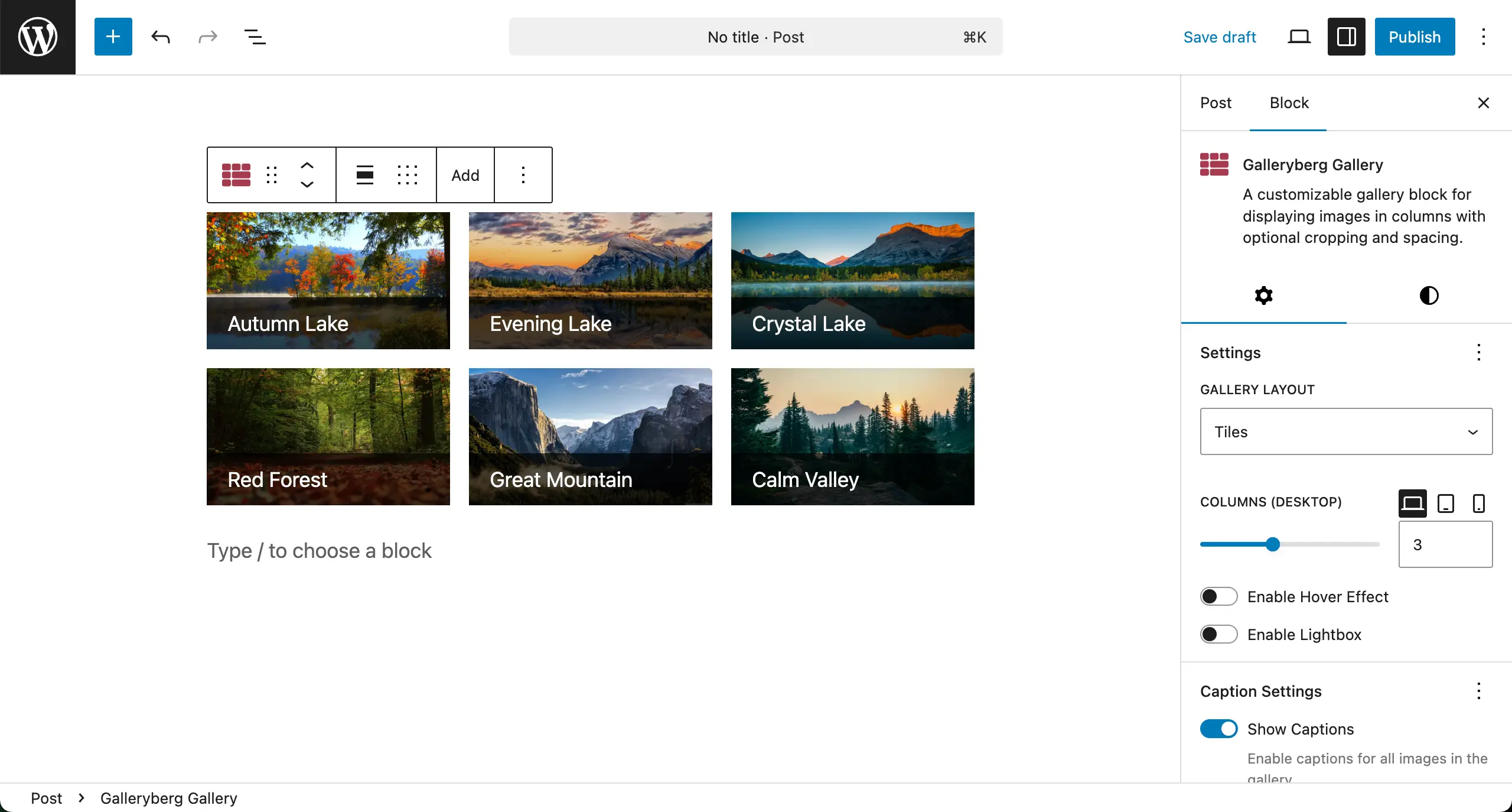
Now, we’ll show you how to customize Lightbox captions.
Configuring Lightbox Caption Settings #
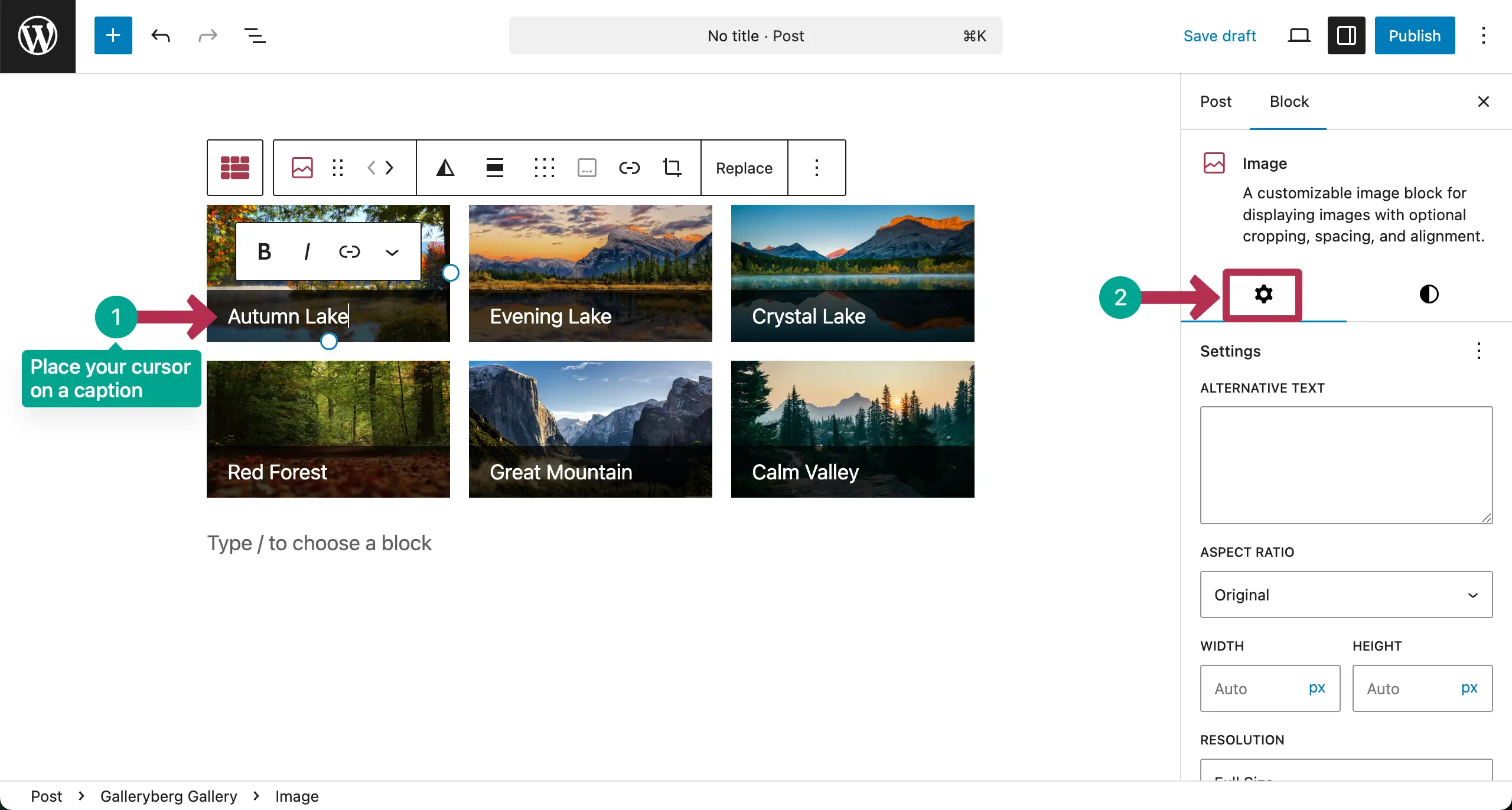
Place your cursor on any image. Then, go to the settings tab on the right sidebar.
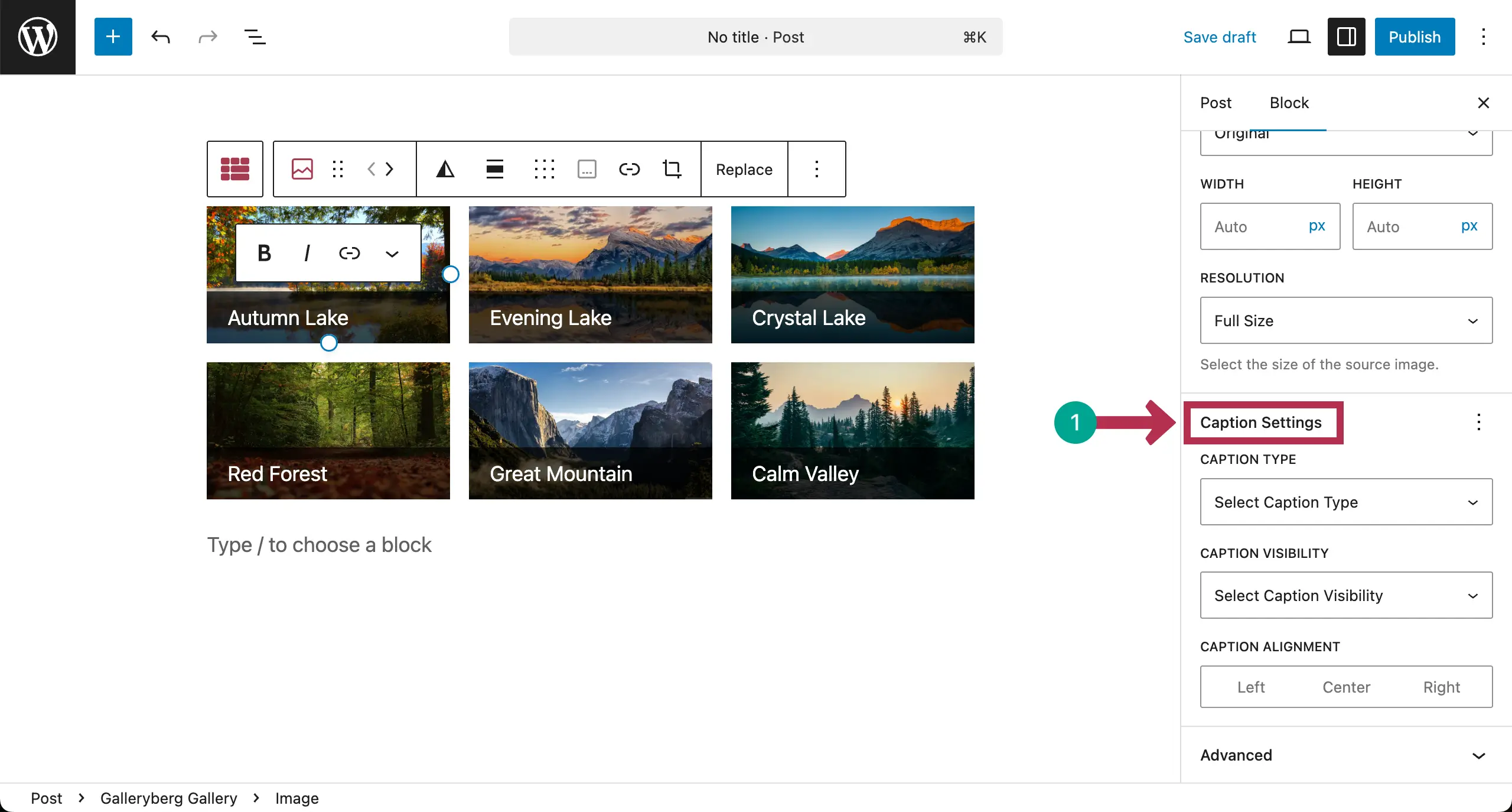
Scrolling down the tab, come to Caption Settings. There you’ll get three options – Caption Type, Caption Visibility, and Caption Alignment. Each one again has several options.
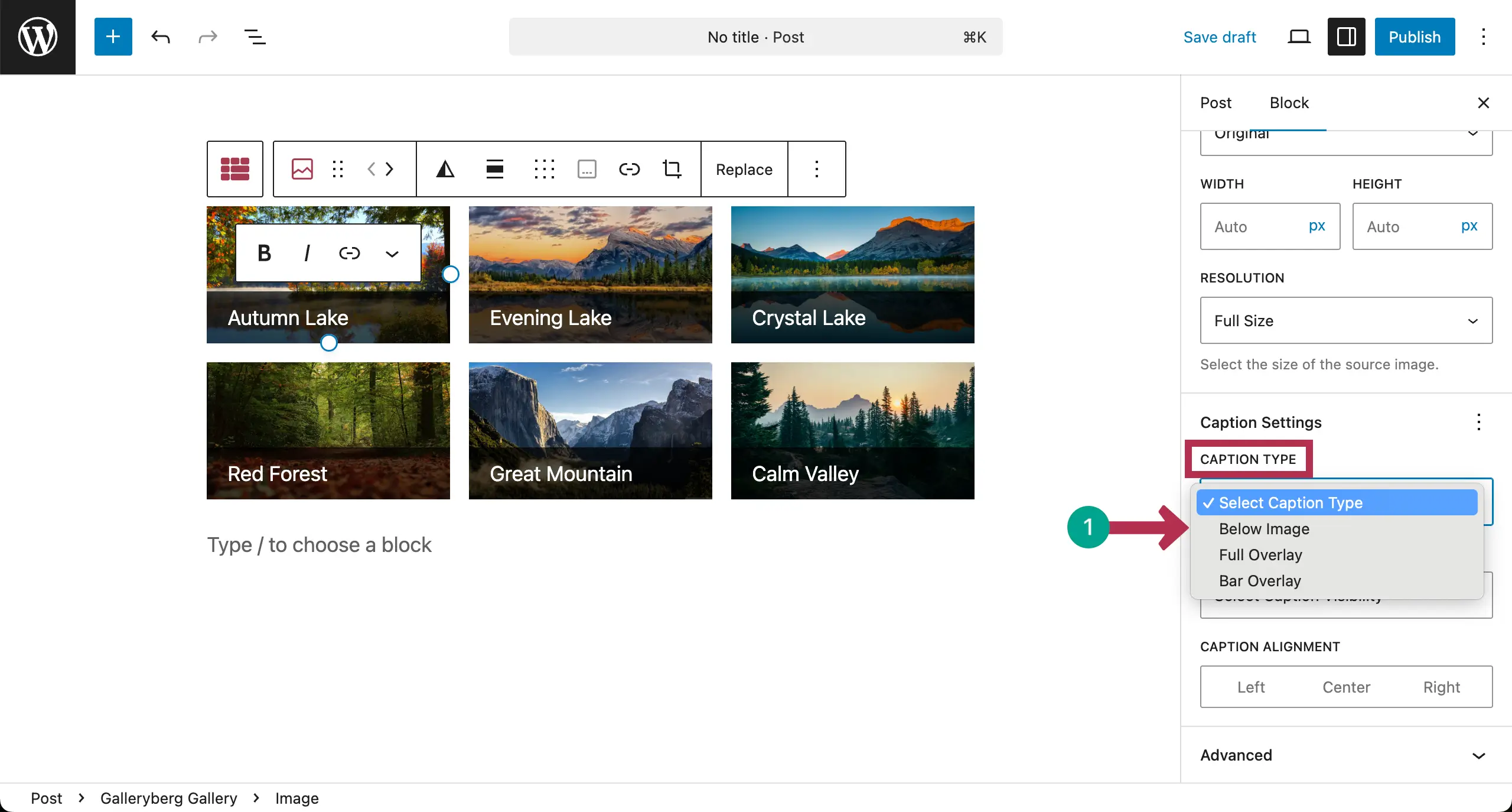
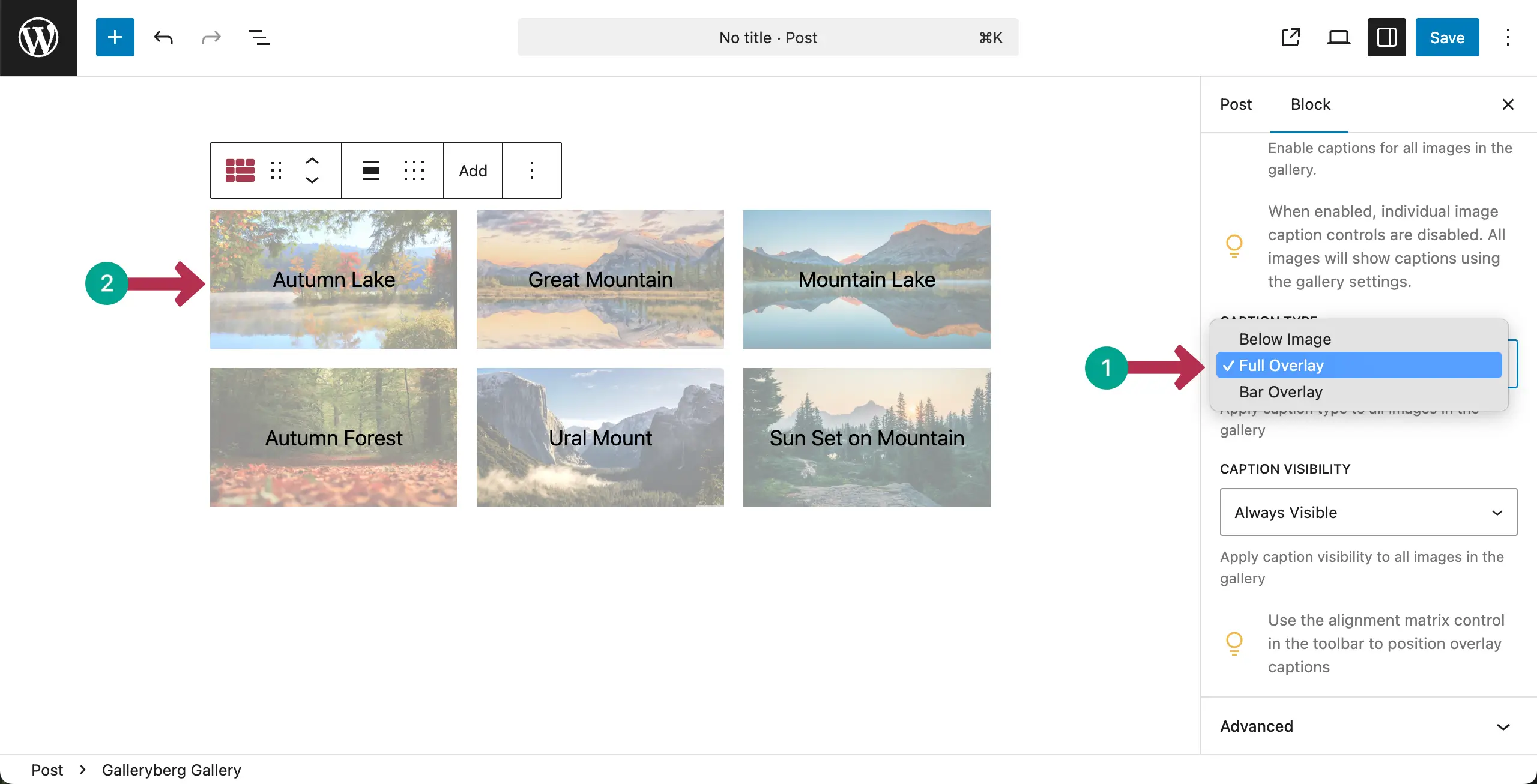
Let’s start with the Caption Type. From here, you can specify where the caption of the image will be displayed. You can choose to display caption: Below Image, Full Overlay, or Bar Overlay.
You can see that we have selected the Full Overlay option for the gallery.
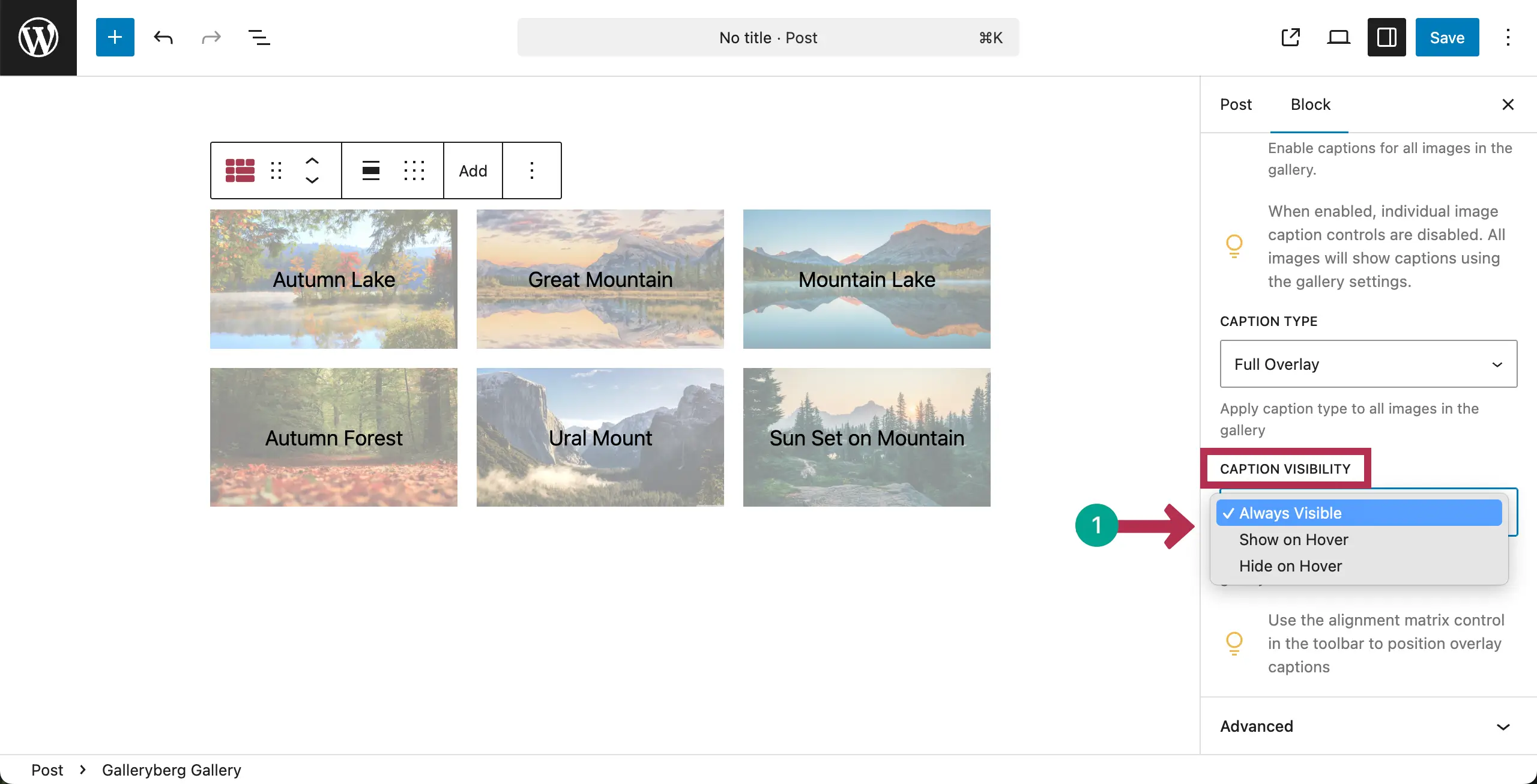
Next, open the dropdown list of Caption Visibility. From here, you can set how the caption will be visible. You may choose – Always Visible, Show on Hover, and Hide on Hover.
By default, the Always Visible option is automatically selected.
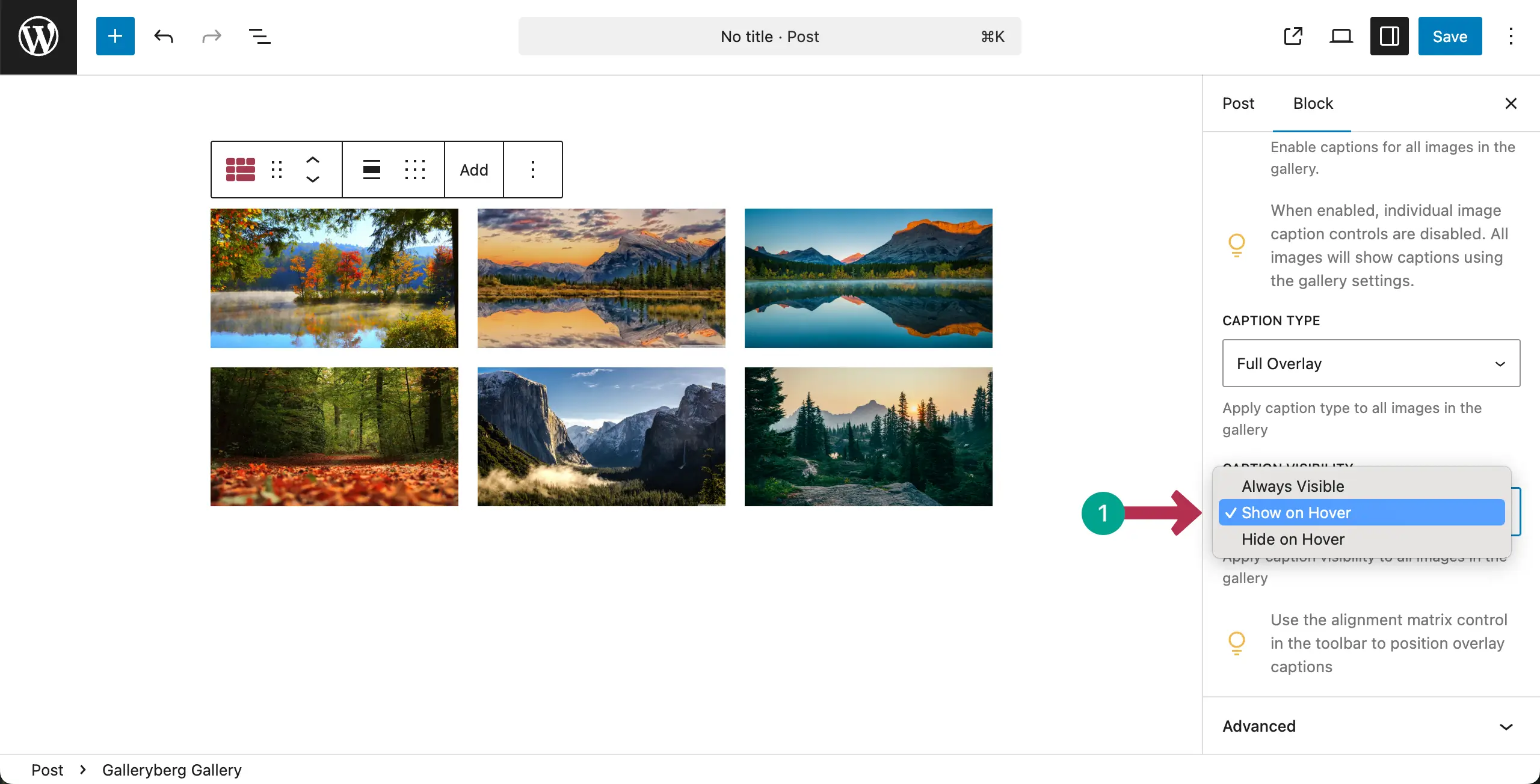
For this tutorial, we have selected the Show on Hover option. You can see that captions from over the options have disappeared.
Captions will appear again the cursor will be hovered on the images.
Now, go to the preview page and check if captions are appearing when hovering over the images.
You can see that it’s working well on our end in the video clip attached below.
Conclusion #
Lightbox captions should be clear and easy to read. Show captions only when they add value. Use simple fonts and good contrast. Avoid covering important image areas.
Hope you can customize caption stylization after reading this documentation post.


