
Lightbox allows images to open in a full-size view when clicked in a WordPress gallery. It keeps users on the same page while viewing details. Lightbox improves image focus, user experience, and makes galleries more engaging and easy to explore.
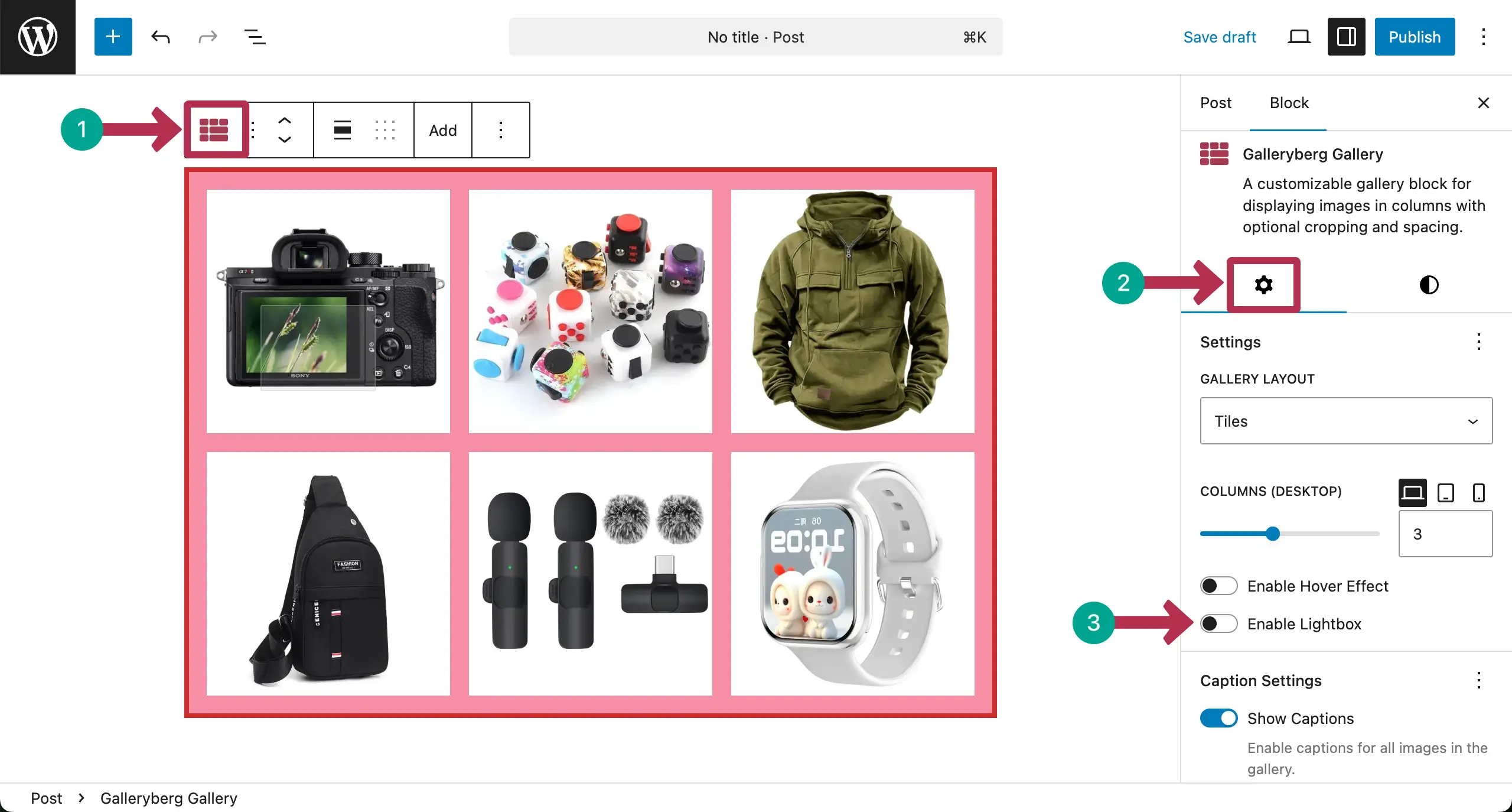
The following gallery in the image has been created with the Galleryberg plugin.

Now, we’ll show you how to enable and use Lightbox for WordPress with the Galleryberg plugin.
How to Enable Lightbox #
Select the entire gallery by clicking the Galleryberg icon on the toolbar. Go to the Settings tab on the right sidebar.
Toggle on the Enable Lightbox option.
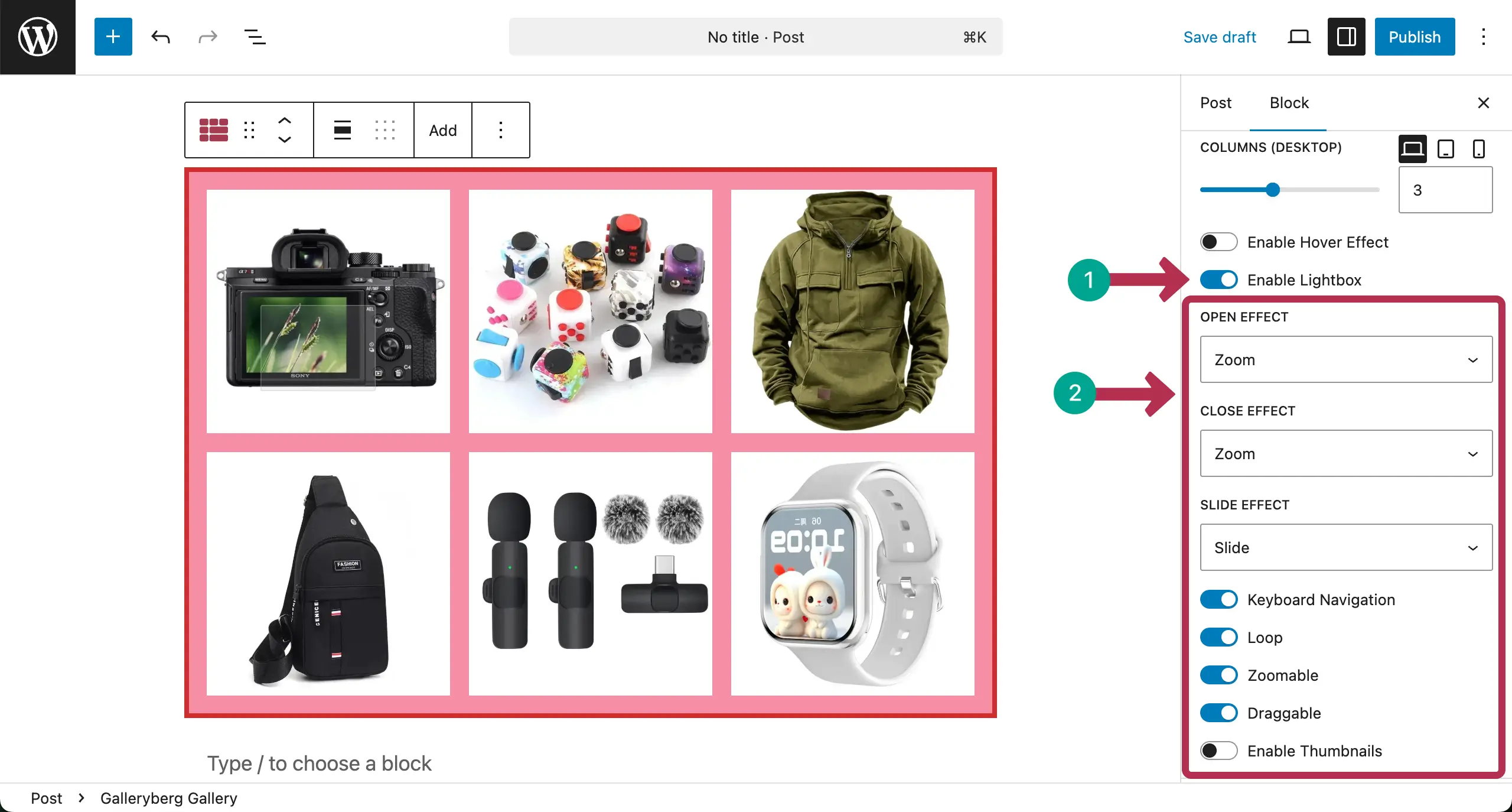
Once the Lightbox is enabled, you’ll get various options shown up. Let’s see what you can do with them:
- Open Effect controls how the image appears when the lightbox opens, such as fading or zooming in.
- Close Effect defines the animation style used when the lightbox is closed.
- Slide Effect sets how images move when switching between them inside the lightbox.
- Keyboard Navigation lets users navigate images using arrow keys on the keyboard.
- Loop allows images to start again from the first after reaching the last one.
- Zoomable lets users zoom in to see image details more clearly.
- Draggable allows users to drag the image inside the lightbox to view different areas.
- Enable Thumbnails shows small preview images for quick navigation between gallery items.
Let’s come to the preview page and see how the Lightbox works. You can see in the video clip below that our Lightbox is working completley fine.
Conclusion #
Lightbox settings should improve image viewing, not distract users. Use smooth and simple effects. Enable keyboard navigation for better accessibility. Keep zoom and drag features useful but not heavy.


