
Spacing controls help you adjust the gap between rows and columns in WordPress galleries. They let you manage how close or far images appear. Proper spacing improves clarity and balance. It makes galleries easier to view and gives your website a clean and professional look.
With the Galleryberg plugin you can do it easily. To explain this process, we have already created a gallery with the plugin. You can see it below.

Let’s see how to adjust column and row gaps using the plugin in the following parts.
Step 01: Adjust Row Gaps of the Gallery #
Select the entire gallery by clicking the Galleryberg icon on the toolbar.
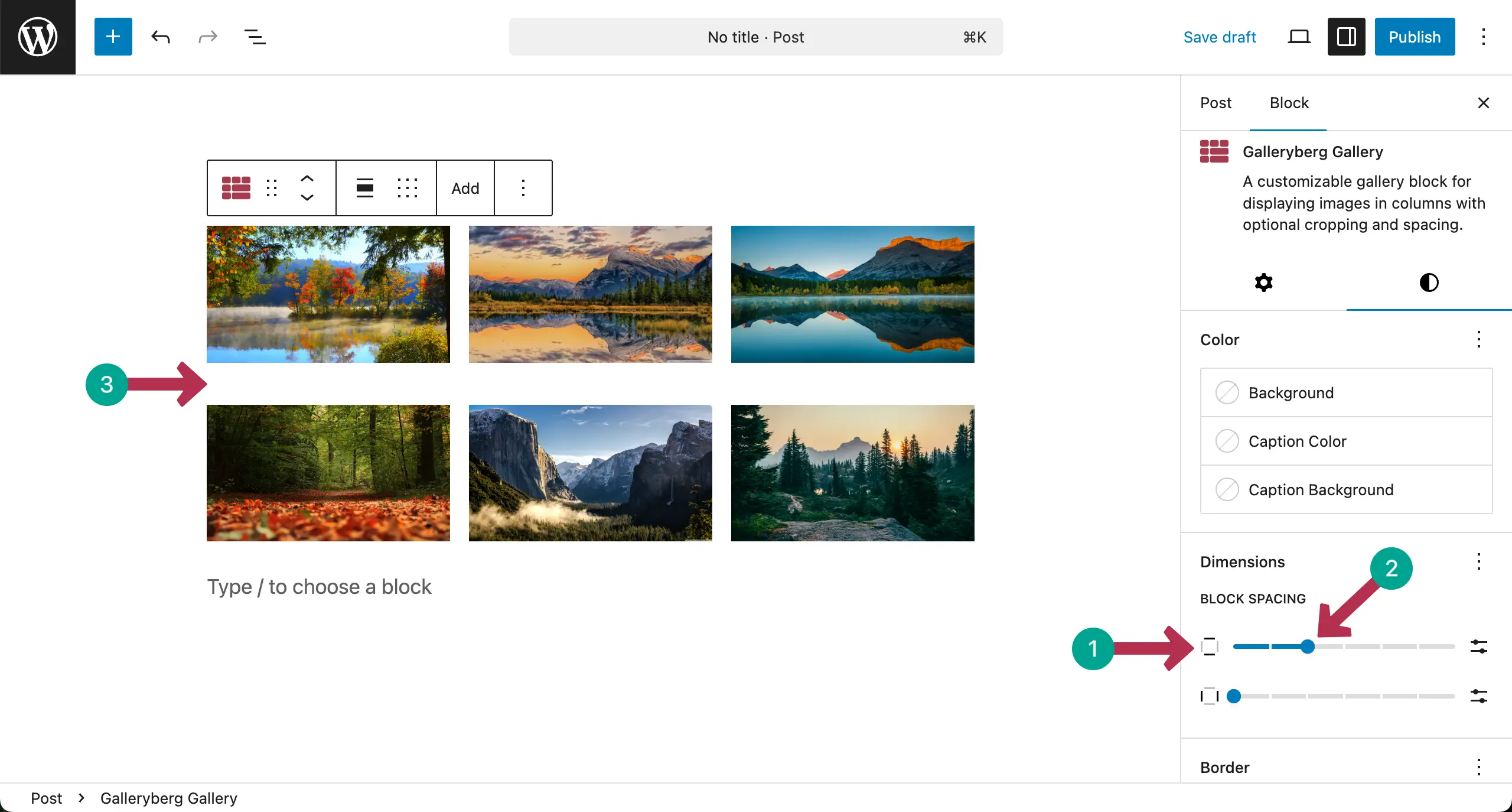
Then, come to the Styles tab on the right sidebar. Find the Block Spacing section. There are two options. One for adjusting the space between rows and the other is for column.
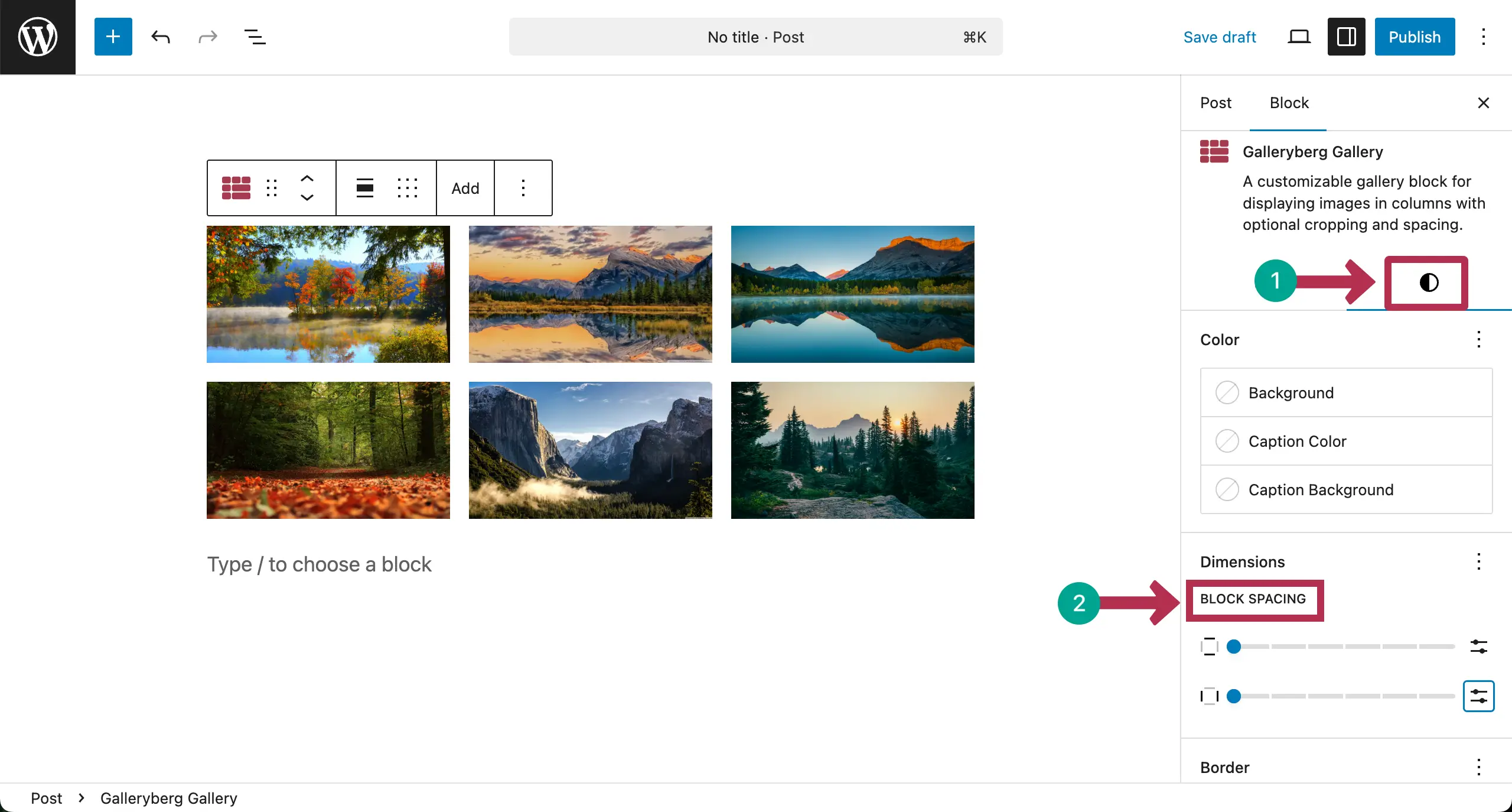
The first option is for adjusting space between rows. By moving the pointer, you can increase/decrease the space. You can see that we have increased space between the rows of the gallery.
Step 02: Adjust Column Gaps of the Gallery #
The second option is for adjusting space between the columns. Like above, you can do this by moving the pointer of this option. You can see in the image below that we have done this.
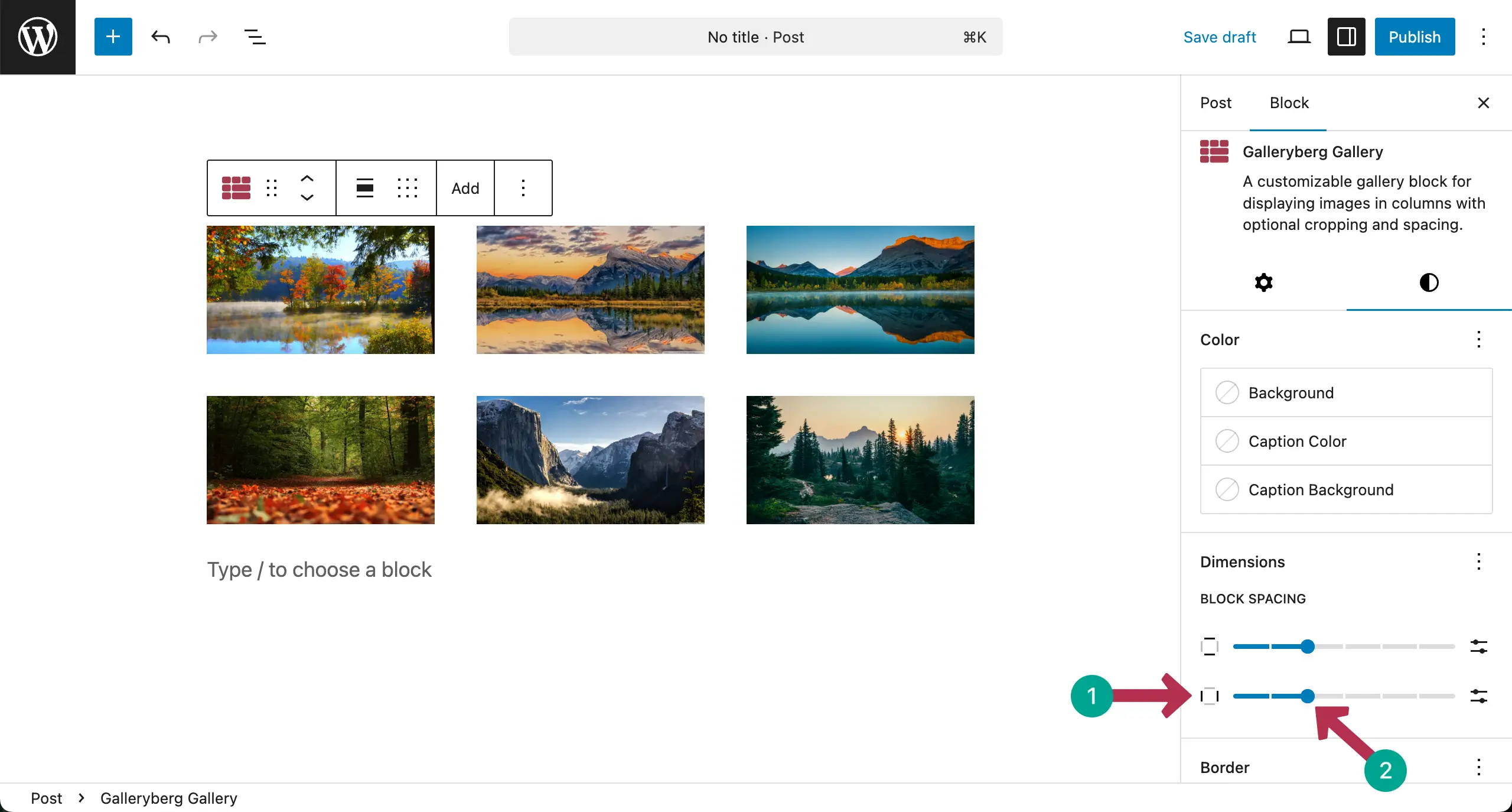
Thus, you can adjust gaps between the rows and columns of the image gallery.
Conclusion #
Spacing controls should be used with care for the best results. Keep gaps consistent across the gallery. Avoid very tight or very wide spacing. Always check the gallery on different screen sizes. Proper spacing improves image focus, readability, and overall visual comfort for visitors.


