

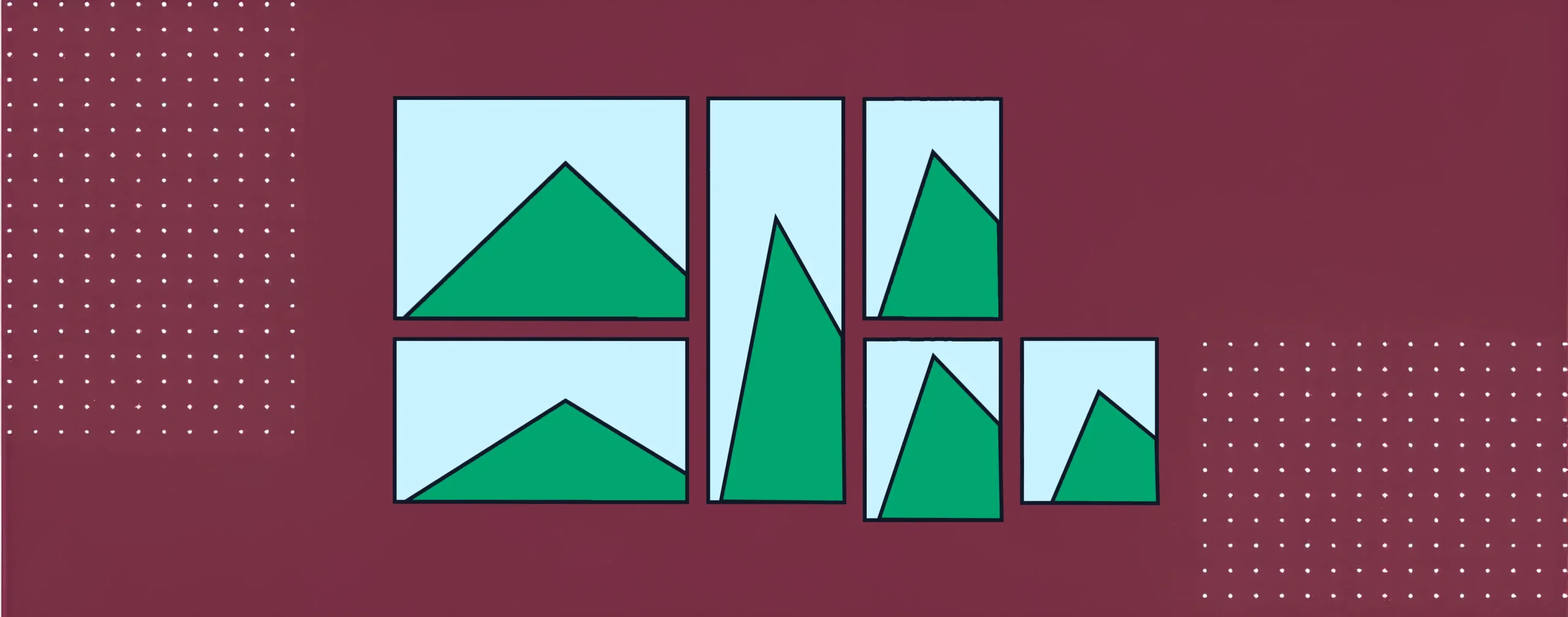
A mosaic image gallery is a visual layout where images are placed in different sizes and shapes. This layout does not follow equal rows and columns. Instead, it creates a creative look where some images look bigger, and some look smaller.
It makes the gallery more dynamic and helps highlight important photos. This type of gallery has huge traction on many modern websites. It is often used for portfolios, photography sites, travel blogs, and creative projects.
Now, in this tutorial post, we’ll cover a step-by-step guide on how to create a mosaic image gallery in WordPress with necessary screenshots. Hope this will help you follow the guide quite easily. Get started!
How to Create a Mosaic Image Gallery in WordPress
To cover this tutorial, we’ll use the Gallerberg plugin. It’s a Gutenberg-native plugin by which you can build appealing galleries directly on the editor with minimal effort. No matter if you are a beginner, you can use it like a pro from the very first day.
Step 01: Install and Activate the Galleryberg Plugin
Log into your WordPress dashboard. Go to Plugins > Add Plugin. Type Galleryberg in the search box. You’ll see the plugin appearing in a few seconds. Once you get this, install and activate the plugin.

Step 02: Add the Gallery Block to Your Post/Page
Open the post or page where you want to create the gallery. Click the plus (+) icon on the editor. Type Galleryberg in the search box. Once the block appears, add it to the editor by clicking on it.

Learn how to make your gallery load faster on WordPress.
Step 03: Choose the Mosaic Gallery Layout
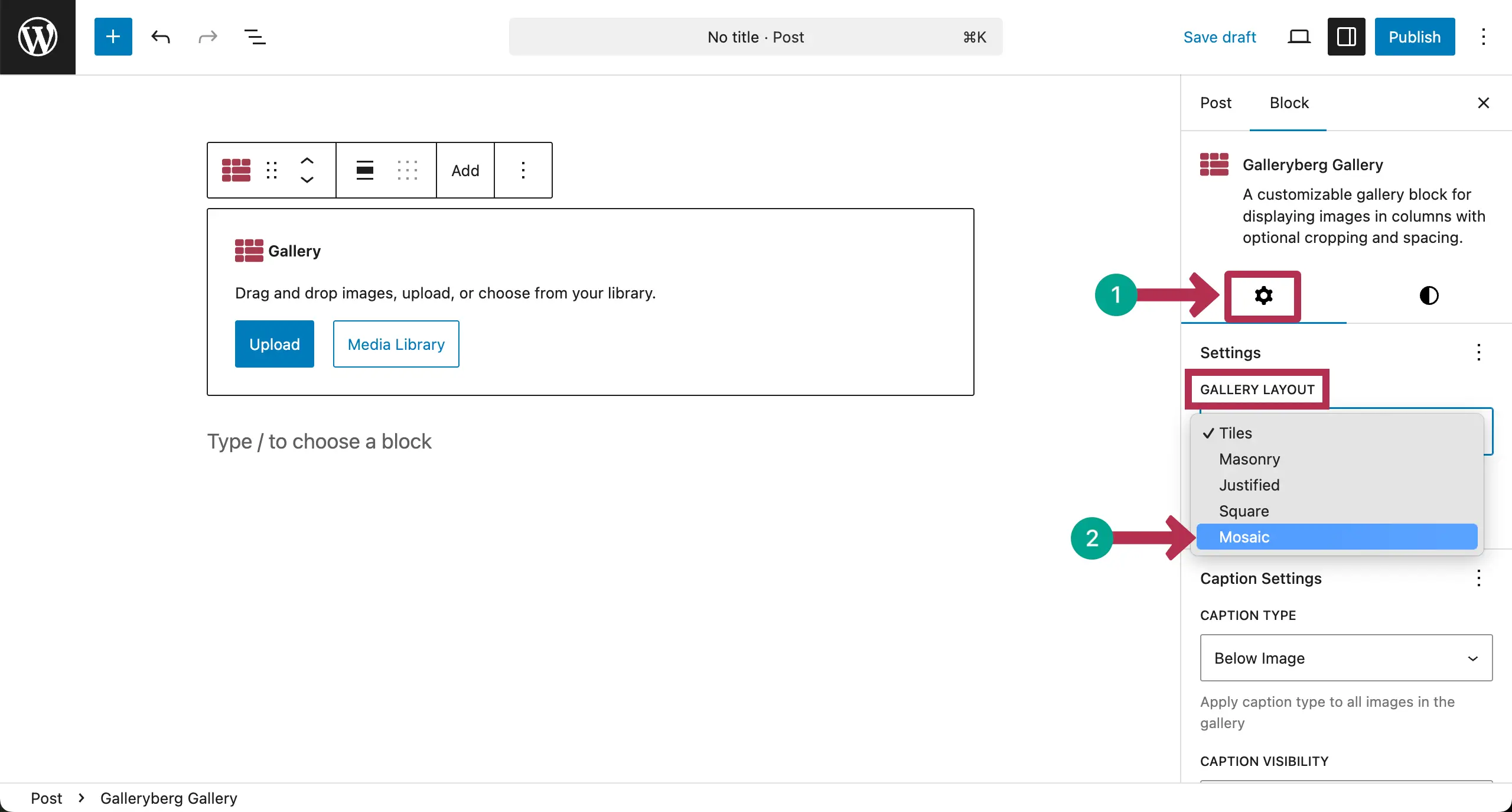
After the block is added to the editor, go to the Settings tab on the right sidebar. Open the dropdown list under the Gallery Layout option. Click to choose the Mosaic option.
Step 04: Add Images to the Gallery
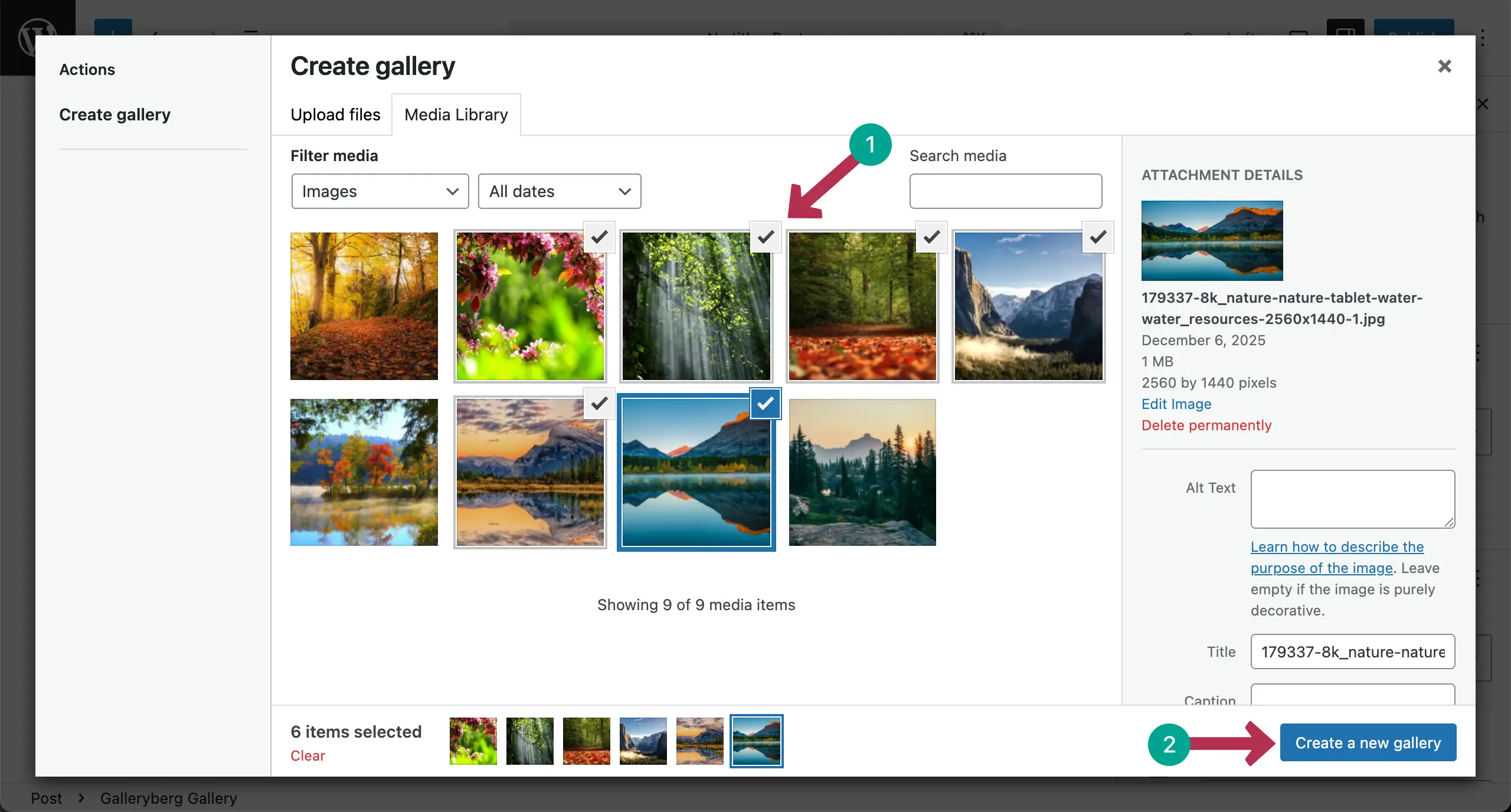
Now, it’s time to add images to the gallery. You may upload them from your local drive or choose from the existing files of your media library. For this tutorial, we’re choosing the Media Library option.

The media library will open immediately. Choose the images one by one that you want to display in your gallery. Once selected, click the Create a new gallery button.
In the next screen, you’ll get options to add captions to the images. When this part is done, hit the Insert gallery button at the bottom right corner.

The mosaic gallery will instantly be created, displaying the images you have selected.

Check how to build a portfolio gallery in WordPress.
Step 05: Add Alternative Texts to the Images
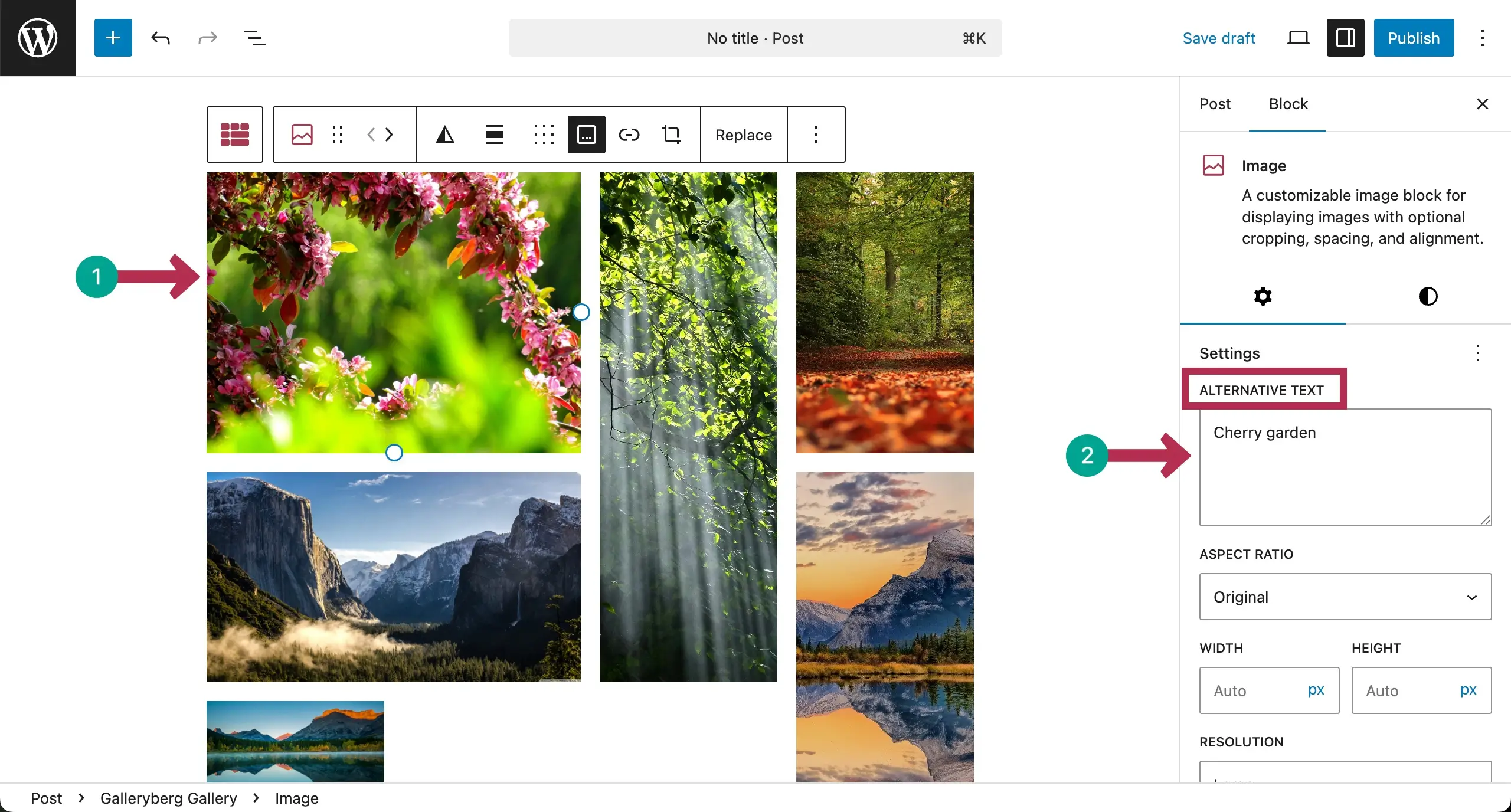
Remember that captions and alternative texts aren’t the same. Alternative texts are a must for a good SEO score. So, add this to each image by selecting them individually, one by one.
Step 06: Set Up General Settings
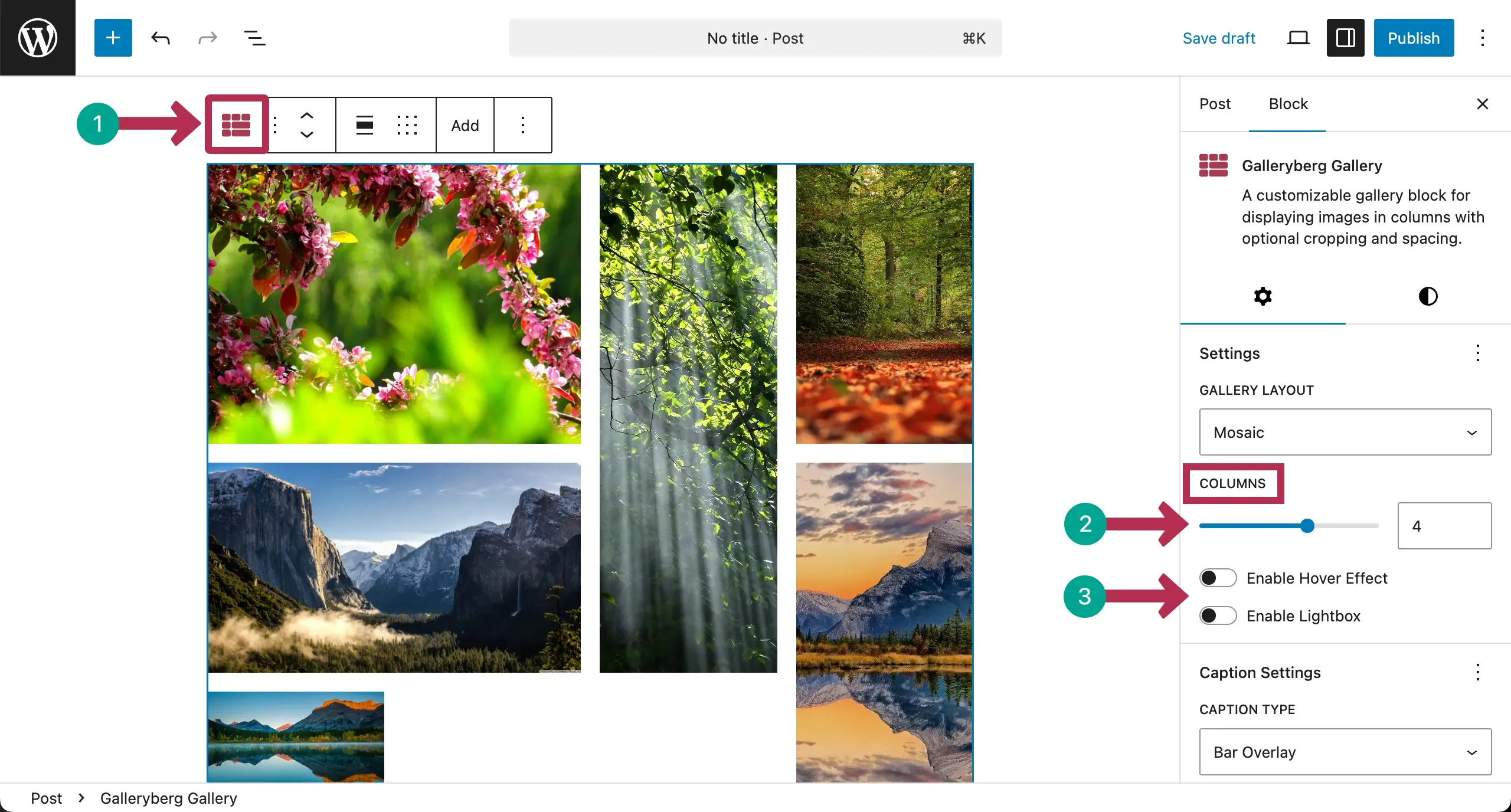
Like any Gutenberg block, you’ll see the settings tab on the right sidebar. For this, first you have to select the entire block by clicking the Galleryberg icon on the toolbar.
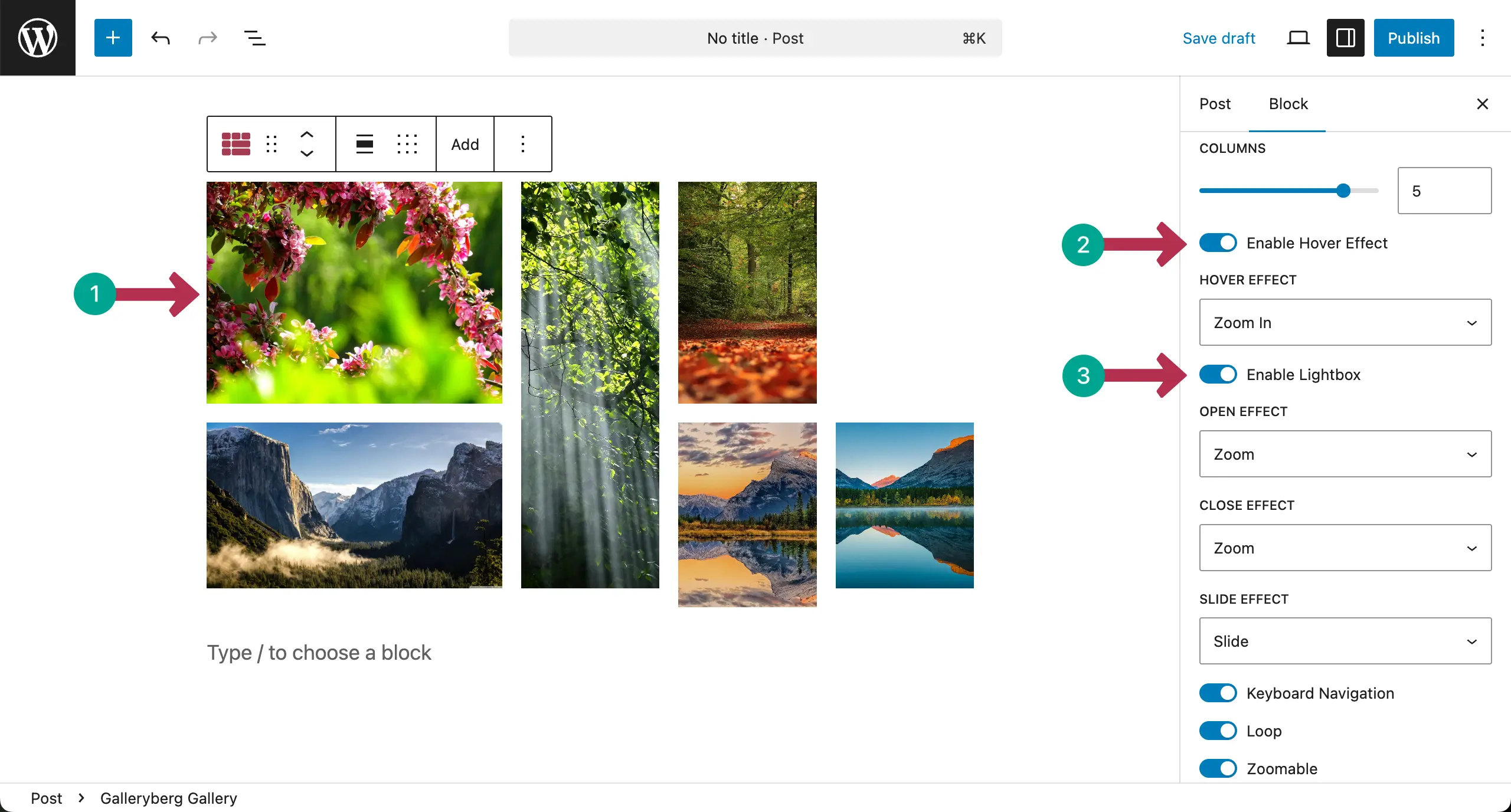
Then, go to the settings tab. You can change the column from there. You can also enable the hover effect and lightbox
When Hover Effect and Lightbox are enabled, some more options will appear, as you can see in the image attached below.
Learn how to add a lightbox to the Gutenberg gallery block.
Step 07: Configure Caption Settings
Scrolling down the settings tab a bit more, you’ll find the caption settings option. You can set the caption type and caption visibility as you want.
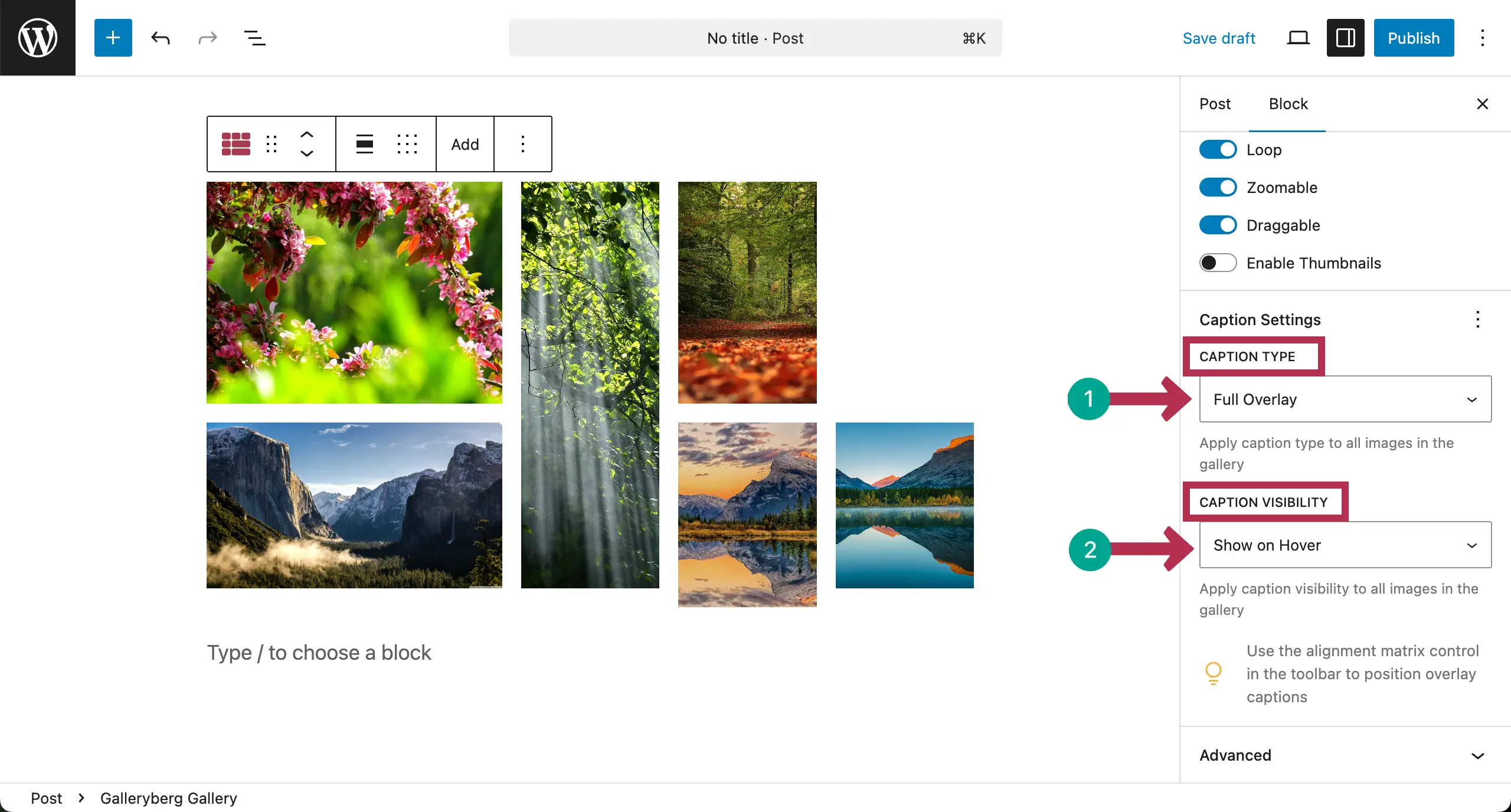
Step 08: Stylize the Mosaic Gallery
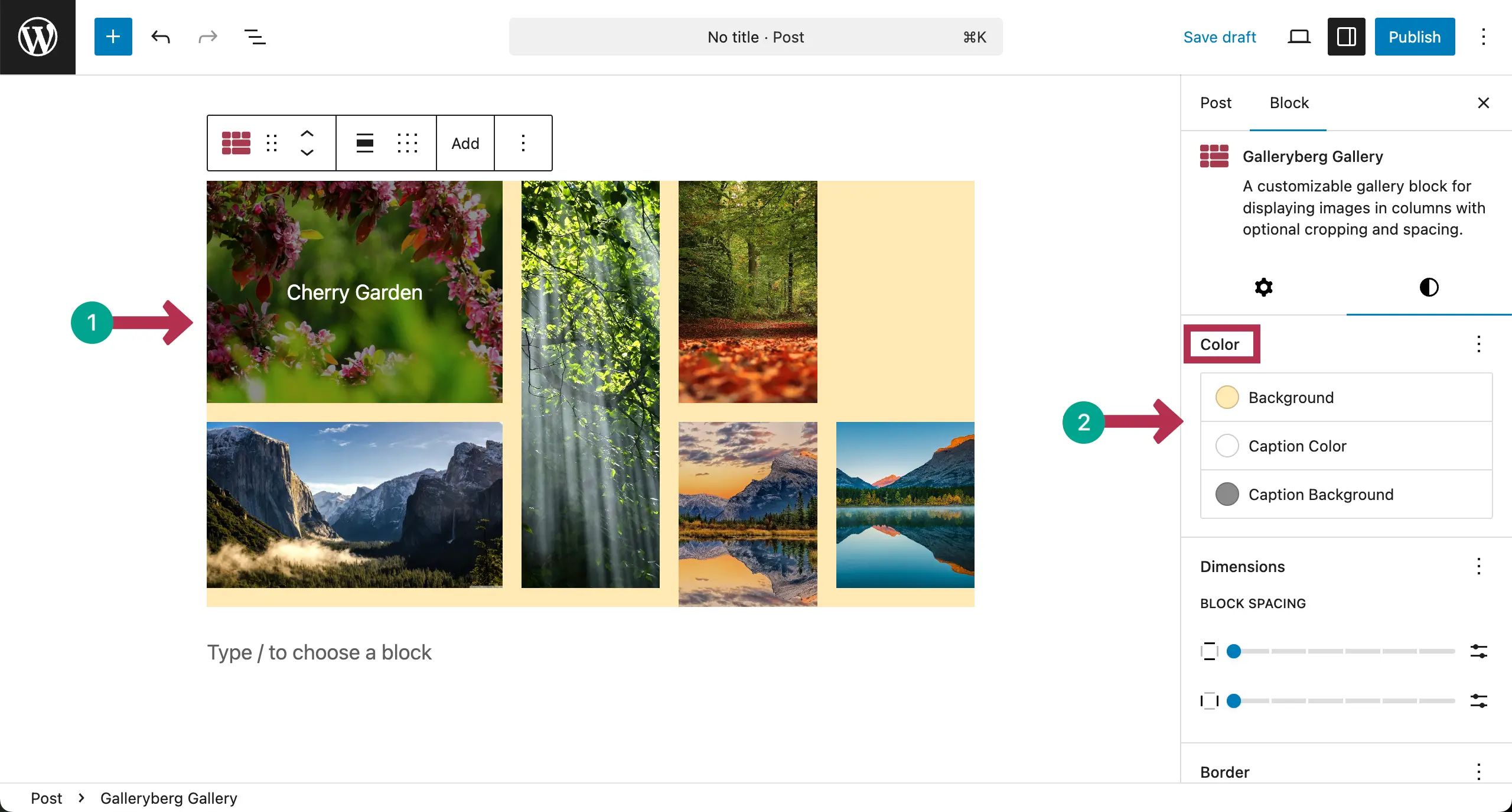
Finally, go to the Style tab. You can set a background color, caption color, and caption background color. These are so easy. Hope you can explore and do them yourself.
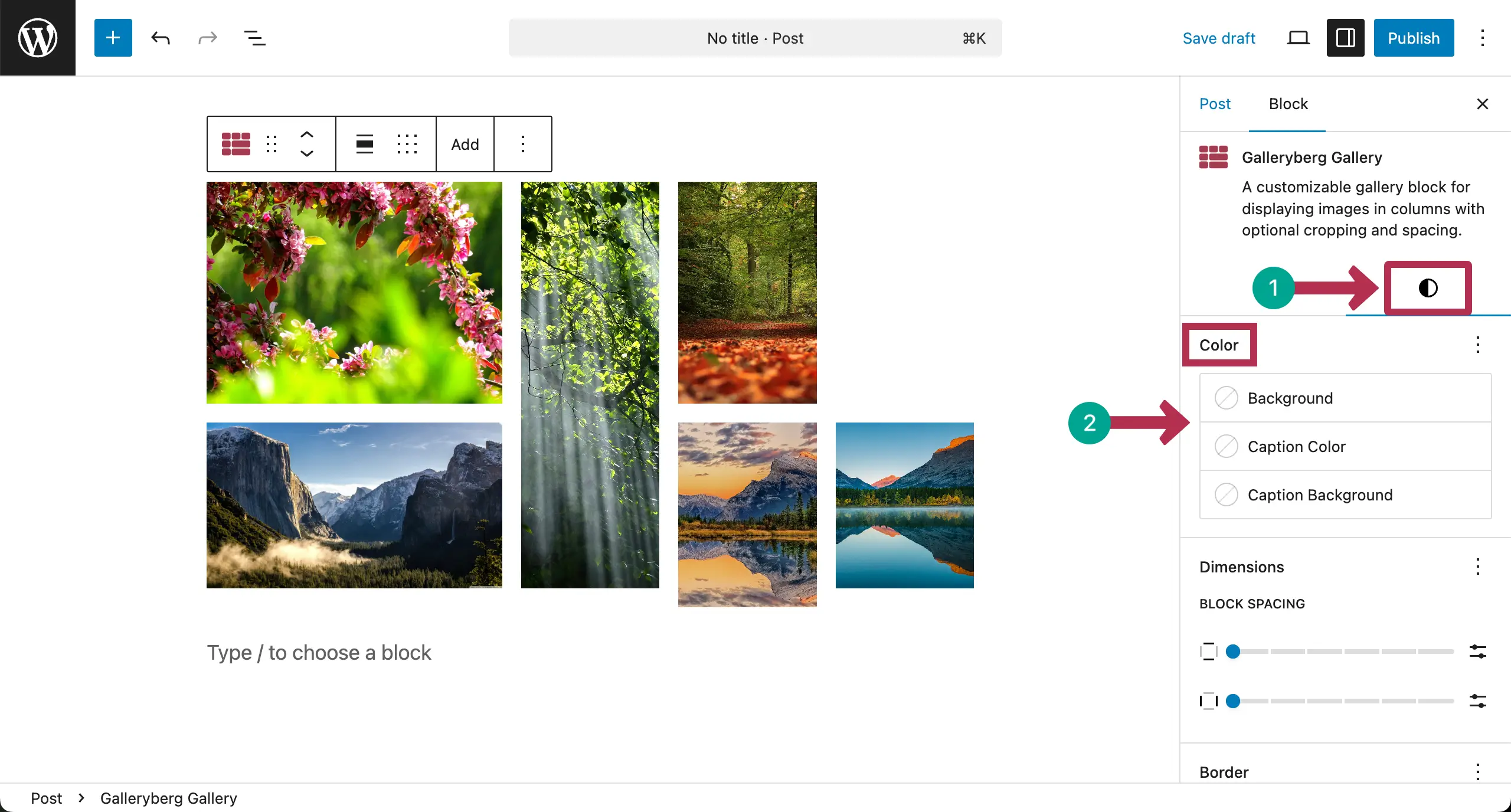
You can see that we have changed all the colors.
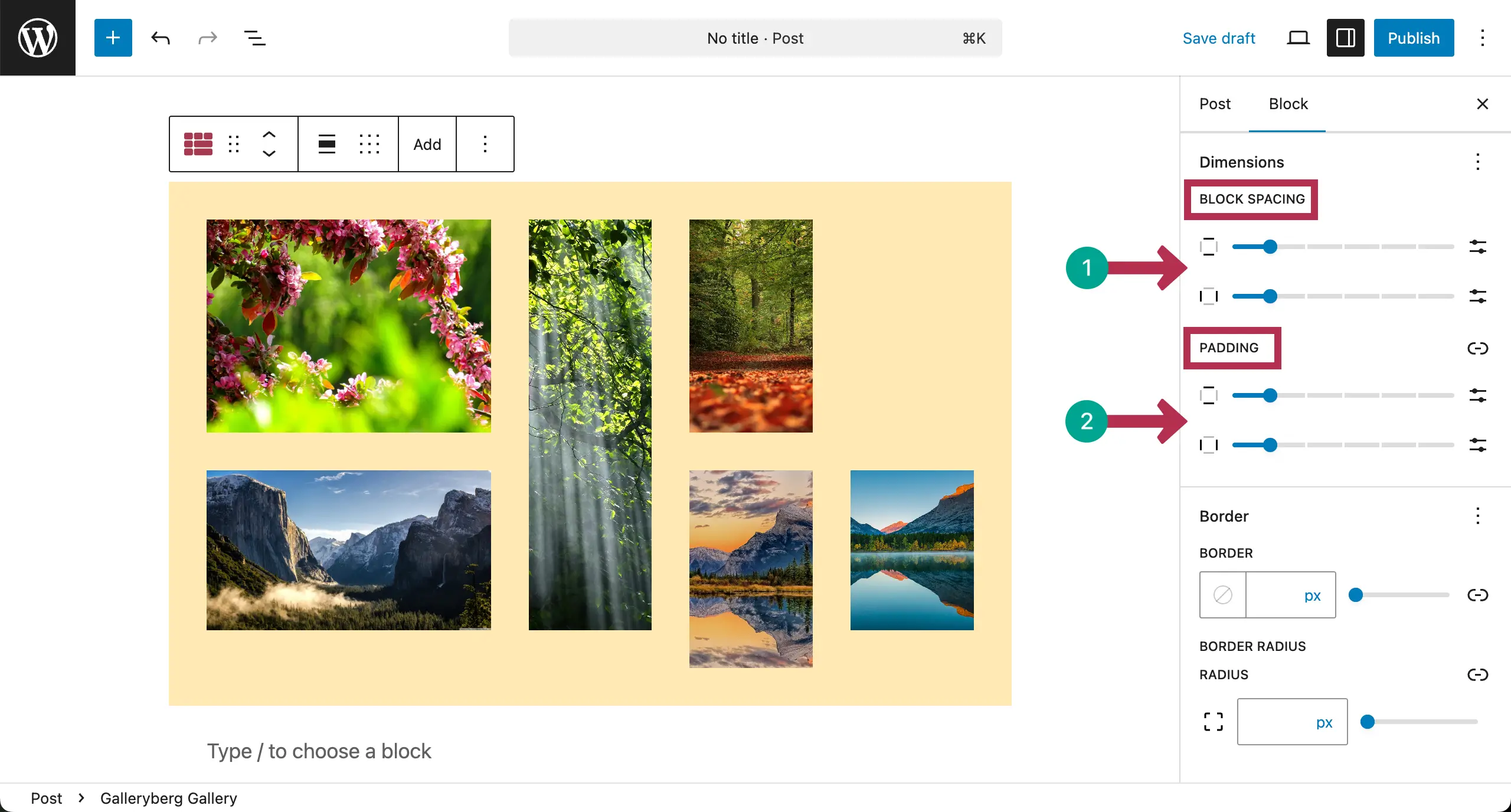
Scrolling down the tab, come to the Dimensions section. Click the three-dot icon. Choose what dimension settings you want to add. You can choose Block Spacing, Padding, and Margin.

You can see that we have added Block Spacing and Padding to the gallery.
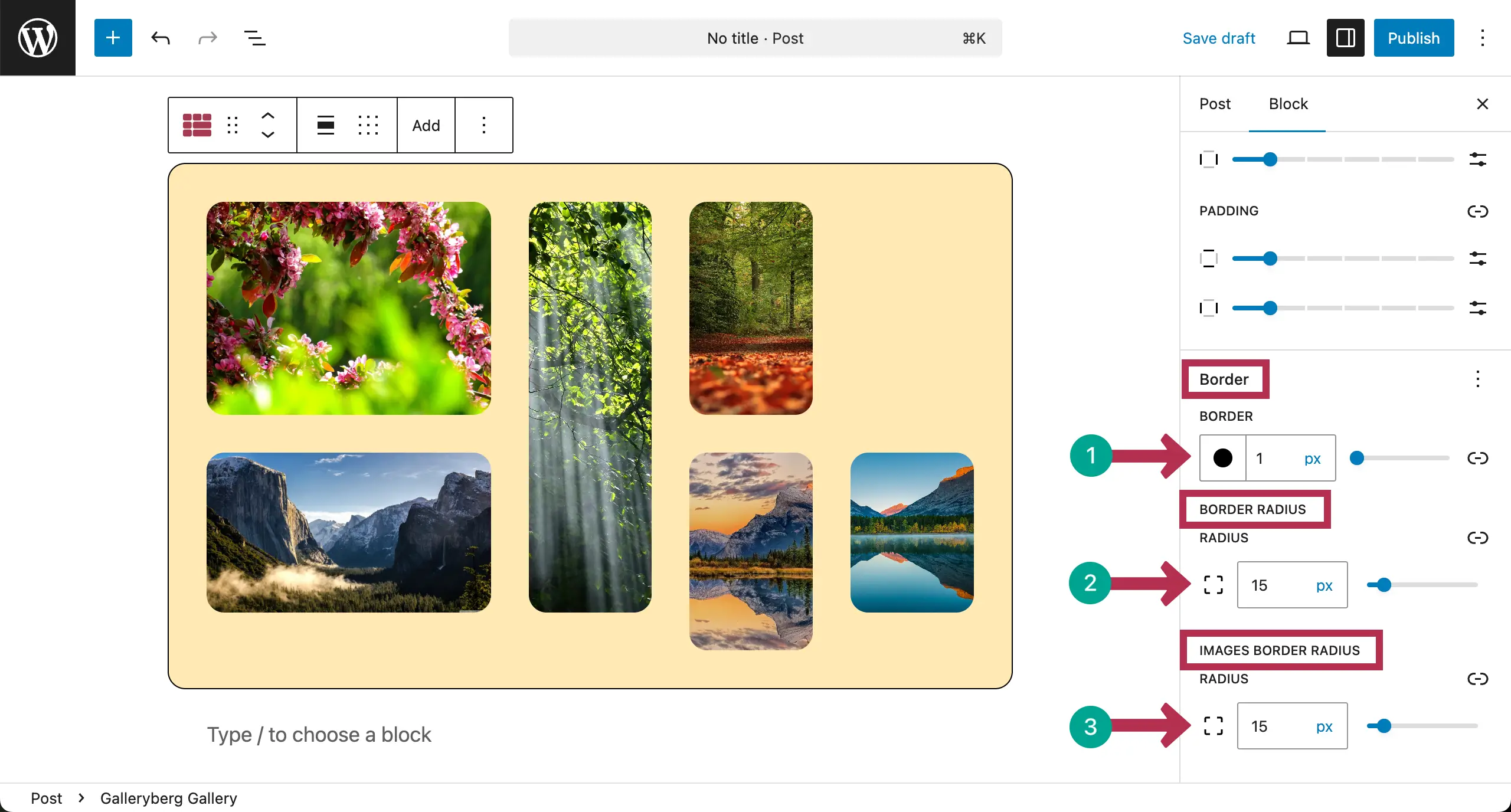
Finally, add a border, its color, border radius, and image border radius from the Styles tab.
Thus, you can create a mosaic gallery in WordPress with this simple step-by-step guide. Here’s a detailed discussion on the best WordPress lightbox plugins.
Conclusion and Recommendation
Mosaic galleries could be an ideal option for showcasing images on websites like portfolio, photography, event, wedding, travel, product, eCommerce, lifestyle, etc. Since it has lots of use cases, you can make the best use of the gallery when you have a detailed idea of how to create such galleries and maintain them over time.
Hope you have got this in detail from this blog post. But for the best results from this gallery, make sure you are using high-quality images. Try to keep a good balance between large and small images. Do not overload the gallery with too many photos at once. Make sure images are optimized for fast loading.
Now, if you have any questions regarding today’s topic or the plugin, don’t hesitate to mention them in the comment box below.
Leave a Reply