

Two Galleryberg releases have shipped recently, 1.1.9 and 1.2.0, and the best parts of them are easier to show than to describe.
The headline is the new Carousel gallery layout. It turns any Galleryberg gallery into a swipeable slider instead of a fixed grid. There is also a new Randomize option that reshuffles your images on every page load, plus a round of fixes to the lightbox, lazy loading, and license handling.
Here is what each one does, and when you would actually want to use it.
Carousel Gallery Layout: Show More Images in Less Space
A grid shows every image at once. A carousel shows a few at a time and lets visitors move through the rest at their own pace.
The new Carousel layout is built on Swiper, one of the most widely used slider libraries on the web. That means touch swiping, keyboard arrows, and mobile behaviour all work the way people already expect them to, without any setup on your side.
Here is one running live on this page:



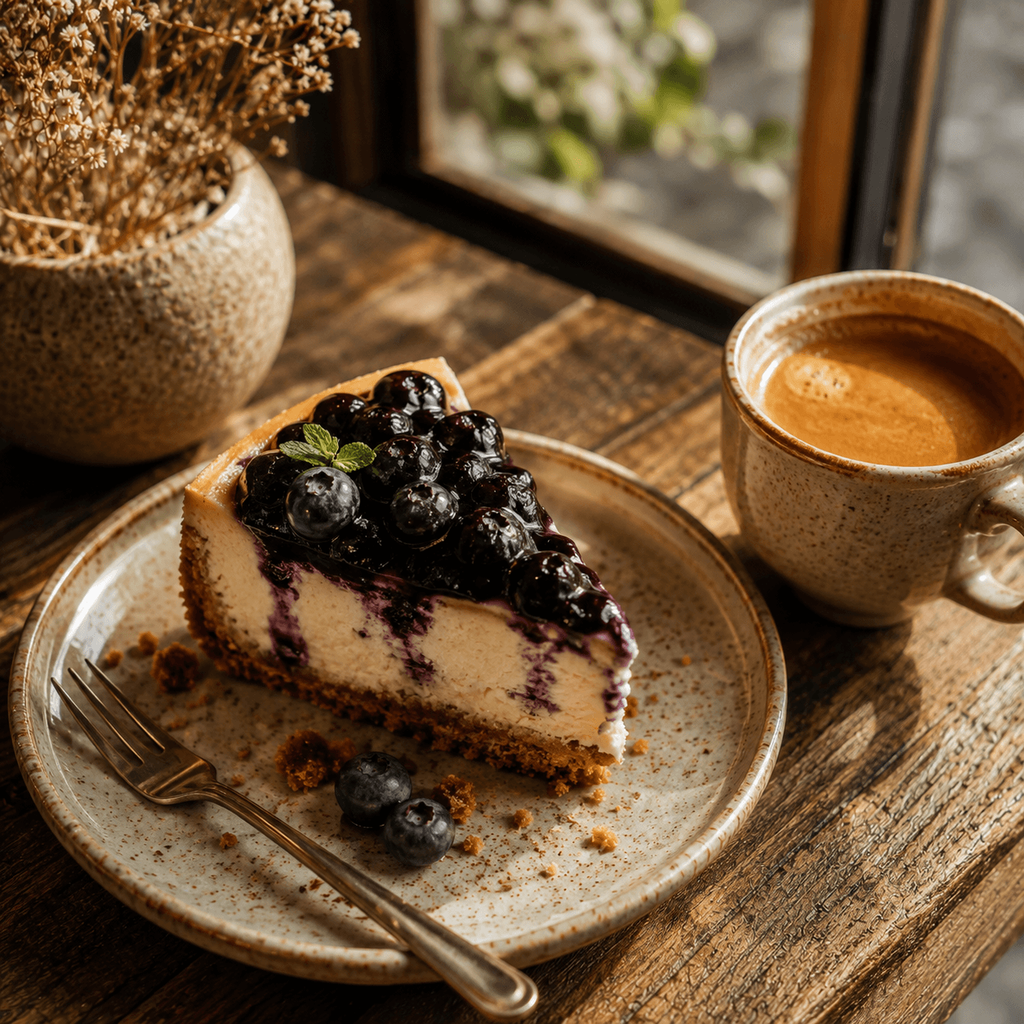

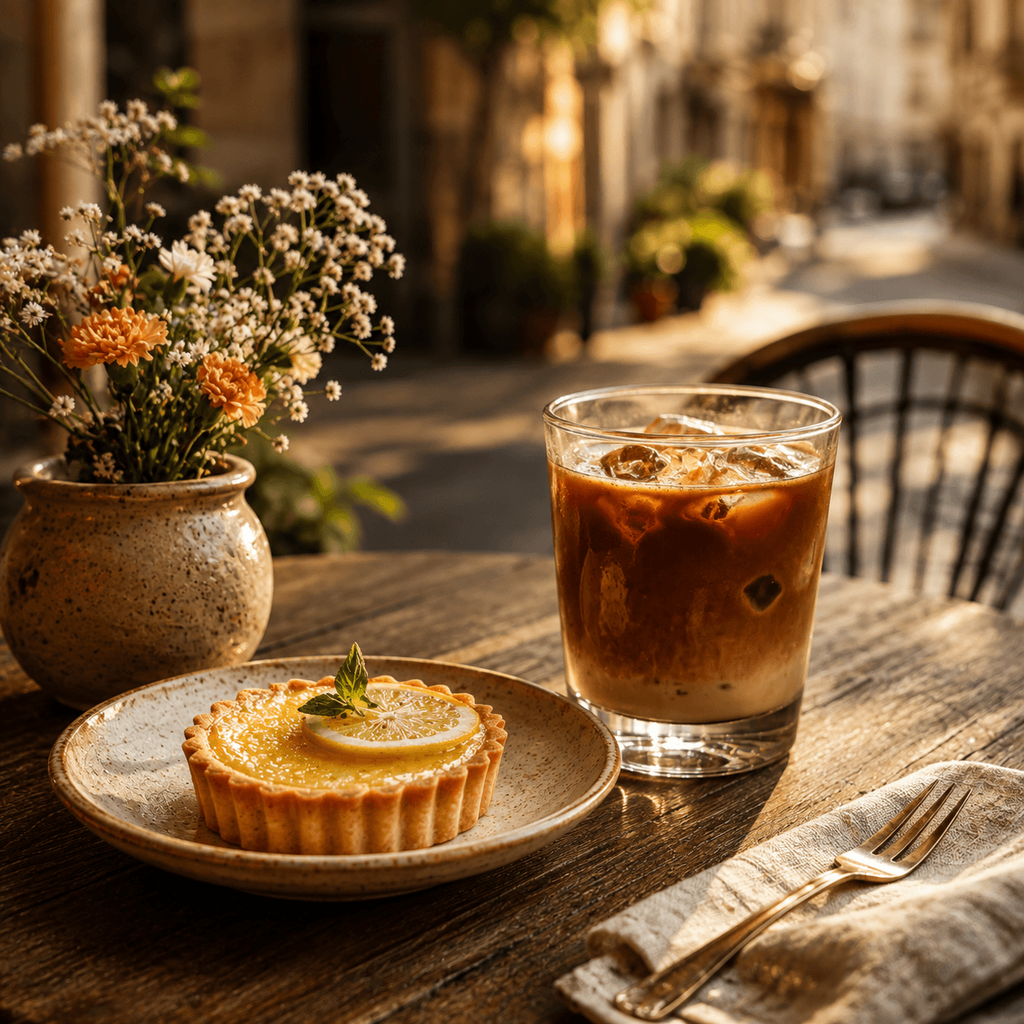


Nothing about that gallery is custom. It is an ordinary Galleryberg gallery with the layout switched to Carousel.
What You Can Control
Once you pick the Carousel layout, the sidebar gives you the settings that matter most:
- How many images are visible at a time, set separately for desktop, tablet, and mobile
- The gap between images
- Navigation arrows on or off
- Pagination dots on or off
- Autoplay, and how long each slide stays on screen
Everything else you already use keeps working. Captions still show, and clicking an image still opens it in the lightbox.
When a Carousel Works Better Than a Grid
A carousel is not always the right answer, but it earns its place in a few common situations:
- Long pages. A 24 image grid pushes everything below it off the screen. A carousel keeps the page tight and lets the rest of your content stay visible.
- Homepage sections. Featured work, recent projects, or a set of product shots sit nicely in a single row that moves.
- Product photos. Multiple angles of the same item belong in one strip, not spread across a grid.
- Portfolios and case studies. Visitors move through your images in the order you chose, one at a time, instead of scanning them all at once.
- Phone visitors. Swiping through a row is faster and more natural than scrolling past a tall stack of thumbnails.
If your goal is to let someone compare many images at a glance, stick with the grid or masonry layout. If your goal is to walk them through a set, use the carousel.
How To Switch To the Carousel Layout
- Add a Galleryberg block to your page, or open a gallery you already have.
- In the block settings on the right, open the layout dropdown.
- Choose Carousel.
- Adjust the visible images, arrows, dots, and autoplay until it looks right, then save.
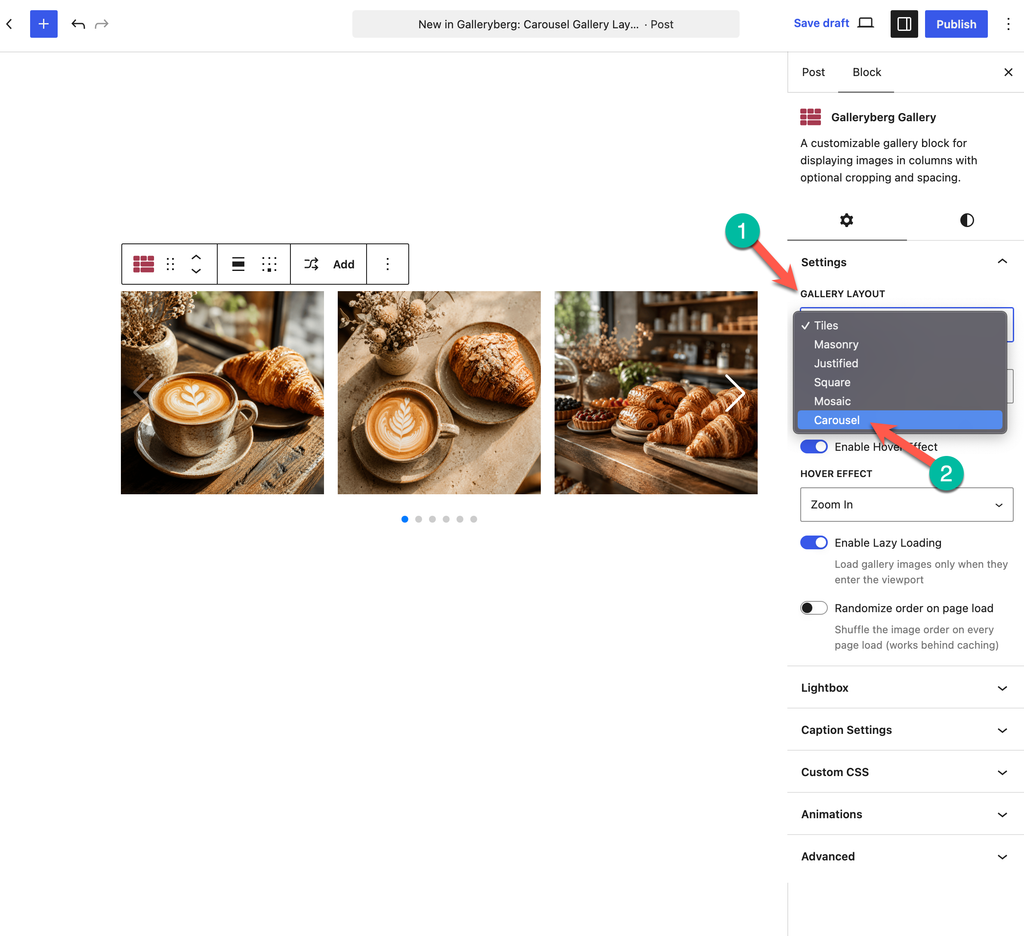
One small thing you may notice here: as of 1.2.0, all Pro layouts now appear directly in that dropdown. Before this, they were easy to miss. Now you can see everything Galleryberg offers in one place.
Randomize Image Order: A Fresh Look on Every Page Load
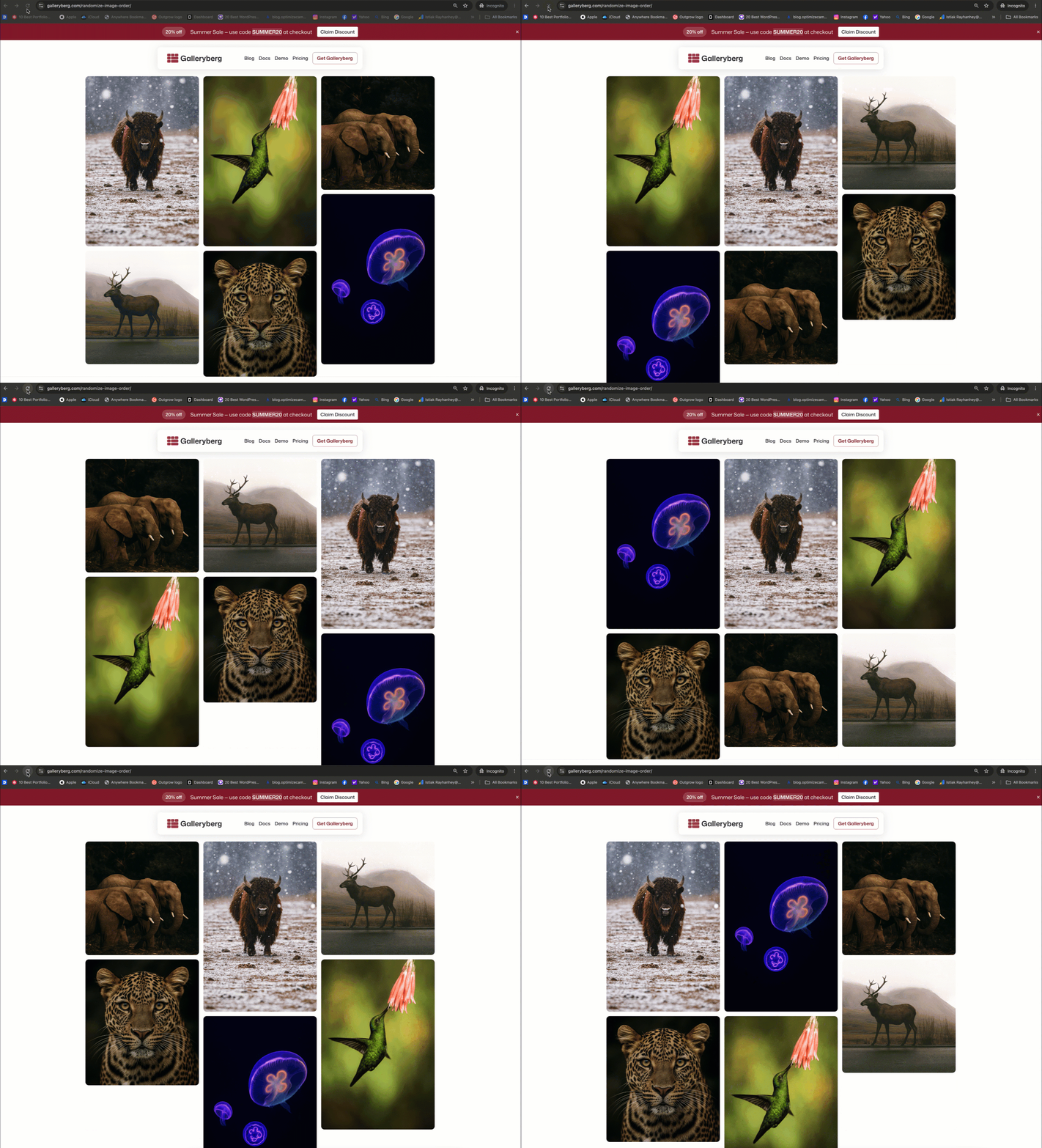
Turn on Randomize and your gallery shuffles its images every single time the page loads. Same gallery, same images, different order.
Why That Matters
- Returning visitors see something new. A gallery that looks identical on every visit stops being worth looking at. A shuffled one does not.
- Every image gets a turn at the top. In a fixed gallery, the same five images occupy the first row forever and the rest are rarely seen. Randomize spreads that attention across the whole set.
- Photographers and portfolios benefit most. If your work is the product, a gallery that feels alive says more than a static one.
- Event, team, and community galleries feel fairer. Nobody is permanently stuck at the bottom.
- It costs you nothing. One toggle, no extra work, no maintenance.
Works with caching: on a lot of sites, a randomized gallery quietly stops randomizing the moment a caching plugin is switched on, because every visitor gets served the same saved copy of the page. Galleryberg shuffles the order in the visitor’s browser, so the gallery keeps changing even with caching turned on. We tested it that way.
How To Turn On Randomize
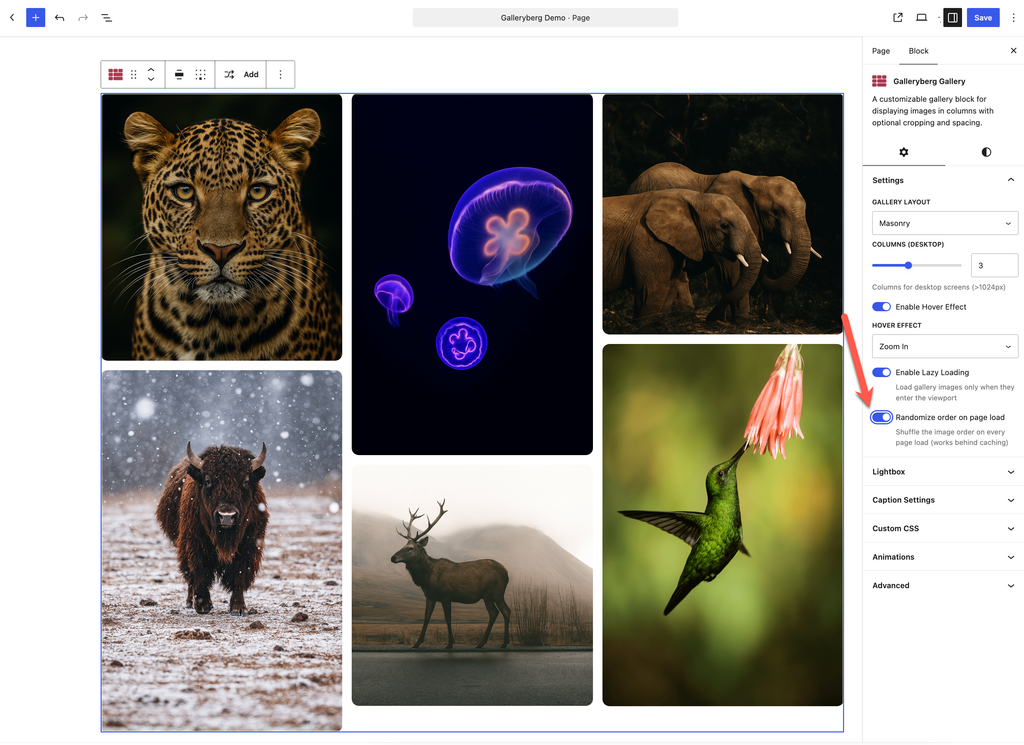
Select the Galleryberg Gallery block, find the Randomize image order toggle in the settings sidebar, and switch it on. Save the page and refresh it a couple of times to see it working.
Fixes and Improvements in 1.1.9 and 1.2.0
The rest of these two releases is maintenance work. Here is what changed and what it means for you:
| What changed | What it means for you |
|---|---|
| Lightbox fix for touch devices | Tapping an image now opens the lightbox reliably on phones and tablets |
| Lazy loaded images no longer stick (Pro) | Images finish loading properly instead of leaving a blurred placeholder behind |
| Pro no longer deactivates when the free plugin folder is renamed (Pro) | Your license keeps working even if the free plugin folder gets renamed during a migration or a manual install |
| Pro layouts listed in the layout dropdown | Every layout you have access to is visible in one dropdown, so nothing is hidden |
| Updated Freemius SDK | Behind the scenes work on licensing and updates, nothing you need to do |
If you ran into any of these, the fix is already waiting in your Plugins page.
Update Today
Head to Plugins in your WordPress dashboard and update Galleryberg to the latest version. That is all it takes.
The Carousel layout and Randomize image order are both Pro features. If you are on the free version, you will get the lightbox fix and the general improvements right away, and you can see the Pro plans here whenever you are ready for the layouts.
We build most of this from what people ask for. If there is something you want Galleryberg to do, tell us. Leave a comment below or send us a feature request, and it goes on the list.
Leave a Reply