

You’ll find a few dozens of WordPress plugins to build galleries. So, you might get confused about which one to choose out of too many options. However, if you are using the Gutenberg editor, the two most popular options at present are the Kadence Gallery block and Galleryberg.
Although both promise to make your images look great on decent gallery layouts, each one has certain uniqueness and limitations. So, in this blog post, we’ll cover an honest comparison between these two plugins in terms of their features, ease of use, performance, and other options.
By the end, you will have a clear idea of which gallery plugin works better for your needs. So, let’s get into this post right away!
What Is the Kadence Gallery Block?
The Kadence Gallery is a block of the Kadence Blocks plugin. This plugin was developed to enrich the default editor with over a dozen feature-rich custom blocks. The Gallery is a free block of the plugin. You can create different types of layouts with it, like masonry, fluid grid, and justified.
You can change hover effects, captions, borders, and image styles with ease. It includes a built-in lightbox that works smoothly on mobile devices with swipe support. You can also set different column numbers separately for desktop, tablet, and mobile screens.

Core Characteristics of Kadence Gallery Block
- A block of the entire Kadence Block plugin
- Designed for flexible page design
- Supports strong adjustment in spacing and alignment control
Explore the best alternative to the Kadence Blocks plugin.
What Is Galleryberg?
Galleryberg is a dedicated Gutenberg-friendly gallery builder plugin. It supports creating both image and video galleries directly on the editor. You don’t have to depend on shortcodes for that. You can create clean, modern, and portfolio-style galleries without using custom CSS or complex settings.
It also supports different media types, not just images. It can add visual effects such as animations and styled captions to improve the presentation. It comes with many readymade layouts, such as masonry, mosaic, tiles, justified, etc. So, you can instantly switch to other layouts to check which one suits your images best.

Core Characteristics of Galleryberg
- Advanced Lightbox system with zoom, full-screen, and social sharing options
- Customizable hover effects and image entrance animations
- Granular typography and color controls for titles and captions
- Responsive settings for independent column layouts on mobile and tablet
Core Differences: Kadence Gallery Block vs Galleryberg
As already said, both plugins have many distinguishable differences, although they are good at gallery building. So, in this section, we’ll cover the key differences between these two plugins in detail. Keep reading!
1. Gallery Specialization
Gallery specialization refers to the philosophy behind why the plugin is built. Is it for displaying only galleries or handling various web elements? Let’s check it.

Kadence Gallery Block
As already said above, Kadence treats the gallery only as a block of its large, multi-purpose ecosystem. The plugin was developed to build full websites, so the gallery is designed to stay consistent and reliable rather than stand out on its own.
Since it is a general-purpose tool, Kadence does not include many niche or artistic features that a dedicated gallery plugin might offer. The focus stays on speed, structure, and usability. This makes it ideal for business websites or blogs where galleries support the content rather than dominate it.
Galleryberg
The gallery is the core purpose of the Galleryberg plugin. This means all development effort behind the plugin goes into displaying images and videos as effectively as possible. Every small detail, from lightbox behavior to image alignment logic, is carefully refined. So, you can present images in galleries in more professional ways.
This strong focus allows Galleryberg to offer premium-style features such as dedicated video galleries and refined visual presets. These features feel more elegant and design-driven. The plugin is well-suited for photographers, artists, and travel bloggers, where images are the main content.
Key Difference –
Kadence is the better choice for users who want only a supportive gallery tool for page/post design, while Galleryberg is great for those who want to handle high-end media presentation.
Learn how to create a Pinterest-style gallery in WordPress.
2. Gallery Layout & Responsive Control
This section explains how each plugin arranges images and how those layouts adjust on different screen sizes, such as desktop, tablet, and mobile devices.

Kadence Gallery Block
Kadence allows you to set different column numbers for desktop, tablet, and mobile screens separately. You get full control over the grid structure. You can fine-tune gutters, spacing, and image ratios with exact precision for your galleries. Since it prioritizes speed and compatibility, its layouts often feel more traditional.
The system is very stable, but creating a more artistic or uneven layout usually needs extra manual adjustments. The plugin does not create artistic layouts automatically. If you want a creative or non-standard look, you must manually change settings like spacing, columns, or image sizes.
Galleryberg
Galleryberg focuses on visual balance and smart automation. Instead of relying only on fixed grids, it offers advanced layouts like the Justified Gallery. This layout automatically arranges images of different sizes into clean, aligned rows. It handles spacing and proportions on its own, so you don’t need to worry about strange crops or empty gaps.
The result feels more like a polished mosaic than a standard gallery. Its responsive behavior is designed to feel natural and effortless. Complex layouts such as masonry or tiled galleries adapt smoothly on mobile screens. It delivers a high-end visual result that normally requires custom layout logic or coding.
Key Difference –
Kadence is the better choice for users who need detailed, manual control over responsive layouts and breakpoints. Galleryberg is the better choice for users who want automated visual layouts.
Check the best WordPress hosting for food blogs.
3. Caption Options & Image Context
This section explains how each plugin handles captions and image descriptions. These elements are important for user clarity and SEO value.

Kadence Gallery Block
Kadence offers common caption positions, such as on hover or below the image, so the text stays readable and clean. Its caption styling follows the same design rules as the rest of the Kadence blocks. This makes it easy to match fonts and colors with your global theme settings.
However, since Kadence is a general-purpose plugin, it does not include advanced typography effects or animated text styles. Captions are treated as helpful labels or SEO text, not as a design feature.
Galleryberg
Galleryberg treats captions as part of the visual story. It gives more freedom in how and where text appears, such as overlay bars, centered text, or always-visible descriptions. The plugin includes detailed typography controls inside the block settings, which make captions design elements, not just labels.
Galleryberg also focuses on how captions feel during interaction. You can control how text appears on hover and how it behaves inside the lightbox. Thus, you can ensure texts do carry as much visual impact as the images themselves.
Key Difference –
Kadence is good for labeling images with names, but Galleryberg is great for artistic typography and strong editorial storytelling.
Here’s how to create a portfolio gallery in the WordPress editor.
4. Lightbox Experience
This section looks at how each plugin handles full-screen image viewing when a visitor clicks on a gallery image.

Kadence Gallery Block
The Kadence lightbox is well functional but limited in customization. It includes basic features like navigation arrows, a close button, and swipe support for mobile devices. Images open quickly without heavy scripts that could slow the browser, which is a good side of this feature of the plugin.
However, it does not include advanced interactive features or deep styling options. The design prioritizes utility over immersion, giving visitors a fast, clean way to view images and return to the page content without distractions.
Galleryberg
Galleryberg uses a premium lightbox system (GLightbox) that creates a cinematic viewing experience. It is packed with professional features like zoom, full-screen toggle, and social sharing buttons. It can also handle mixed media, allowing videos to play alongside photos in the same lightbox.
It is ideal for creators who want visitors to stay longer and engage with images and videos interactively. Because it gives deep control over overlay design and behavior. This helps make the viewing experience match the premium quality of the gallery.
Key Difference –
Kadence offers a simple lightbox experience. But Galleryberg provides a cinematic viewing experience through its lightbox.
Here’s a tutorial on how to add a lightbox to a gallery on Gutenberg.
5. Editing Experience in Gutenberg
This section explains how it feels to create and manage galleries directly within the WordPress editor.

Kadence Gallery Block
You’ll get a Gutenberg-native editing experience. The sidebar is divided into logical tabs like General, Style, and Advanced. You can adjust details such as gutter width, column spacing, and mobile breakpoints. Changes show in real-time, so you can see the results instantly.
But so many control options can often overwhelm users, especially the new ones. If they want to create certain stylizations, they have to navigate through multiple sub-menus. This is why newbies may have to invest time in the learning curve.
Galleryberg
First of all, you can switch between different readymade gallery layouts by clicking, so you can check which layout best suits your image presentation. Even after the gallery is ready, if you want to change the image position, you can do it by just dragging and dropping. This process is very simple.
If you don’t love the readymade layouts and want to make further adjustments, you can do it using the Gutenberg-native editing experience. Not only layout adjustment, but you can also add background color, typography color, animations, etc.
Key Difference –
Kadence is the better choice for users who need precise, technical control over every setting. Galleryberg is the better choice for users who want a fast, intuitive, and visually guided design workflow.
Check how to create a tabbed gallery in WordPress.
6. Performance & Plugin Scope
This section explains how each plugin affects your website’s loading speed and how much it adds to your site’s backend weight.

Kadence Gallery Block
Kadence is built with a strong ‘performance-first’ approach. As part of a larger full-site toolkit, it uses modular loading. This means it loads CSS and JavaScript for only those blocks that have been used in designing posts/pages. This keeps the gallery lightweight and optimized, which is a must for SEO.
But since Kadence is a multi-purpose plugin, you have to install the entire plugin even if you want to use only the gallery. Even if the front-end impact is minimal, you are technically adding extra code to your backend. So, it may often feel like overkill if you only need a gallery.
Galleryberg
Galleryberg is a single-purpose plugin focused entirely on image and video galleries. There is no extra code from unrelated features, which keeps the backend clean and minimal. It uses modern, lightweight scripts like GLightbox to maintain fast performance, even with premium features like animations and smart layouts.
On the front end, Galleryberg is fast and polished. Its smart features, like justified rows and animation effects, may load slightly more JavaScript than a basic Kadence grid. But this trade-off ensures your galleries look more professional and visually refined. It is great for those who want dedicated galleries without unnecessary extras.
Key Difference –
Kadence is the better choice for maximum raw speed and modular performance. Galleryberg is the better choice for a minimal plugin footprint.
Explore how to create an event gallery in WordPress.
Use-Case Breakdown: Which Plugin Fits Which Type of Sites?
Not every gallery plugin fits every website. Each tool is built with a specific purpose and audience in mind. In this section, we’ll look at the types of sites where the Kadence Gallery Block and Galleryberg suit the best. Let’s keep reading!
Best Use Cases for Kadence Gallery Block
Kadence Gallery Block works best in sites where galleries support the overall design rather than being the main attraction. Below are some of the best use cases for the block of the plugin:
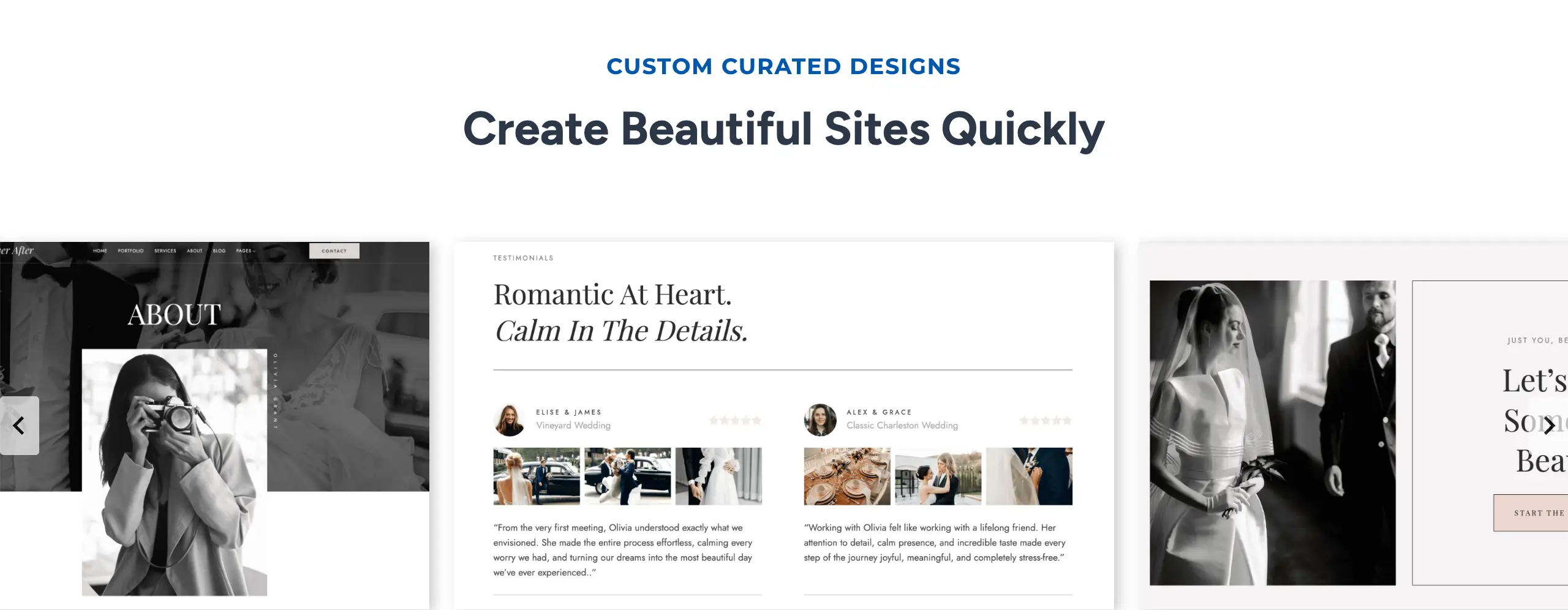
- Design-heavy landing pages: Kadence galleries integrate seamlessly with headers, buttons, and other elements. This makes them ideal for landing pages that need precise alignment and fast loading.
- Websites built primarily with Kadence Blocks: If your site already uses multiple Kadence blocks, adding a Kadence gallery will keep your website’s styling consistent across all sections.
- Pages where galleries are part of a broader layout: For sites where the gallery is one component among many, like a blog with text, testimonials, and calls-to-action, Kadence provides a reliable, structured gallery without disrupting the page flow.
Best Use Cases for Galleryberg
Galleryberg is designed for websites where images and videos are the stars of the show. Its focus is on visual storytelling, premium layouts, and creating galleries that feel like a portfolio or editorial showcase.
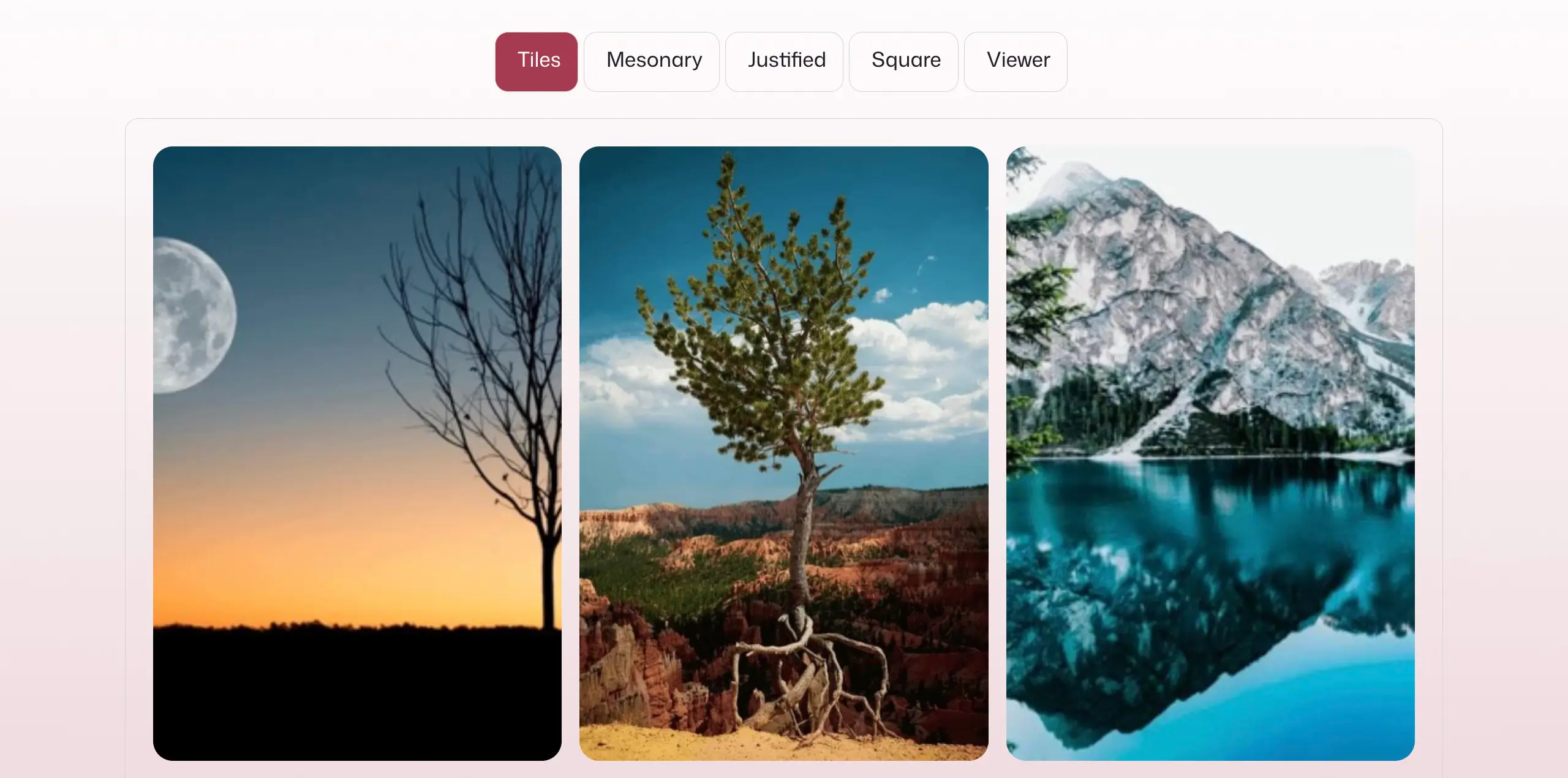
- Photography portfolios: The smart layouts, lightbox features, and aesthetic presets make Galleryberg perfect for photographers who want their work to look professional without coding.
- Travel, food, and lifestyle blogs: Image-heavy blogs benefit from Galleryberg’s ability to display diverse media beautifully and responsively. The galleries draw attention and keep readers engaged.
- Editorial sites with multiple galleries: Magazine-style sites or news blogs with multiple galleries per page can use Galleryberg to maintain consistency while presenting visually appealing content.
- Image-centric storytelling pages: For sites where images tell the story—like travel guides, project showcases, or product presentations—Galleryberg delivers a high-end, immersive experience that supports storytelling.
Feature Comparison at a Glance: Kadence Gallery Block vs Galleryberg
Now, we’ll sum up the entire discussion in the following table so you can have a quick idea about the differences between Kadence Gallery Block and Galleryberg at a glance. Have a look.
|
Feature |
Kadence Gallery Block |
Galleryberg |
|---|---|---|
|
Plugin focus |
General-purpose block plugin |