


The Gutenberg editor includes a default Table block, but it’s only suitable for basic, text-only layouts. As soon as you need responsive behavior, richer content inside cells, or advanced features like sorting, filtering, and pagination, its limitations become clear.
That’s where Gutenberg table block plugins come in. These plugins extend the native editor with greater design control, support for dynamic and non-text content, and tools for building visually appealing, feature-rich tables directly inside WordPress.
In this guide, we evaluate the best Gutenberg-compatible table block plugins for WordPress, comparing their features, performance, and real-world use cases to help you choose the right solution for your site.
Plugin |
Gutenberg-Native |
Drag & Drop |
Responsive Tables |
Sorting / Filtering |
WooCommerce |
|---|---|---|---|---|---|
Yes |
Yes |
Yes |
Limited |
Yes |
|
Yes |
Limited |
Yes |
No |
No |
|
Hybrid |
Yes |
Yes |
No |
No |
|
Hybrid |
Yes |
Yes |
Yes |
Yes |
|
Hybrid |
No |
Limited |
Via Add-ons |
No |
|
Hybrid |
Partial |
Yes |
Advanced |
Yes |
|
Yes |
Yes |
Yes |
Yes |
Limited |
How to Choose the Best Gutenberg Table Block Plugin
Each Gutenberg table plugin offers different features, but not all of them are equally important. Before choosing a plugin, it’s worth evaluating a few core capabilities that directly affect usability, performance, and long-term flexibility.
1. Gutenberg-Native Editing
A truly Gutenberg-native plugin lets you build and edit tables directly inside the block editor. Hybrid plugins rely on shortcodes or external builders, which may limit flexibility and editing convenience.
2. Sorting and Filtering Options
For tables with large datasets, features like column sorting, keyword search, and filtering are essential. These options help users quickly find relevant information without scanning entire tables.
3. Support for Multiple Content Types
Modern tables aren’t limited to plain text. A good table plugin should support images, buttons, lists, icons, ratings, or other block-based content inside table cells.
4. Mobile Responsiveness
Tables must adapt smoothly to smaller screens. Responsive layouts, horizontal scrolling, or stacked views ensure content remains readable on tablets and mobile devices.
5. Customization and Styling Controls
Beyond basic colors, look for options to adjust padding, borders, spacing, typography, and background styles. These controls help tables blend seamlessly with your site’s design.
6. Template Library
Pre-built table templates can save time and provide design inspiration, especially for pricing tables, comparison charts, or feature lists.
7. AI-Assisted Table Creation (Optional)
Some newer plugins experiment with AI-powered table generation using prompts. While useful for rapid setup, this feature should be considered a bonus rather than a core requirement.
Best Gutenberg Table Block Plugins for WordPress
There are lots of table builder plugins in WordPress, though most of them are page builder-type. Yet, there is a handful of them compatible with the Gutenberg block editor. We’ll discuss the best of them in this section.
1. Tableberg
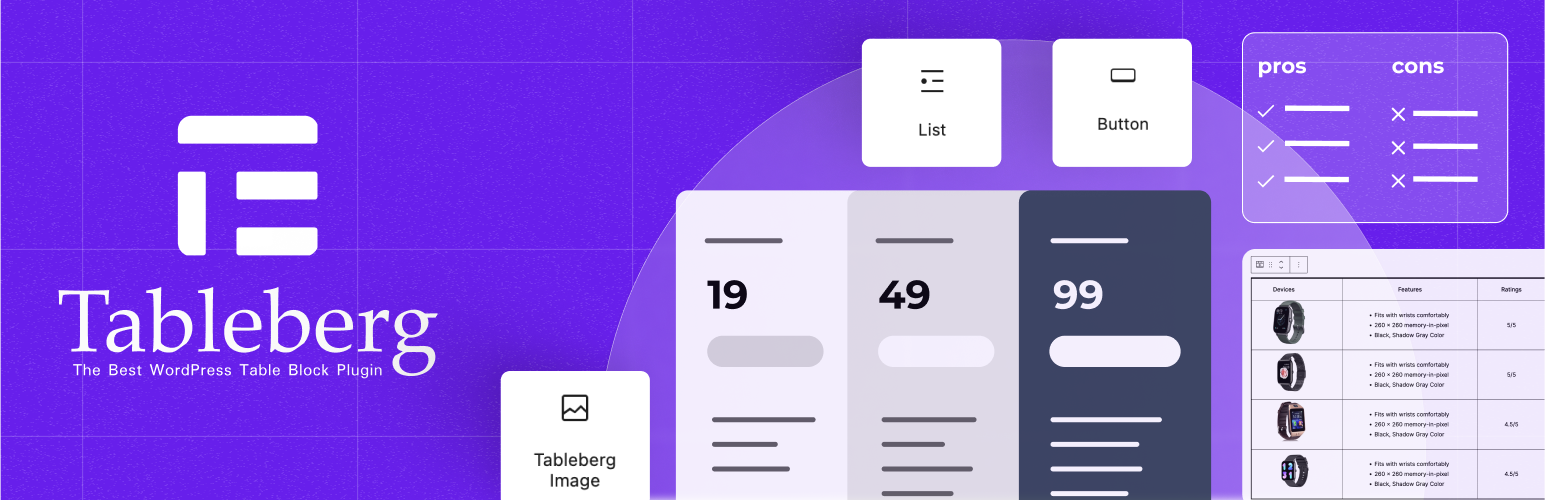
Tableberg is a Gutenberg-native table builder designed for users who want to create visually rich, block-based tables directly inside the WordPress editor. You don’t need to use shortcode or external builders.
Instead of treating tables as static grids, Tableberg allows each cell to function like a mini layout, supporting multiple block types and advanced styling options.
Key Features of Tableberg
-
Block-Based Cell Content: Tableberg lets you insert Gutenberg blocks such as images, buttons, lists, ratings, ribbons, and custom HTML directly inside table cells.
-
Gutenberg-Native Editing Experience: All tables are created and edited inside the block editor. There’s no shortcode layer or separate dashboard.
-
Advanced Styling & Layout Controls: You can customize padding, spacing, background colors, borders, border radius, and typography at the cell, row, column, or table level.
-
Global Font & Color Settings: Tableberg allows you to define global font styles and colors that apply across the entire table.
-
Responsive Table Design: Tables are optimized for mobile devices, helping ensure readability on smaller screens without breaking layouts.
-
Template Library: The plugin includes a growing collection of ready-made table templates, which can significantly reduce setup time for common use cases like pricing tables or feature comparisons.
-
AI-Assisted Table Creation (Pro): The Pro version introduces prompt-based table generation, allowing users to create tables by describing their structure and content.
Pros
-
Fully Gutenberg-native (no shortcodes)
-
Supports rich, block-based content inside table cells
-
Strong visual customization options
-
Suitable for multiple use cases beyond basic data tables
Cons
-
No advanced filtering
-
Not ideal for large datasets
-
AI features require the Pro version
Pricing of Tableberg
Tableberg has a free version available. Its premium version starts from $49/year with a 30-day refund policy.
Best for: Gutenberg-native visual table building
2. RioVizual

RioVizual is a relatively new table block plugin. But due to its feature set and roadmap, we can count it as a promising tool in the field. So far, the plugin offers three blocks for building comparison tables, pricing tables, and pros & cons boxes.
Developers behind the plugin are working to release more blocks in the near future. Each table is SEO-friendly and mobile-optimized, ensuring better visibility in search engines and a smooth user experience on any device.
Key Features of RioVizual
-
Drag-and-Drop: Although a block plugin, it allows you to create tables directly in the WordPress editor using its drag-and-drop editor for placing elements.
-
50+ Templates: You get access to more than 50 pre-designed templates that include comparison, pricing, and pros & cons tables.
-
12 Table Elements: It includes 12 table elements: text, image, button, list, icon, shortcode, media & text, icon list, icon button, dual button, star rating, and divider.
-
Flexible Layout: You’ll have optimum control in customizing the cells, rows, and columns as you want in every possible way.
-
Pros & Cons Schema Support: It enables Google to easily crawl and display your pros and cons in rich snippets.
Pros
-
Great template collection
-
Free version
-
SEO-friendly & fast
Cons
-
Limited interactivity
-
No sorting or filtering
Pricing of RioVizual
RioVizual has a free version available. Its premium version starts from $49/year with a 30-day refund policy.
Best for: Lightweight Gutenberg tables with clean markup
3. WP Table Builder

WP Table Builder is one of the most powerful and beginner-friendly drag-and-drop table plugins for WordPress. Although you cannot directly build tables with the plugin in the WordPress editor, it generates a shortcode for each table. By embedding the shortcode, you can easily create tables in the editor.
You will get almost all the features in this plugin that are available in Tableberg. In some cases, WP Table Builder is capable of outperforming the other one. With extensive customization options and a template library, this plugin is equally great for all types of users, such as bloggers, agency owners, eCommerce sellers, marketers, and more.
Key Features of WP Table Builder
-
Drag and Drop: WP Table Builder comes with a smooth drag-and-drop interface. You can simply pick elements and place them inside the table without any coding.
-
Prebuilt Templates: As the plugin has a resourceful template library, you can save valuable time just by using any suitable template or save a new design to use it again whenever needed.
-
Generates Shortcodes: Each table generates a shortcode. So, you can display tables both in the Gutenberg editor and the page builder by embedding the shortcode.
-
Migrate from TablePress: If you’re using TablePress, you can move all your existing tables to WP Table Builder with just one click. Easy migration!
-
Sortable Tables: Visitors can sort the table data just by clicking on columns. This helps them quickly organize the information based on their needs.
-
Sticky Rows and Columns: You can make the first row or first column “sticky” so it stays visible when the table is scrolled. This is extremely useful for large tables.
Pros
-
Easy to merge cells, rows, and columns
-
Set custom border colors
-
Full background color control
-
Built-in lazy load
Cons
-
Hasn’t incorporated AI table builder yet
-
Limited integration with other tools
Pricing of WP Table Builder
WP Table Builder has a free version available. Its premium version starts from $99/year for unlimited websites with a 14-day refund policy.
Best for: Simple visual tables without advanced logic
4. Ninja Tables
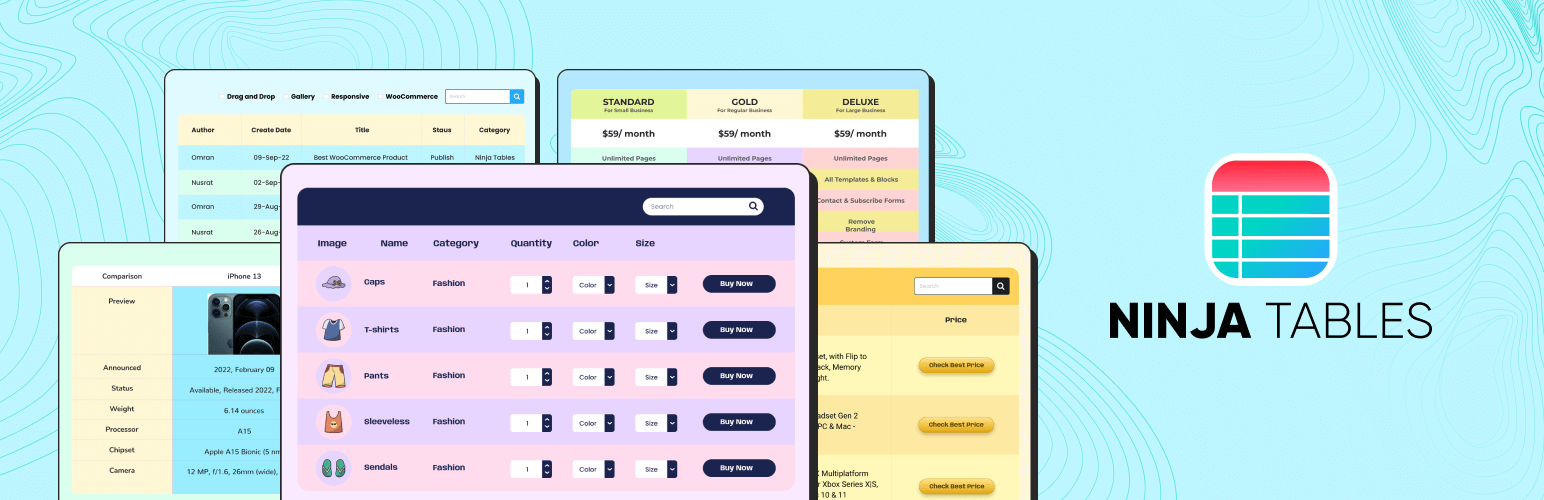
With 400+ positive ratings, Ninja Tables is one of the best and most popular table builders for WordPress. You can utilize it for multipurpose use cases, for example, product comparison tables, pricing tables, WooCommerce product lists, or even sports or academic charts.
Once the plugin is installed, it adds a menu in the WordPress dashboard where you can create and manage unlimited tables. After that, by adding the Ninja Tables block to the editor, you can select the table you created in the backend to display it on your page or post.
Key Features of Ninja Tables
-
Drag and Drop: You can add elements like text, icons, buttons, ratings, ribbons, and even progress bars to your tables just by dragging and dropping to create content.
-
30+ Free Templates: Those who are just free users can have access to 30+ predesigned templates in the free version, which is really great.
-
Design Customization: You can choose from 100+ styling options, change color schemes, borders, spacing, and fonts.
-
Import and Export Tables: If you have multiple websites using the Ninja Tables plugin, you can display the same tables everywhere just by importing and exporting.
-
Conditional Formatting: It’s easy to configure rules and conditions to highlight key information. This is useful for grading tables, price comparison, or reviews.
-
Integrates WooCommerce: It can display WooCommerce products in a dynamic table format to let customers view product lists at a glance.
Pros
-
Integrates Google Sheet
-
Dynamic data support
-
Integrates Fluent Forms
-
Chart integration
Cons
-
No AI integration
-
Limited data types
Pricing of Ninja Tables
Ninja Tables has a free version available. Its premium version starts from $79/year with a 14-day refund policy.
Best for: WooCommerce and data-driven tables
5. TablePress

TablePress is the most top-rated WordPress table plugin with the largest user base. It currently has over 700,000 active users. It doesn’t matter if you want to build simple tables or advanced data charts; you can do everything easily with the plugin.
Similar to the above plugin, TablePress also creates an admin menu in the backend dashboard, where you’ll find an extensive editor to create various types of tables. Once done, you have to add the TablePress block to the editor and select the table you want to publish.
Key Features of TablePress
-
Shortcode, Gutenberg, and Elementor: You can insert tables into any post, page, or widget using shortcodes. It also includes a block for Gutenberg and a widget for Elementor.
-
Live Sorting, Searching, and Pagination: It allows sorting by columns, search bars, and pagination on the frontend to quickly find information
-
Custom Search Builder: It displays an advanced search interface with grouped filters and condition-based queries, which is perfect for larger databases and listings.
-
REST API Access: This is especially for developers. It enables you to access and manage table data via the WordPress REST API.
-
User Action Buttons: You can add buttons (like download, print, and copy) above or below the table that let users complete specific actions.
Pros
-
Math formula integration
-
Large community support
-
Import/export flexibility
-
Regular updates
Cons
-
No template
-
Lacks Google Sheet integration
Pricing of TablePress
TablePress has a free version available. Its premium version starts from $89/year with a 30-day refund policy.
Best for: Structured data and developer flexibility
6. wpDataTables
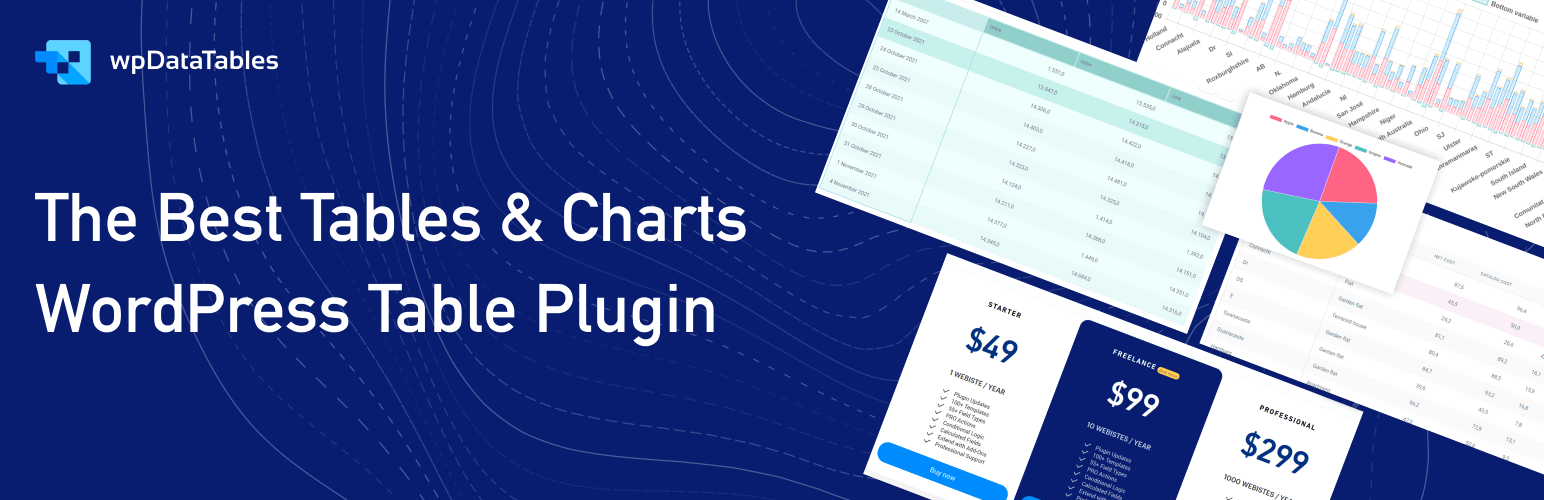
wpDataTables is a promising table and chart plugin. This means that not only tables but also can you create charts with it. The plugin lets you do this on WordPress using data directly from Excel, CSV, JSON, XML, PHP arrays, and even live MySQL databases.
Just upload your file or connect your data source. wpDataTables will do the rest. Its Excel-style editor lets you build or edit tables manually, merge cells, add star ratings, insert images, and style each cell with different fonts, colors, and sizes.
Key Features of wpDataTables
-
Create Tables from Multiple Data Sources: As already said, you can create tables from Excel, CSV, JSON, XML, Google Sheets, PHP arrays, or MySQL queries.
-
Front-End Table Editing: You can allow users or logged-in members to edit table data directly from the front end. This is great for creating user-submitted content.
-
Built-in Chart Creation: You can turn your tables into colorful and interactive charts. It supports Google Charts, Highcharts, Chart.js, and ApexCharts.
-
Multilingual and RTL Support: It supports WPML and other translation tools. It also works with RTL (right-to-left) languages like Arabic and Hebrew.
-
Import and Export Support: You can export your tables to Excel, CSV, or PDF. Then, you can import them into other sites to quickly prepare the table again.
Pros
-
Conditional formatting
-
WooCommerce integration
-
Front-end editing
-
Export options
Cons
-
Steep learning curve
-
No template
Pricing of wpDataTables
wpDataTables has a free version available. Its premium version starts from $49/year with a 15-day refund policy, based on several conditions being met.
Best for: Advanced data visualization and automation
7. TableStack
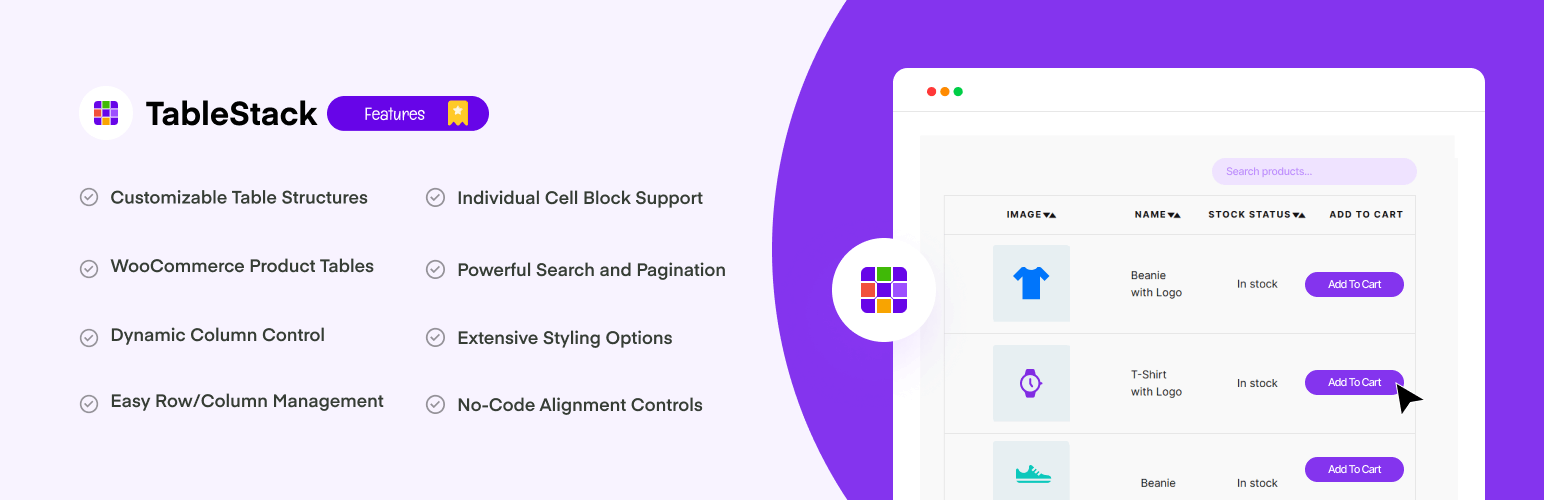
TableStack is another pure table block plugin for WordPress. You don’t have to depend on any shortcode. However, TableStack is also a new plugin and newer than all the others in this post. But we are counting this one also as a promising tool because of its user-friendliness and feature-richness.
With drag-and-drop column rearrangement, dynamic cell content, and responsive layouts, users can create everything from product tables and pricing charts to detailed comparison tables with this plugin.
Key Features of TableStack
-
Sticky Columns: You can pin important columns so they stay visible when the table is scrolled horizontally. Hope you already know about this feature.
-
Advanced Filtering: With built-in filtering options, you can let users filter the table data based on specific values.
-
Search Functionality: This feature includes a live search function, allowing visitors to type keywords and instantly find matching rows within the table.
-
WooCommerce Integration: You can create product comparison tables for WooCommerce stores and add ‘Add to Cart’ buttons inside table cells.
-
Custom Stylization: It’s easy to customize the colors, padding, borders, fonts, and other visual settings of your tables.
Pros
-
Affiliate elements support
-
Five Gutenberg blocks
-
Responsive layouts
-
Export to Excel/CSV/PDF
Cons
-
No Pro version yet
-
No database connection
Pricing of TableStack
TableStack is completely free to use. Because it doesn’t have a premium version yet.
Best for: Interactive Gutenberg tables
Final Words!
When choosing any tool online, budget is often an important factor alongside features. That’s why in this article, we’ve included not only feature-rich tools but also those that are budget-friendly.
We hope you’ll be able to find the best Gutenberg table block plugin for WordPress that matches your needs from the ones we’ve shared here. Thank you for staying with us and reading the full post.
Leave a Reply