


Do you want visitors to see the small details in your photos? A product shot, a piece of jewelry, a painting, or a landscape often looks much better when people can get a closer look.
WordPress does not have a real zoom feature for gallery images. In this guide, we will show you two easy ways to add zoom to your WordPress galleries: a gentle zoom effect when visitors hover over an image, and a fullscreen lightbox where they can zoom in and drag the photo around. No code needed.
Why Add Zoom to Gallery Images?
Gallery thumbnails are small by design. Zoom lets visitors look closer without leaving the page. It is especially useful for:
- Online stores: shoppers want to see fabric, stitching, and finish before they buy.
- Photographers and artists: visitors can enjoy the texture and detail of your work.
- Real estate and travel sites: people can inspect a room or a view more closely.
- Any gallery: a small hover zoom makes the grid feel alive and shows that images are clickable.
Two Types of Image Zoom
Before we start, it helps to know the two kinds of zoom you can add:
- Hover zoom: the image grows slightly inside its frame when the mouse moves over it. It is a visual effect that makes the gallery more interactive.
- Lightbox zoom: clicking a thumbnail opens the photo in a fullscreen popup. Inside that popup, visitors can zoom in to the full resolution and drag the image to explore every corner.
The best galleries usually use both. Hover zoom invites the click, and the lightbox gives the close look.
Method 1: Enlarge Images With the Default WordPress Blocks
The default Image and Gallery blocks include an option called Enlarge on click. Here is how to use it:
- Add an Image or Gallery block to your post or page and insert your photos.
- Select an image and click the Link icon in the block toolbar.
- Choose Enlarge on click.
- Update or publish the page.
Now the image opens in a larger overlay when clicked. This works for a single photo, but it has limits for galleries. There is no hover zoom effect, no way to zoom further inside the overlay, and visitors cannot move to the next image with arrows. You also have to set it on each image.
If you want a gallery where visitors can zoom and browse, a dedicated gallery block is a better fit. We cover the differences in detail in how to enlarge an image on click in WordPress.
Method 2: Add Zoom to a Gallery With Galleryberg
Galleryberg is a gallery block for the WordPress block editor. The core Galleryberg plugin includes both a hover zoom effect and a lightbox with built in zoom and drag, so you can set everything up in a few clicks.
Step 1: Install Galleryberg
In your WordPress dashboard, go to Plugins » Add New Plugin and search for Galleryberg. Click Install Now, then Activate.

Step 2: Create Your Gallery
Open the post or page where you want the gallery. Click the + button, search for Galleryberg, and add the gallery block. Then upload new photos or pick them from your Media Library.
Choose a layout that suits your photos: Tiles, Square, Masonry, or Justified. Galleryberg Pro adds Mosaic and Carousel layouts too. If you are new to the block, our guide on how to create an image gallery in WordPress walks through the basics.
Step 3: Turn On the Hover Zoom Effect
Select the gallery block. In the settings sidebar, switch on Enable Hover Effect. A Hover Effect dropdown appears with two choices:
- Zoom In: the image grows a little when the mouse moves over it. This is the most popular choice.
- Zoom Out: the image starts slightly zoomed and eases back to its normal size on hover.
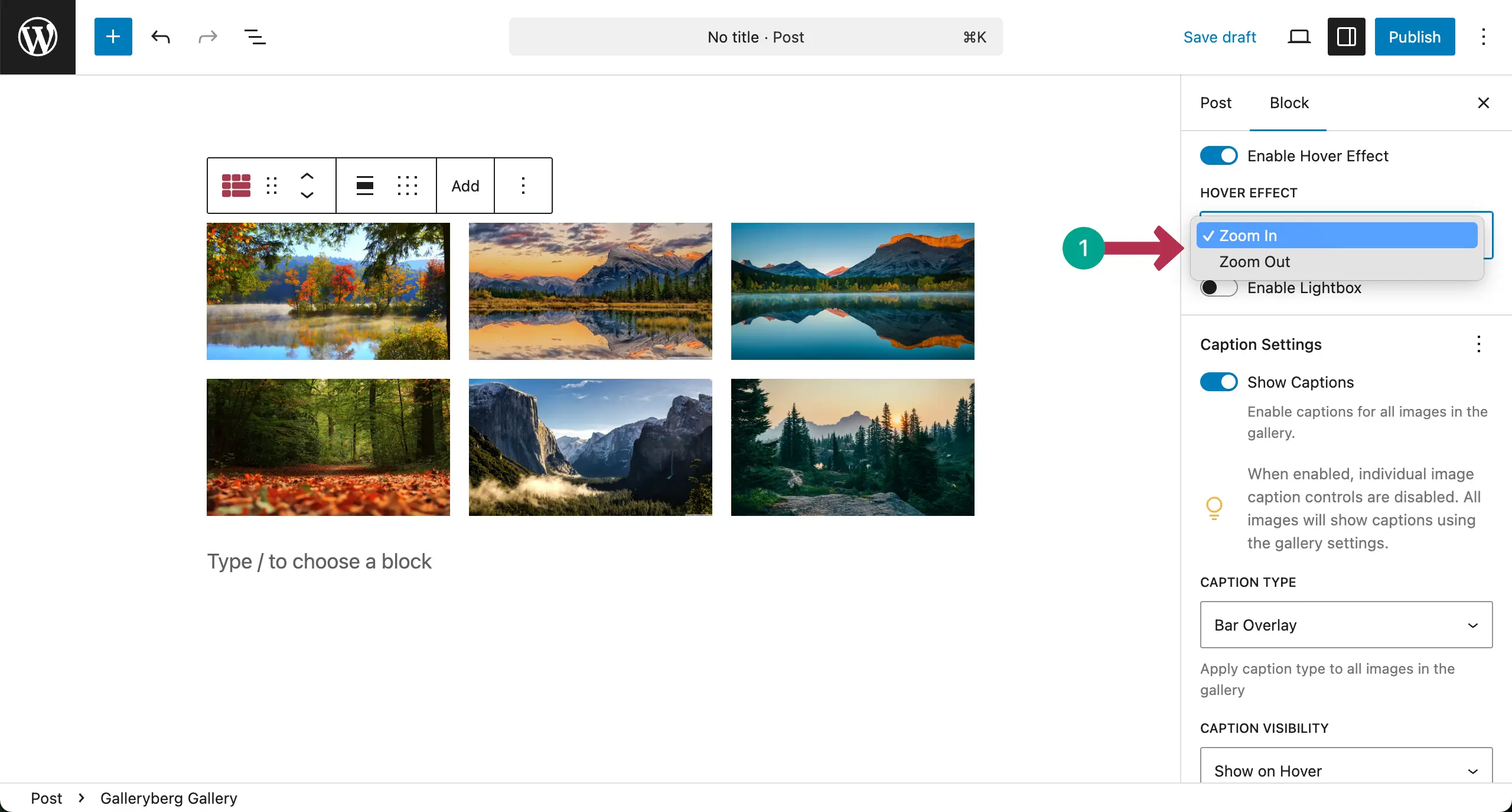
The zoom happens inside each image frame, so your grid stays neat and nothing overlaps.
Step 4: Turn On the Lightbox
Next, open the Lightbox panel and switch on Enable Lightbox. Now each image opens in a fullscreen popup when clicked, and visitors can move between photos with arrows, swipes, or the keyboard.
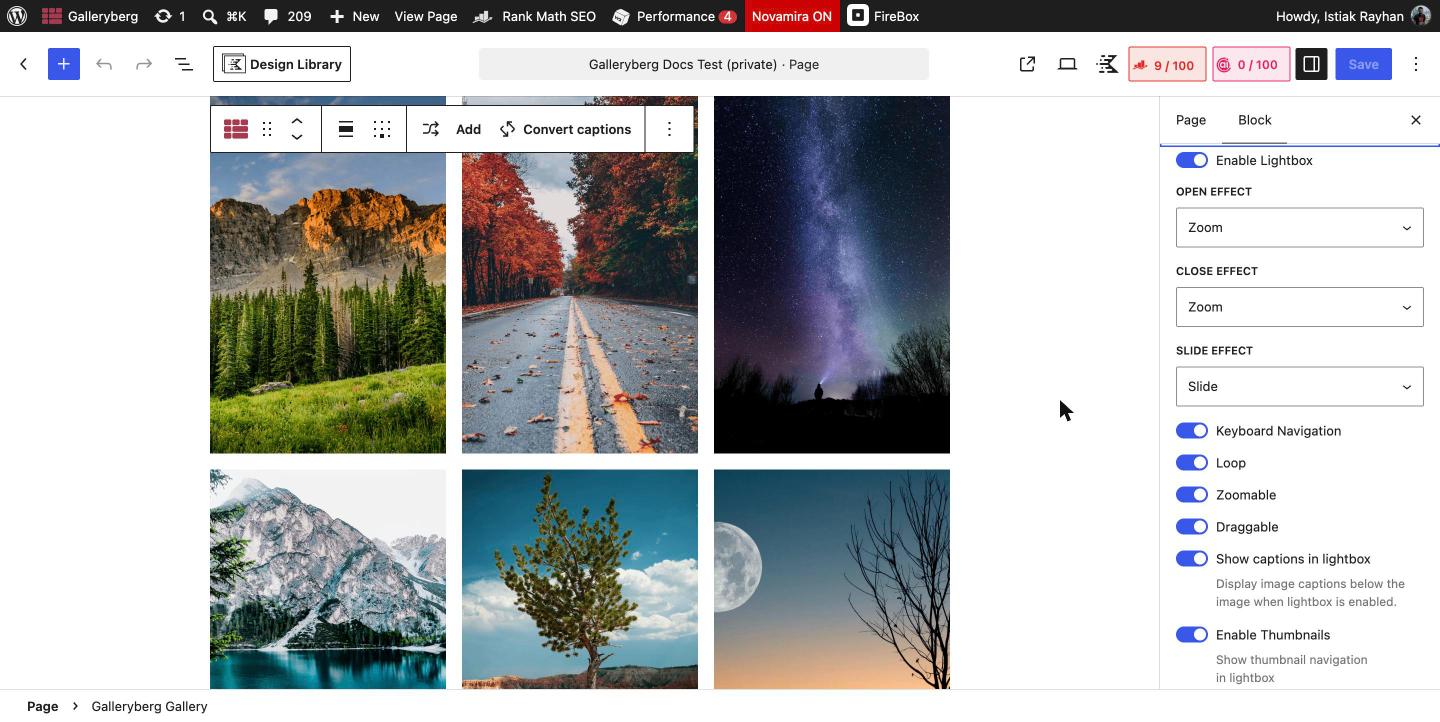
You can also pick the open, close, and slide effects here. For more ideas, see our guide to lightbox effects for WordPress galleries.
Step 5: Check the Zoomable and Draggable Options
In the same Lightbox panel, make sure Zoomable and Draggable are switched on. Both are on by default.
- Zoomable lets visitors click the photo inside the lightbox to zoom in to its full size. Clicking again zooms back out.
- Draggable lets visitors drag the image around while zoomed in, so they can explore every part of a large photo.
Keep in mind that the lightbox can only zoom past the screen size if the original photo is bigger than the screen. A 640 pixel wide image will open in the lightbox, but there is nothing extra to zoom into. Upload high resolution photos for the best result.
Step 6: Preview and Publish
Click Preview to test the gallery. Move your mouse over the images to see the hover zoom, then click one and try zooming inside the lightbox. When you are happy, click Publish or Update.
Live Demo: A Gallery With Hover and Lightbox Zoom
Here is a real Galleryberg gallery with the Zoom In hover effect and a zoomable lightbox. Hover over a photo, then click it and click again inside the lightbox to zoom in and drag it around. On desktop, try the sneaker close up to see the fabric texture.



Tips for Sharp, Zoom Friendly Galleries
- Use large originals: photos around 2000 to 2560 pixels on the long side give the lightbox enough detail to zoom into on most screens.
- Compress before you upload: large photos can slow your page down. Save them as WebP or a well compressed JPEG. Our tips on making galleries load faster can help, and Galleryberg Pro adds lazy loading.
- Pick the right layout: Masonry and Justified layouts show each photo at its natural shape, which is great for detailed shots. See how to create a Masonry gallery.
- Write clear alt text: describe each image so search engines and screen reader users know what is in it.
- Show captions in the lightbox: turn on lightbox captions to add product names or photo details while people are zoomed in.
- Add lightbox thumbnails with Pro: Galleryberg Pro can show a thumbnail strip in the lightbox, so visitors can jump straight to the photo they want to inspect.
Frequently Asked Questions
Can I zoom in on images in WordPress without a plugin?
Partly. The default Image and Gallery blocks can enlarge an image on click, but they have no hover zoom effect and no way to zoom further inside the overlay. For real zoom in a gallery, you need a gallery plugin such as Galleryberg.
Is image zoom included in the core Galleryberg plugin?
Yes. The Zoom In and Zoom Out hover effects and the zoomable, draggable lightbox are all part of the core Galleryberg plugin. Galleryberg Pro adds extras like lightbox thumbnails, lazy loading, and more layouts.
Why does nothing happen when I click to zoom in the lightbox?
The photo is probably smaller than your screen, so there is no extra detail to show. Upload a larger version of the image, around 2000 pixels or more on the long side, and check that Zoomable is switched on in the Lightbox panel.
Does lightbox zoom work on phones?
Yes. The lightbox works on touch screens, and visitors can swipe between images. Zooming works best with large, high resolution photos.
Conclusion
Zoom helps visitors enjoy the details that make your photos special. The default WordPress blocks can enlarge a single image, but for a full gallery, Galleryberg gives you a hover zoom effect and a lightbox with real zoom and drag in just a few clicks. Upload high resolution photos, turn on both options, and your gallery is ready for a closer look.
Want to take your gallery further? Learn how to use custom CSS in WordPress image galleries to fine tune the look.